

제품 500개, 이벤트 배지 100개, 매장 50곳에 QR 코드가 필요하다면 하나씩 만들기는 현실적이지 않아요. 대량 생성을 쓰면 과정을 자동화할 수 있어요. 데이터 소스를 정하고, QR 코드 설정값을 지정한 뒤 모든 코드를 프로그래밍 방식으로 생성하면 돼요.
단축 링크 API에 대해서는 다음을 참고하세요 단축 링크 API: 프로그래밍 방식 링크 생성. 동적 QR 코드는 다음을 참고하세요 동적 QR 코드: 재인쇄 없이 목적지 변경.
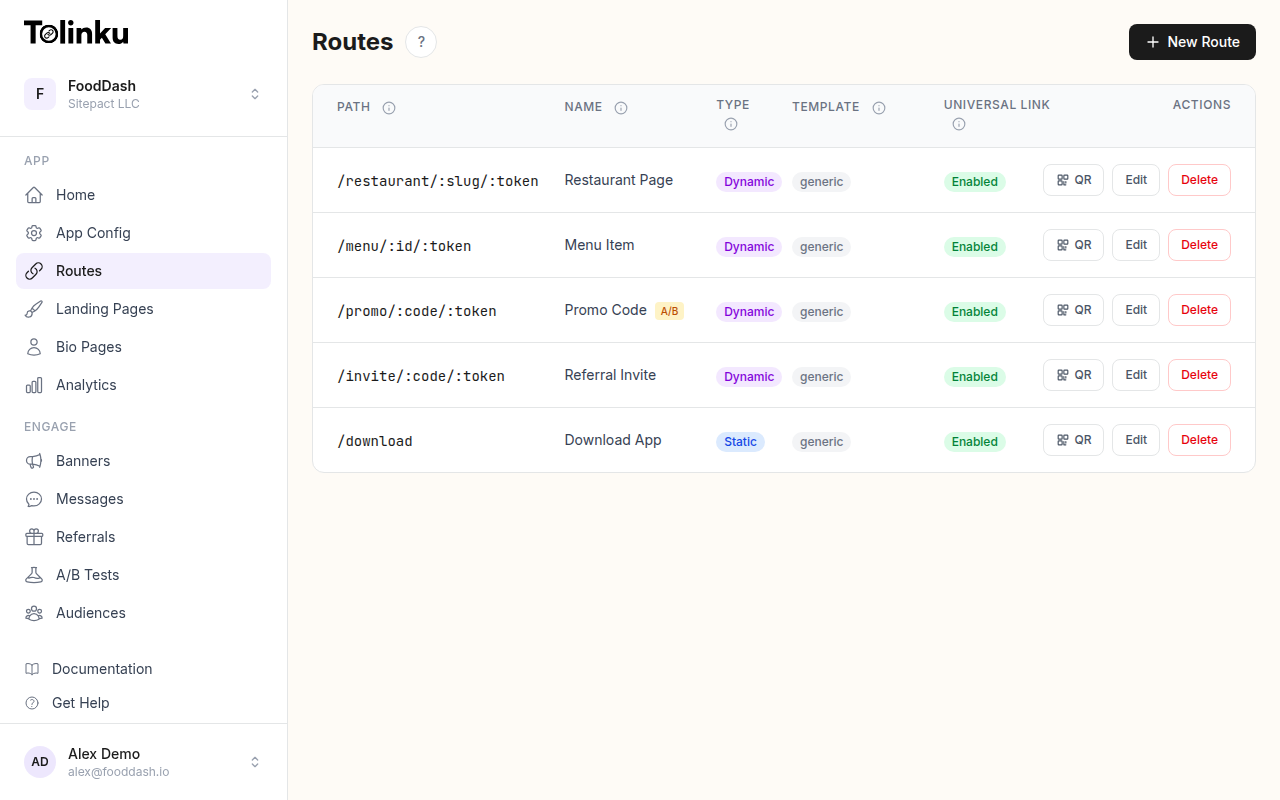 Tolinku 라우트 설정에서 각 딥 링크의 QR 코드를 생성해요.
대량 생성이 필요한 경우
| 사용 사례 | 규모 | 데이터 소스 |
|---|---|---|
| 제품 포장 | SKU당 수백~수천 개 | 제품 데이터베이스 |
| 매장 위치 | 수십~수백 개 | 위치 데이터베이스 |
| 이벤트 배지 | 수백~수천 개 | 등록자 명단 |
| 재고/자산 태그 | 수천 개 | 자산 관리 시스템 |
| 다이렉트 메일 캠페인 | 수천 개 | CRM/메일링 리스트 |
| 메뉴 항목 | 수십 개 | 메뉴 데이터베이스 |
방법 1: 스크립트 기반 생성
일회성 일괄 생성에는 QR 코드 라이브러리와 스크립트를 사용하세요.
Node.js 사용 시: qrcode
npm install qrcode
import QRCode from 'qrcode';
import { readFileSync, writeFileSync, mkdirSync } from 'fs';

interface Product {
  sku: string;
  name: string;
  url: string;
}

async function generateBatch(products: Product[], outputDir: string) {
  mkdirSync(outputDir, { recursive: true });

  for (const product of products) {
    const filename = `${outputDir}/${product.sku}.png`;

    await QRCode.toFile(filename, product.url, {
      errorCorrectionLevel: 'M',
      width: 400,
      margin: 4,
      color: {
        dark: '#000000',
        light: '#FFFFFF'
      }
    });

    console.log(`Generated: ${filename}`);
  }
}

// 예시: JSON 파일에서 생성
const products: Product[] = JSON.parse(
  readFileSync('products.json', 'utf8')
);

generateBatch(products, './qr-codes');
Python 사용 시: qrcode
pip install qrcode[pil]
import qrcode
import json
import os

def generate_batch(products, output_dir):
    os.makedirs(output_dir, exist_ok=True)

    for product in products:
        qr = qrcode.QRCode(
            version=None,  # 자동 감지
            error_correction=qrcode.constants.ERROR_CORRECT_M,
            box_size=10,
            border=4
        )
        qr.add_data(product['url'])
        qr.make(fit=True)

        img = qr.make_image(fill_color='black', back_color='white')
        filename = f"{output_dir}/{product['sku']}.png"
        img.save(filename)
        print(f"Generated: {filename}")

# 제품 목록 불러오기
with open('products.json') as f:
    products = json.load(f)

generate_batch(products, './qr-codes')
입력 데이터 형식
QR 코드마다 필요한 데이터를 담은 CSV나 JSON 파일을 준비하세요:
[
  {
    "sku": "PROD-001",
    "name": "Widget A",
    "url": "https://go.yourcompany.com/products/PROD-001?source=packaging"
  },
  {
    "sku": "PROD-002",
    "name": "Widget B",
    "url": "https://go.yourcompany.com/products/PROD-002?source=packaging"
  }
]
또는 CSV 파일로:
sku,name,url
PROD-001,Widget A,https://go.yourcompany.com/products/PROD-001?source=packaging
PROD-002,Widget B,https://go.yourcompany.com/products/PROD-002?source=packaging
방법 2: API 기반 생성
작업 흐름에 QR 코드 생성을 계속 연동하려면 QR 코드 API나 링크 관리 플랫폼의 API를 사용하세요.
워크플로
- API로 항목마다 단축 링크를 만드세요.
- 단축 링크 URL마다 QR 코드를 생성하세요.
- QR 코드 이미지를 다운로드하거나 저장하세요.
async function createLinkAndQR(item: Item): Promise<QRResult> {
  // 1단계: 단축 링크 만들기
  const link = await createShortLink({
    destination: `https://yoursite.com/products/${item.sku}`,
    slug: item.sku.toLowerCase(),
    tags: ['packaging', item.category]
  });

  // 2단계: 단축 링크용 QR 코드 생성
  const qrBuffer = await generateQRCode(link.shortUrl, {
    size: 400,
    errorCorrection: 'M'
  });

  // 3단계: QR 코드 저장
  writeFileSync(`./qr-codes/${item.sku}.png`, qrBuffer);

  return {
    sku: item.sku,
    shortUrl: link.shortUrl,
    qrPath: `./qr-codes/${item.sku}.png`
  };
}

// 모든 항목 처리
const results = [];
for (const item of items) {
  const result = await createLinkAndQR(item);
  results.push(result);
}

// 매니페스트 저장
writeFileSync('qr-manifest.json', JSON.stringify(results, null, 2));
방법 3: 스프레드시트 기반
마케팅 팀에서 스프레드시트를 선호하는 경우:
- QR 코드마다 한 행을 쓰는 스프레드시트를 준비하세요(열: ID, URL, 라벨).
- Google 시트 부가기능이나 Excel 매크로로 QR 코드를 생성하세요.
- 이미지를 ZIP 파일로 내보내세요.
Google 시트 수식 (간단한 방식)
Google 시트에서는 Google Charts API로 QR 코드를 만들 수 있어요:
=IMAGE("https://chart.googleapis.com/chart?chs=200x200&cht=qr&chl=" & ENCODEURL(B2))
스프레드시트에서 미리 보기로 확인할 수 있어요. 인쇄 품질 이미지가 필요하면 전용 도구를 사용하세요.
출력 형식
| 형식 | 사용 사례 | 파일 크기 |
|---|---|---|
| PNG | 인쇄와 디지털 모두 가능, 호환성 가장 좋음 | 중간 |
| SVG | 인쇄용(벡터, 어떤 크기에서도 선명함) | 작음 |
| 재단선이 포함된 인쇄용 | 중간 | |
| EPS | 전문 인쇄 작업용 | 중간 |
인쇄에는 SVG나 PDF를 권장해요. 벡터 형식은 크기를 바꿔도 가장자리가 선명하게 유지되기 때문이에요.
이름 짓기와 정리
파일 이름 규칙
일관된 이름 규칙을 사용하세요:
{sku}-qr.png          → PROD-001-qr.png
{location-id}-qr.png  → store-downtown-qr.png
{badge-id}-qr.png     → attendee-12345-qr.png
매니페스트 파일
각 QR 코드와 메타데이터를 연결하는 매니페스트를 생성하세요:
{
  "generated": "2026-08-05T10:00:00Z",
  "count": 500,
  "codes": [
    {
      "id": "PROD-001",
      "file": "PROD-001-qr.png",
      "url": "https://go.yourcompany.com/products/PROD-001",
      "errorCorrection": "M",
      "size": 400
    }
  ]
}
이 매니페스트는 인쇄 제작, 감사 기록, 재생성에 유용해요.
품질 검사
자동 스캔 테스트
일괄 생성 후에는 프로그램으로 스캔 가능 여부를 확인하세요:
import { readQRCode } from 'qr-scanner-library';

async function verifyBatch(qrDir: string, manifest: Manifest) {
  const failures = [];

  for (const code of manifest.codes) {
    const imagePath = `${qrDir}/${code.file}`;
    const decoded = await readQRCode(imagePath);

    if (decoded !== code.url) {
      failures.push({
        id: code.id,
        expected: code.url,
        decoded: decoded || 'SCAN_FAILED'
      });
    }
  }

  if (failures.length > 0) {
    console.error(`${failures.length} QR codes failed verification`);
    console.error(JSON.stringify(failures, null, 2));
    process.exit(1);
  }

  console.log(`All ${manifest.codes.length} QR codes verified`);
}
인쇄 교정본
전체 인쇄 전에 확인하세요:
- 실제 크기로 샘플 QR 코드 5~10개를 인쇄하세요.
- 서로 다른 휴대폰 최소 3대로 각각 스캔해 보세요.
- 목적지 URL이 맞는지 확인하세요.
- 인쇄물에서 명암 대비와 여백(quiet zone)을 확인하세요.
대규모 처리 성능
| 규모 | 스크립트 실행 시간 (Node.js) | 비고 |
|---|---|---|
| 100 | 약 5초 | 단순 배치 |
| 1,000 | 약 30초 | 병렬 생성 추가 |
| 10,000 | 약 3분 | 출력 스트리밍, 병렬 처리 |
| 100,000 | 약 30분 | 워커 스레드 도입 고려 |
대량 배치라면 병렬 생성을 사용하세요:
import { Worker } from 'worker_threads';

// 항목을 청크로 나누고 병렬로 처리
const chunkSize = 100;
const chunks = [];
for (let i = 0; i < items.length; i += chunkSize) {
  chunks.push(items.slice(i, i + chunkSize));
}

await Promise.all(
  chunks.map(chunk => generateInWorker(chunk))
);
대량 QR 코드를 위한 Tolinku
Tolinku 이 API는 라우트 생성 components의 API을 지원하여 프로그래밍 방식으로 링크와 QR 코드 QR 코드를 대규모로 생성할 수 있어요. 각 라우트에는 분석 기능이 기본으로 포함되어 있어서, 별도 설정 없이 QR 코드별 스캔 수를 추적할 수 있어요.
단축 링크 API에 대해서는 다음을 참고하세요 단축 링크 API: 프로그래밍 방식 링크 생성을 참고하세요. 전체 가이드는 모바일 앱을 위한 QR 코드와 단축 링크.
딥 링킹 팁을 메일로 받아 보세요
일주일에 한 번만 보내요. 스팸은 없어요.