

A deep link click triggers a chain of events across the browser, operating system, app store, and your app. Each step can succeed or fail, and failures at different stages produce different user experiences. Understanding the full lifecycle helps you debug issues and optimize each transition.
For the technical overview, see how deep linking works: a technical overview. For routing specifics, see deep link routing: how to route users to the right screen.
The Full Lifecycle
1. User taps a link
   ↓
2. Browser/OS intercepts the URL
   ↓
3. OS checks domain verification (AASA / assetlinks.json)
   ├── Verified → 4a. OS launches the app
   └── Not verified → 4b. Browser loads the URL
   ↓
4a. App receives the URL
   ↓
5. App routes to the correct screen
   ↓
6. Screen loads with the correct content
   ↓
7. Analytics event fires
Each stage has its own failure modes, timing constraints, and optimization opportunities.
Stage 1: The Click
Where the Click Happens
The user's context when they tap the link determines what happens next:
| Context | What Happens |
|---|---|
| System browser (Safari, Chrome) | Universal Links / App Links activate normally |
| In-app browser (Facebook, Instagram) | Universal Links are blocked; App Links may work |
| Email client (Gmail app) | Often opens in-app browser first |
| Push notification | App is already the handler; no browser involved |
| QR code scan | Camera app opens system browser |
| SMS/iMessage | Links open in system browser |
| Desktop browser | No app to open; web fallback |
Click Recording
If you are using a deep link platform, the click is recorded server-side before any redirection:
async function handleClick(req: Request): Promise<Response> {
  const clickId = generateClickId();
  const startTime = Date.now();

  // Record the click
  await analytics.recordClick({
    clickId,
    timestamp: new Date(),
    url: req.url,
    ip: req.ip,
    userAgent: req.headers['user-agent'],
    referrer: req.headers['referer'],
    route: parseRoute(req.url)
  });

  // Determine the response (redirect, render, etc.)
  const response = await resolveLink(req);

  // Record latency
  await analytics.updateClick(clickId, {
    latencyMs: Date.now() - startTime,
    outcome: response.type // 'app_opened', 'fallback', 'store_redirect'
  });

  return response;
}
Stage 2: OS Interception
iOS (Universal Links)
When the user taps an HTTPS link:
- iOS checks its local cache of AASA files.
- If the domain is in the cache and the URL path matches an
applinksentry, iOS opens the registered app. - If the domain is not cached, iOS fetches the AASA file from Apple's CDN (not directly from your server on iOS 14+).
- If the AASA is invalid, missing, or the path does not match, Safari opens the URL normally.
Timing: The AASA lookup is nearly instant (cached locally). The initial download from Apple's CDN happens during app installation, not at click time.
Key detail: If the user long-presses a Universal Link and sees "Open in Safari" and "Open in [App]," they can choose to open in Safari. Once they do this, iOS remembers the preference and subsequent taps on that domain open in Safari. The user must long-press again and choose "Open in [App]" to restore the behavior.
Android (App Links)
When the user taps an HTTPS link:
- Android checks if any installed app has a verified App Link for this domain.
- If verified (
autoVerify="true"in the manifest andassetlinks.jsonvalidates), the app opens automatically. - If not verified, Android shows a disambiguation dialog ("Open with: Chrome or [App]").
- If no app handles the URL, Chrome opens the URL normally.
Timing: Verification happens at install time and periodically (Android 12+). The click-time check is instant.
Stage 3: Verification
AASA Verification (iOS)
App installed
  ↓
iOS fetches AASA from Apple's CDN
  ↓
CDN checks your server: GET /.well-known/apple-app-site-association
  ↓
Server returns JSON with applinks
  ↓
iOS caches the AASA locally
  ↓
All future link taps check the local cache
If the AASA is not available when the app is installed, Universal Links will not work until the cache is refreshed (up to 24 hours or on app reinstall).
assetlinks.json Verification (Android)
App installed
  ↓
Android fetches /.well-known/assetlinks.json from your server
  ↓
Verifies: package name matches, SHA-256 fingerprint matches
  ↓
Marks the domain as "verified" for this app
  ↓
All future link taps open the app directly (no dialog)
On Android 12+, re-verification happens periodically. If assetlinks.json is unavailable during re-verification, the domain may become "unverified."
Stage 4: App Launch or Fallback
App Opens (Happy Path)
The OS launches the app and passes the URL:
iOS:
// Scene delegate (iOS 13+)
func scene(_ scene: UIScene, continue userActivity: NSUserActivity) {
    guard let url = userActivity.webpageURL else { return }
    handleDeepLink(url)
}

// SwiftUI
.onOpenURL { url in
    handleDeepLink(url)
}
Android:
override fun onCreate(savedInstanceState: Bundle?) {
    super.onCreate(savedInstanceState)
    val url = intent.data
    if (url != null) {
        handleDeepLink(url)
    }
}
Fallback (App Not Installed or Verification Failed)
If the app does not open, the browser loads the URL. Your server should detect this and serve an appropriate fallback:
app.get('/products/:id', (req, res) => {
  const userAgent = req.headers['user-agent'] || '';

  if (isIOS(userAgent)) {
    // Show web content + smart banner to install the app
    res.render('product-fallback', {
      product: getProduct(req.params.id),
      appStoreUrl: 'https://apps.apple.com/app/id123456',
      deepLink: req.url
    });
  } else if (isAndroid(userAgent)) {
    // Same, with Play Store link
    res.render('product-fallback', {
      product: getProduct(req.params.id),
      playStoreUrl: 'https://play.google.com/store/apps/details?id=com.example.app',
      deepLink: req.url
    });
  } else {
    // Desktop: full web experience
    res.render('product', { product: getProduct(req.params.id) });
  }
});
Stage 5: Routing
Once the app receives the URL, it must route to the correct screen:
function routeDeepLink(url: URL): Screen {
  const path = url.pathname;
  const params = Object.fromEntries(url.searchParams);

  // Match routes in order of specificity
  const routes = [
    { pattern: /^\/products\/([^/]+)$/, screen: 'ProductDetail', extract: ['productId'] },
    { pattern: /^\/offers\/([^/]+)$/, screen: 'OfferDetail', extract: ['offerId'] },
    { pattern: /^\/users\/([^/]+)\/posts\/([^/]+)$/, screen: 'Post', extract: ['userId', 'postId'] },
    { pattern: /^\/referral\/([^/]+)$/, screen: 'Referral', extract: ['referrerId'] },
    { pattern: /^\/settings$/, screen: 'Settings', extract: [] },
  ];

  for (const route of routes) {
    const match = path.match(route.pattern);
    if (match) {
      const pathParams: Record<string, string> = {};
      route.extract.forEach((name, i) => {
        pathParams[name] = match[i + 1];
      });
      return { name: route.screen, pathParams, queryParams: params };
    }
  }

  // No match: default to home screen
  return { name: 'Home', pathParams: {}, queryParams: params };
}
Authentication-Gated Routes
Some deep link routes require the user to be logged in:
func handleDeepLink(_ url: URL) {
    let route = routeDeepLink(url)

    if route.requiresAuth && !user.isLoggedIn {
        // Save the deep link for after login
        pendingDeepLink = url
        showLoginScreen()
    } else {
        navigateTo(route)
    }
}

func onLoginSuccess() {
    if let pending = pendingDeepLink {
        handleDeepLink(pending)
        pendingDeepLink = nil
    }
}
Stage 6: Content Loading
The screen needs to load the correct content based on the deep link parameters:
class ProductViewController: UIViewController {
    let productId: String

    init(productId: String) {
        self.productId = productId
        super.init(nibName: nil, bundle: nil)
    }

    override func viewDidLoad() {
        super.viewDidLoad()
        loadProduct()
    }

    func loadProduct() {
        showLoadingSpinner()

        api.getProduct(id: productId) { [weak self] result in
            switch result {
            case .success(let product):
                self?.displayProduct(product)
            case .failure:
                self?.showError("Product not found")
            }
        }
    }
}
Handle edge cases:
- Content deleted: Show a friendly message, not a crash.
- Content restricted: Show login or permission request.
- Slow network: Show a loading state, not a blank screen.
Stage 7: Analytics
After the content loads, fire an analytics event:
function trackDeepLinkSuccess(deepLink: DeepLinkData) {
  analytics.track('deep_link_opened', {
    url: deepLink.url,
    route: deepLink.route,
    source: deepLink.queryParams.utm_source,
    campaign: deepLink.queryParams.utm_campaign,
    screen: deepLink.screen,
    loadTimeMs: deepLink.loadTime,
    isDeferred: deepLink.isDeferred
  });
}
The Deferred Lifecycle
For users who do not have the app installed, the lifecycle is longer:
1. User taps link
2. OS cannot open app (not installed)
3. Browser loads fallback page
4. User taps "Get the App" → App Store
5. User installs the app
6. User opens the app for the first time
7. App checks for deferred deep link match
8. Match found → Navigate to original content
9. Analytics: deferred deep link success
The critical step is #7: matching the original click to the first app open. This is covered in detail in how deep linking works: a technical overview.
Tolinku for the Deep Linking Lifecycle
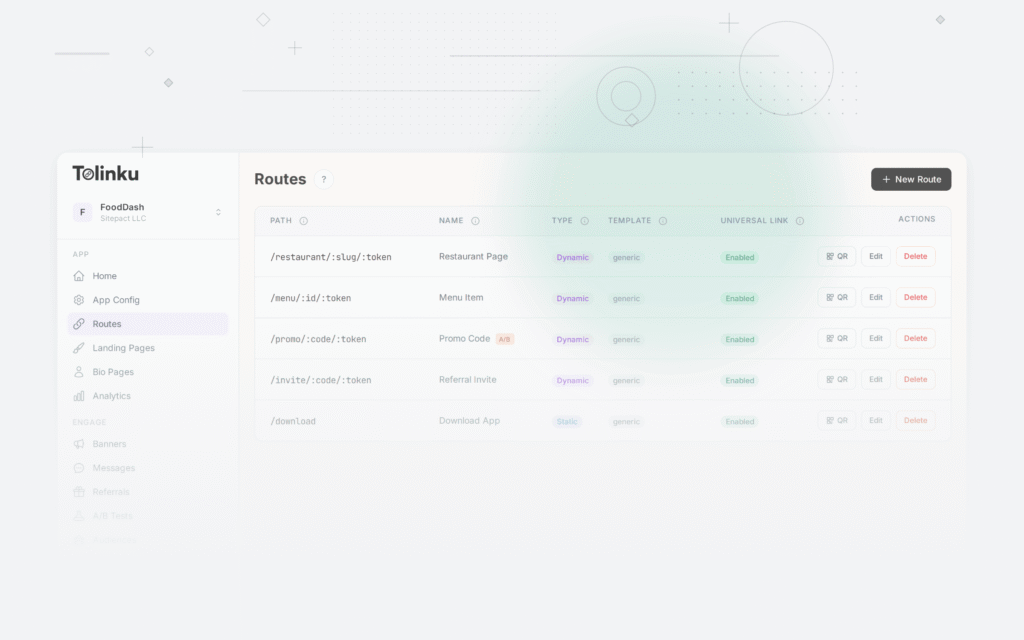
Tolinku handles the entire lifecycle: click recording, AASA/assetlinks.json hosting, fallback pages, deferred deep link matching, and analytics. See the deep linking concepts for how each stage is managed.
For the technical details, see how deep linking works: a technical overview. For the complete guide, see the complete guide to deep linking in 2026.
Get deep linking tips in your inbox
One email per week. No spam.