Android 12 (API level 31) introduced several changes to how App Links verification works and how users can control which app handles a given URL. Some of these changes are improvements that make verification more reliable. Others introduced new requirements that broke existing implementations if developers were not paying attention.
If you are targeting API 31 or higher, or if you noticed deep link issues starting with Android 12 devices, this guide explains each change in detail and tells you what you need to update.

The Biggest Change: Per-Domain Verification
On Android 11 and earlier, App Links verification was all-or-nothing within an intent filter. If your app declared three domains in a single intent filter and verification failed for one of them (due to a misconfigured assetlinks.json file or a server error), Android would deny verified status for all three domains in that filter. One broken domain could take down App Links for your entire app.
Android 12 changed this to per-domain verification. Each domain is now verified independently, and a failure for one domain does not affect the others. Your app receives verified App Link status for every domain that passes, even if some domains fail.
This is a meaningful improvement for apps that handle multiple domains. It also means that fixing a broken assetlinks.json for one domain will restore verified status for that domain without requiring a full reinstall on Android 12 devices.
The Android developer documentation on App Links verification covers the updated verification flow in detail.
Server-Side Pre-Verification
On Android 11 and earlier, each device fetched the assetlinks.json file independently at install time. On Android 12 and later, Google's servers fetch and cache the assetlinks.json files, and devices receive pre-verified results. This means:
- Verification can succeed even on devices without internet access at install time, because the result comes from Google's cache.
- Changes to your
assetlinks.jsonfile propagate faster than before, since Google's servers re-fetch periodically rather than waiting for user reinstalls. - Your
assetlinks.jsonmust be publicly accessible to Google's infrastructure. If the file is behind a firewall, a VPN, or any kind of IP-based access control, verification will fail silently on Android 12 devices even though on-device fetching might have worked before.
Check that https://yourdomain.com/.well-known/assetlinks.json is reachable from outside your network. The Google Digital Asset Links API provides a verification endpoint you can use to test this:
https://digitalassetlinks.googleapis.com/v1/statements:list?source.web.site=https://yourdomain.com&relation=delegate_permission/common.handle_all_urls
Link Handling Preferences: The New User Control
Android 12 gave users more direct control over which app handles specific domains. In the system settings for any app, users can now see the domains that app is verified to handle and can disable that handling on a per-domain basis.
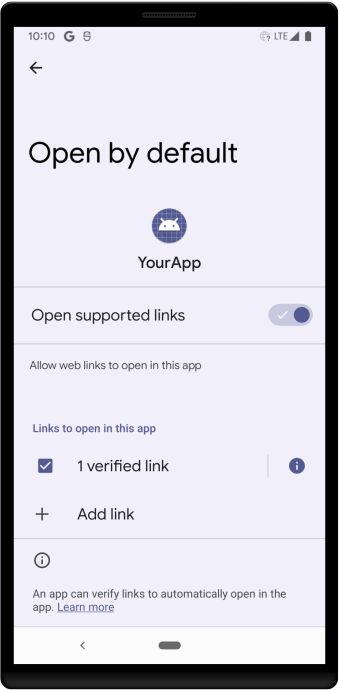
Source: Android Developer Documentation
This is accessible at: Settings > Apps > [Your App] > Open by default.
The page shows:
- Whether the app is set as the default for any links
- Which domains the app has verified status for
- An "Add link" option to manually associate additional domains
- An option to remove domains from the app's default handling
For users who prefer to have links open in a browser rather than in an app, this control is welcome. For developers, it means that even a perfectly verified App Link can be overridden by the user. Your app cannot force itself to be the default handler.
The practical implication: if a user taps one of your App Links and explicitly chooses to open it in a browser from the disambiguation dialog, Android 12 remembers that preference for that domain. Future taps will go to the browser without asking again. The user would have to manually restore your app as the default in Settings.
There is no API for querying whether a user has overridden your app's default status for a domain. You can check whether your app is currently verified, but not whether the user has chosen to override that verification.
The android:exported Requirement
This is the change that broke the most existing apps immediately on Android 12: any <activity>, <service>, or <broadcast-receiver> that declares an <intent-filter> now requires an explicit android:exported attribute.
Before Android 12, if you omitted android:exported, Android would infer it as true if the component had intent filters. Starting with API 31, omitting the attribute causes an install failure:
INSTALL_FAILED_MISSING_EXPORTED_FLAG
For deep link activities, you almost always want android:exported="true", since the whole point is for external intents (from browsers, other apps) to be able to launch your activity:
<activity
    android:name=".MainActivity"
    android:exported="true">
    <intent-filter android:autoVerify="true">
        ...
    </intent-filter>
</activity>
If you have internal activities with intent filters that should not be reachable from outside your app, set android:exported="false". But for any activity handling deep links or App Links, use true.
This requirement applies when your targetSdkVersion is 31 or higher. If you are still targeting 30, you are not affected yet, but you will need to address this before raising your target SDK.
Web Intent Resolution Changes
Android 12 also changed how web intents are resolved when an app is not installed or not verified. Prior to Android 12, a URL that matched an intent filter (even without verification) would sometimes still preferentially open in an app over a browser if the user had previously chosen that app. The new behavior is stricter: unverified intents that match HTTPS URLs default to the browser unless the user has explicitly set the app as the default handler.
This change reinforces the importance of proper App Links verification. Links that worked "by habit" on older Android versions (because the user had previously selected the app from the disambiguation dialog) may now default to the browser on Android 12 devices, because the implicit preference is no longer carried forward in the same way.
See Verified vs Unverified App Links on Android for a detailed comparison of what the user experiences in each case.
Package Visibility Restrictions
Android 11 introduced package visibility restrictions (<queries> in the manifest), and Android 12 refined these further. While this does not directly affect App Links verification, it matters if your app opens URLs programmatically and needs to determine which app will handle a given intent.
If you call PackageManager.queryIntentActivities() or similar methods to check which apps can handle a URL, you need to declare the relevant package names or intent queries in your manifest:
<queries>
    <intent>
        <action android:name="android.intent.action.VIEW" />
        <data android:scheme="https" />
    </intent>
</queries>
Without the appropriate <queries> declaration, your app may not be able to see other installed apps that could handle a URL, even if they are installed. The system will still route the URL correctly when you actually fire the intent; this restriction only affects pre-launch queries about what can handle a given intent.
Re-verification Without Reinstall
On Android 12 and later, developers and testers can manually trigger App Links verification using adb without reinstalling the app. This is useful when debugging or after updating the assetlinks.json file:
adb shell pm verify-app-links --re-verify com.example.myapp
After running this command, check the verification result:
adb shell pm get-app-links --package com.example.myapp
The output shows each domain and its status: verified, approved, rejected, or none. On Android 11 and earlier, the only reliable way to re-trigger verification was to uninstall and reinstall the app. The adb command makes the iteration cycle much faster.
For a full breakdown of testing commands and debugging workflows, see the Tolinku Android App Links testing guide and the Tolinku troubleshooting documentation.
Summary of Required Actions for Android 12+
If you are updating an existing App Links implementation or building for Android 12 and later, here is a checklist:
- Add
android:exported="true"to every activity that declares an intent filter. Your build will fail on API 31 targets if you miss this. - Confirm your
assetlinks.jsonis publicly reachable from Google's servers, not just from your local network or corporate VPN. - Use
adb shell pm verify-app-links --re-verifyduring development instead of reinstalling the app each time you update theassetlinks.jsonfile. - Accept that users now have explicit per-domain control over link handling. Design your app's web fallback experience accordingly, since some users may prefer the browser.
- If you are programmatically querying for intent handlers, add the appropriate
<queries>elements to your manifest.
The per-domain verification improvement is the most significant positive change. If you had a multi-domain setup that was partially broken before, Android 12 means fixing one domain no longer requires fixing all of them first.
For full implementation guidance, see the Tolinku App Links developer documentation and the Android App Links complete guide.
Get deep linking tips in your inbox
One email per week. No spam.