Progressive Web Apps (PWAs) and native Android apps are not mutually exclusive. Many products ship both: a PWA for broad reach and a native app for deeper platform integration. The challenge is making links work seamlessly between them. When a user taps a link, should they land in the PWA or the native app? What if they have both installed? What if the native app uses a Trusted Web Activity (TWA) to wrap the PWA?
This guide covers how App Links interact with PWAs and TWAs on Android, and how to configure both experiences to coexist. For the App Links foundation, see the Android App Links complete guide. For web-to-app bridging strategies, see deep linking for web.
PWA vs. Native App: The Link Conflict
When you have both a PWA and a native app for the same domain, a link conflict arises:
User taps https://yourapp.com/products/123
  → Should the PWA open? (installed via "Add to Home Screen")
  → Should the native app open? (installed via Play Store)
  → Should Chrome open? (if neither is the default)
Android resolves this through intent priority:
- Verified App Links (native app) take highest priority. If the native app has verified App Links for the domain, it opens.
- TWA apps are treated similarly to native apps for link handling.
- Installed PWAs (added to home screen) are lower priority than verified native apps.
- Browser is the fallback.
This means: if a user has both your PWA and native app installed, and the native app has verified App Links, the native app always wins. The PWA never gets the link.
Trusted Web Activities (TWA)
A Trusted Web Activity wraps your PWA in a native Android shell. It uses Chrome's rendering engine but runs full-screen without browser UI. From the Play Store's perspective, it's a native app. From the user's perspective, it looks like a native app. From the deep linking system's perspective, it behaves like a native app.
TWA and App Links
TWAs use the same Digital Asset Links verification as regular App Links. The TWA's domain must have an assetlinks.json file that includes the TWA's package name and signing key.
[{
  "relation": ["delegate_permission/common.handle_all_urls"],
  "target": {
    "namespace": "android_app",
    "package_name": "com.example.twa",
    "sha256_cert_fingerprints": [
      "YOUR_SHA256_FINGERPRINT"
    ]
  }
}]
When a link to your domain is tapped, the TWA opens full-screen (no browser bar) if verification passes.
TWA Deep Link Handling
TWAs handle deep links by loading the corresponding URL in the web activity. The path from the deep link maps directly to a URL in your PWA:
Deep link: https://yourapp.com/products/123
TWA opens: https://yourapp.com/products/123 (full-screen, no browser UI)
Your PWA's client-side routing handles the rest. If your PWA uses a framework router (React Router, Vue Router, etc.), the route resolves normally within the TWA.
Configuring TWA Deep Links
In your TWA's AndroidManifest.xml:
<activity
    android:name="com.example.twa.LauncherActivity"
    android:exported="true">

    <!-- Default launch URL -->
    <meta-data
        android:name="android.support.customtabs.trusted.DEFAULT_URL"
        android:value="https://yourapp.com" />

    <!-- App Links for deep linking -->
    <intent-filter android:autoVerify="true">
        <action android:name="android.intent.action.VIEW" />
        <category android:name="android.intent.category.DEFAULT" />
        <category android:name="android.intent.category.BROWSABLE" />
        <data android:scheme="https"
              android:host="yourapp.com" />
    </intent-filter>
</activity>
Coexistence Strategies
Strategy 1: PWA Only (No Native App)
If you only have a PWA (no native app), deep linking works through the browser. When the user installs the PWA ("Add to Home Screen"), the PWA opens when they tap its home screen icon, but links from other apps still open in Chrome.
To make links open the installed PWA instead of Chrome, wrap it in a TWA and publish to the Play Store. The TWA gives you App Links support.
Strategy 2: Native App Takes Priority
The most common pattern. Ship both a PWA and a native app. The native app handles all deep links via verified App Links. The PWA serves as the fallback for users who haven't installed the native app.
User has native app → link opens in native app
User has PWA only  → link opens in browser (PWA renders the page)
User has neither   → link opens in browser (PWA renders the page)
The PWA acts as a universal fallback because it's just a website. If the native app's App Links fail for any reason, the URL loads in the browser, and your PWA handles the rendering.
Strategy 3: TWA Wraps the PWA
Use a TWA to wrap your PWA and publish it on the Play Store. This gives you:
- Play Store presence and discoverability
- App Links support (deep links open the TWA)
- The same codebase as your PWA (no separate native development)
The tradeoff: TWAs have limited access to native APIs compared to a fully native app. If you need push notifications, sensors, or Bluetooth, you'll need a native bridge or a full native app.
Strategy 4: Hybrid (Native Shell + Web Content)
Use a native Android app that loads some screens via WebView (from your PWA's domain) and renders others natively. Deep links route to either the native screen or the WebView screen based on the path:
fun handleDeepLink(uri: Uri) {
    when {
        // Native screens
        uri.path?.startsWith("/products") == true -> openNativeProductScreen(uri)
        uri.path?.startsWith("/settings") == true -> openNativeSettings()

        // Web-based screens (loaded from PWA)
        uri.path?.startsWith("/help") == true -> openWebView(uri.toString())
        uri.path?.startsWith("/legal") == true -> openWebView(uri.toString())

        // Default: native home
        else -> openNativeHome()
    }
}
Deep Link Routing Between PWA and Native
Detecting the Context
Your PWA can detect whether it's running in a browser, installed as a standalone PWA, or inside a TWA:
// Detect the display mode
function getDisplayMode() {
  if (document.referrer.includes('android-app://')) {
    return 'twa'; // Running inside a Trusted Web Activity
  }
  if (window.matchMedia('(display-mode: standalone)').matches) {
    return 'standalone'; // Installed PWA
  }
  return 'browser'; // Regular browser tab
}

// Adjust behavior based on context
const mode = getDisplayMode();
if (mode === 'browser') {
  // Show "Install our app" banner
  showInstallBanner();
} else if (mode === 'twa') {
  // Running as TWA; hide any "open in app" prompts
}
Redirecting from PWA to Native App
If your PWA detects that the user should be using the native app (e.g., they need a feature only available natively), you can redirect:
// Try to open the native app via intent URL
function openNativeApp(path) {
  const intentUrl = `intent://${path}#Intent;` +
    `scheme=https;` +
    `package=com.example.nativeapp;` +
    `S.browser_fallback_url=${encodeURIComponent(window.location.href)};` +
    `end`;

  window.location.href = intentUrl;
}
Service Worker Considerations
PWA service workers can interfere with deep linking by caching the wrong response for App Links verification requests.
Never cache /.well-known/assetlinks.json in your service worker:
// In your service worker
self.addEventListener('fetch', (event) => {
  const url = new URL(event.request.url);

  // Don't cache Digital Asset Links or Apple App Site Association
  if (url.pathname.startsWith('/.well-known/')) {
    return; // Let the network handle it
  }

  // Cache everything else normally
  event.respondWith(
    caches.match(event.request).then(cached => cached || fetch(event.request))
  );
});
If the service worker serves a cached (potentially outdated) assetlinks.json, App Links verification may fail.
Tolinku Integration
Tolinku deep links work with both PWAs and native apps. A single Tolinku URL resolves to:
- The native app (if installed and App Links are verified)
- The PWA (if the native app isn't installed, the link loads in the browser where your PWA renders)
- The app store (if configured as the fallback)
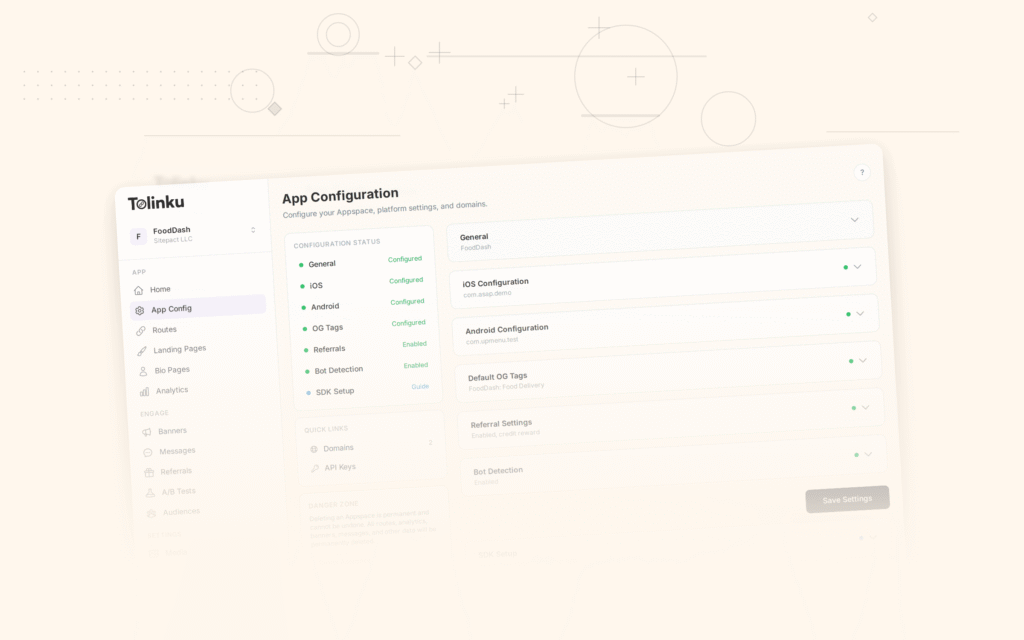
This means you don't need separate link strategies for PWA and native. One Tolinku link covers all scenarios. Configure your Android settings in the Tolinku dashboard for the native app, and your PWA naturally serves as the web fallback.
For Android Instant Apps (another alternative to PWAs), see the Instant Apps deep linking guide. For the full App Links setup, see the Android App Links guide.
Get deep linking tips in your inbox
One email per week. No spam.