Expo's managed workflow simplifies deep linking configuration by handling the native setup through app.json (or app.config.js). You don't need to touch Xcode or Android Studio directly. This guide covers deep linking setup in Expo, from basic scheme handling to Universal Links and App Links in production builds.
For bare React Native setup, see React Native Deep Linking: Complete Setup Tutorial. For navigation integration, see React Navigation Deep Links.
Understanding Expo's Linking Modes
Expo supports three types of deep links:
1. Expo Go Links (Development Only)
During development with Expo Go, deep links use the Expo scheme:
exp://192.168.1.5:8081/--/product/123
These only work in development. You can't ship these to users.
2. Custom URL Schemes
Links like yourapp://product/123. These work in development builds and production, but they're not as reliable as Universal Links/App Links.
3. Universal Links (iOS) / App Links (Android)
HTTPS links like https://go.yourapp.com/product/123. These are the production standard and require domain configuration.
Step 1: Configure app.json
Basic Scheme Configuration
Add a custom URL scheme to your app.json:
{
  "expo": {
    "scheme": "yourapp",
    "ios": {
      "bundleIdentifier": "com.yourapp",
      "associatedDomains": ["applinks:go.yourapp.com"]
    },
    "android": {
      "package": "com.yourapp",
      "intentFilters": [
        {
          "action": "VIEW",
          "autoVerify": true,
          "data": [
            {
              "scheme": "https",
              "host": "go.yourapp.com"
            }
          ],
          "category": ["BROWSABLE", "DEFAULT"]
        }
      ]
    }
  }
}
The scheme field enables custom URL scheme handling (yourapp://). The associatedDomains and intentFilters fields enable Universal Links and App Links for your custom domain.
Using app.config.js for Dynamic Configuration
If you need environment-specific domains (staging vs production):
// app.config.js
const IS_PROD = process.env.APP_ENV === 'production';
const LINK_DOMAIN = IS_PROD ? 'go.yourapp.com' : 'staging-go.yourapp.com';

export default {
  expo: {
    scheme: 'yourapp',
    ios: {
      bundleIdentifier: IS_PROD ? 'com.yourapp' : 'com.yourapp.staging',
      associatedDomains: [`applinks:${LINK_DOMAIN}`],
    },
    android: {
      package: IS_PROD ? 'com.yourapp' : 'com.yourapp.staging',
      intentFilters: [
        {
          action: 'VIEW',
          autoVerify: true,
          data: [{ scheme: 'https', host: LINK_DOMAIN }],
          category: ['BROWSABLE', 'DEFAULT'],
        },
      ],
    },
  },
};
Step 2: Handle Incoming Links
Using expo-linking
Install the Expo linking module:
npx expo install expo-linking
Handle deep links in your app:
import * as Linking from 'expo-linking';
import { useEffect } from 'react';

export function useDeepLinks(onLink) {
  useEffect(() => {
    // Handle links that opened the app (cold start)
    Linking.getInitialURL().then((url) => {
      if (url) {
        onLink(parseLink(url));
      }
    });

    // Handle links while app is running (warm start)
    const subscription = Linking.addEventListener('url', ({ url }) => {
      onLink(parseLink(url));
    });

    return () => subscription.remove();
  }, []);
}

function parseLink(url) {
  const parsed = Linking.parse(url);
  return {
    path: parsed.path,
    params: parsed.queryParams,
  };
}
Using expo-router (Recommended)
If you're using Expo Router (file-based routing), deep linking is mostly automatic. Expo Router maps URL paths to file paths:
app/
  (tabs)/
    index.tsx       → /
    explore.tsx     → /explore
  product/
    [id].tsx        → /product/:id
  invite/
    [code].tsx      → /invite/:code
The URL https://go.yourapp.com/product/123 automatically navigates to app/product/[id].tsx with id = "123".
To access the parameter in the screen:
import { useLocalSearchParams } from 'expo-router';

export default function ProductScreen() {
  const { id } = useLocalSearchParams<{ id: string }>();

  return <Text>Product: {id}</Text>;
}
With React Navigation (Non-Router)
If you're using React Navigation instead of Expo Router:
import * as Linking from 'expo-linking';

const linking = {
  prefixes: [
    Linking.createURL('/'),           // Custom scheme: yourapp://
    'https://go.yourapp.com',        // Universal Links / App Links
  ],
  config: {
    screens: {
      Home: '',
      Product: 'product/:id',
      Invite: 'invite/:code',
      Promo: 'promo/:slug',
      NotFound: '*',
    },
  },
};

function App() {
  return (
    <NavigationContainer linking={linking}>
      <Stack.Navigator>
        <Stack.Screen name="Home" component={HomeScreen} />
        <Stack.Screen name="Product" component={ProductScreen} />
        <Stack.Screen name="Invite" component={InviteScreen} />
        <Stack.Screen name="Promo" component={PromoScreen} />
        <Stack.Screen name="NotFound" component={NotFoundScreen} />
      </Stack.Navigator>
    </NavigationContainer>
  );
}
Step 3: Development Testing
Testing with Expo Go
In Expo Go, you can test custom scheme links using the Expo URL format:
# Open a link in Expo Go (development)
npx uri-scheme open "exp://192.168.1.5:8081/--/product/123" --ios
Or use Linking.createURL() to generate the correct URL for the current environment:
const url = Linking.createURL('product/123');
console.log(url);
// In Expo Go: exp://192.168.1.5:8081/--/product/123
// In production build: yourapp://product/123
Testing with Development Builds
For Universal Links testing, you need a development build (not Expo Go). Create one with:
npx expo run:ios
# or
npx expo run:android
Development builds include your native configuration (Associated Domains, intent filters), so Universal Links and App Links work as they would in production.
Testing with EAS Build
For builds closer to production:
eas build --platform ios --profile preview
eas build --platform android --profile preview
Install the preview build on a physical device and test links by tapping them from Messages, Notes, or email.
Step 4: Domain Configuration
AASA File (iOS)
Your deep linking platform must serve the Apple App Site Association file at:
https://go.yourapp.com/.well-known/apple-app-site-association
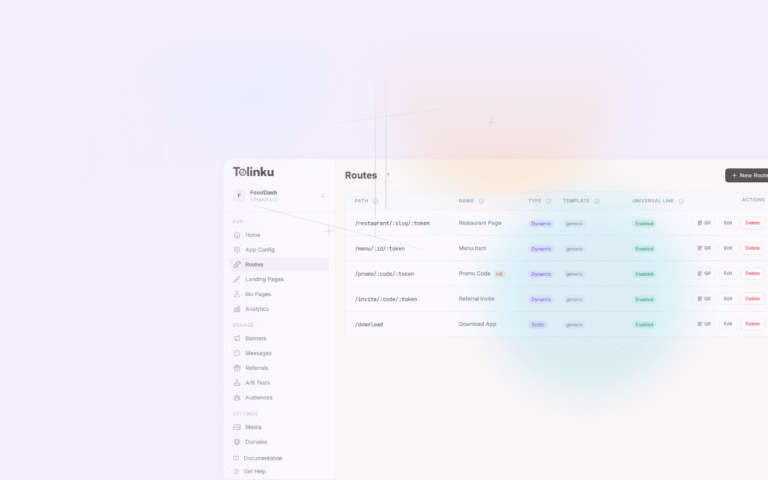
If using Tolinku, this is handled automatically. The file should include your Team ID and Bundle ID:
{
  "applinks": {
    "apps": [],
    "details": [
      {
        "appID": "TEAMID.com.yourapp",
        "paths": ["*"]
      }
    ]
  }
}
assetlinks.json (Android)
Served at:
https://go.yourapp.com/.well-known/assetlinks.json
Include your package name and signing certificate fingerprint. For EAS Build, you can find your fingerprint in the EAS dashboard or by running:
eas credentials --platform android
Common Expo-Specific Issues
Expo Go Doesn't Support Universal Links
Expo Go uses its own URL scheme (exp://). Universal Links and App Links only work in development builds or production builds. This is a common source of confusion: links work in testing (with the development build) but not in Expo Go.
Config Plugin Changes Require Rebuild
When you change associatedDomains or intentFilters in app.json, you need to rebuild the native project. These are native-level configurations that aren't applied by a JavaScript reload.
# Rebuild after config changes
npx expo prebuild --clean
npx expo run:ios
Path Matching in Expo Router
Expo Router uses file-system routing. If your deep link path doesn't match a file in the app/ directory, it will show the not-found route. Make sure your file structure matches your link paths.
For example, if your links use /product/:id, you need app/product/[id].tsx (not app/products/[id].tsx).
Debugging Link Resolution
Add logging to verify links are being received:
import * as Linking from 'expo-linking';

Linking.addEventListener('url', ({ url }) => {
  console.log('Received deep link:', url);
});

Linking.getInitialURL().then((url) => {
  console.log('Initial URL:', url);
});
Check the Metro bundler console or device logs for these messages when testing.
Production Checklist
-
schemeconfigured in app.json -
associatedDomainsconfigured for iOS -
intentFiltersconfigured for Android withautoVerify: true - AASA file accessible and valid
- assetlinks.json accessible with production signing fingerprint
- Deep link handling tested in development build (not Expo Go)
- Cold start deep links work on iOS and Android
- Warm start deep links work on iOS and Android
- All route paths match file structure (Expo Router) or linking config (React Navigation)
- Error/not-found route handles unmatched paths
For integrating with the Tolinku SDK, see the React Native SDK documentation. For cross-platform strategies, see Cross-Platform Deep Linking Guide.
Get deep linking tips in your inbox
One email per week. No spam.