

When you need QR codes for 500 products, 100 event badges, or 50 store locations, generating them one at a time is not practical. Bulk QR code generation automates the process: define the data source, configure the QR code parameters, and generate all codes programmatically.
For short link APIs, see short link APIs: programmatic link creation. For dynamic QR codes, see dynamic QR codes: change destinations without reprinting.
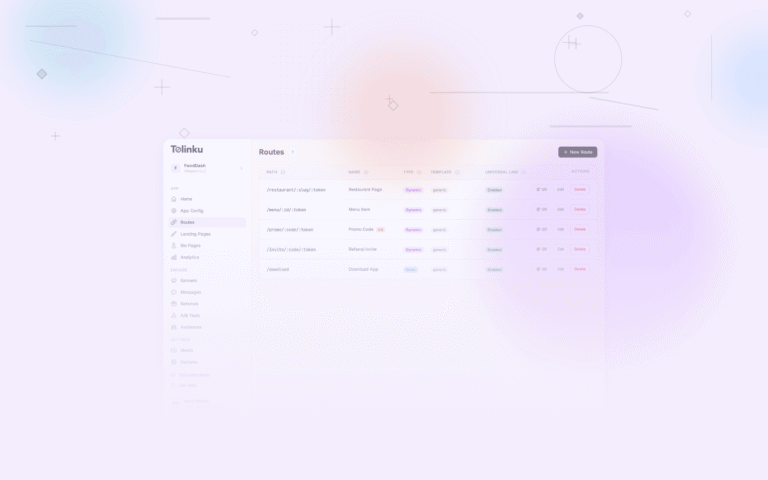
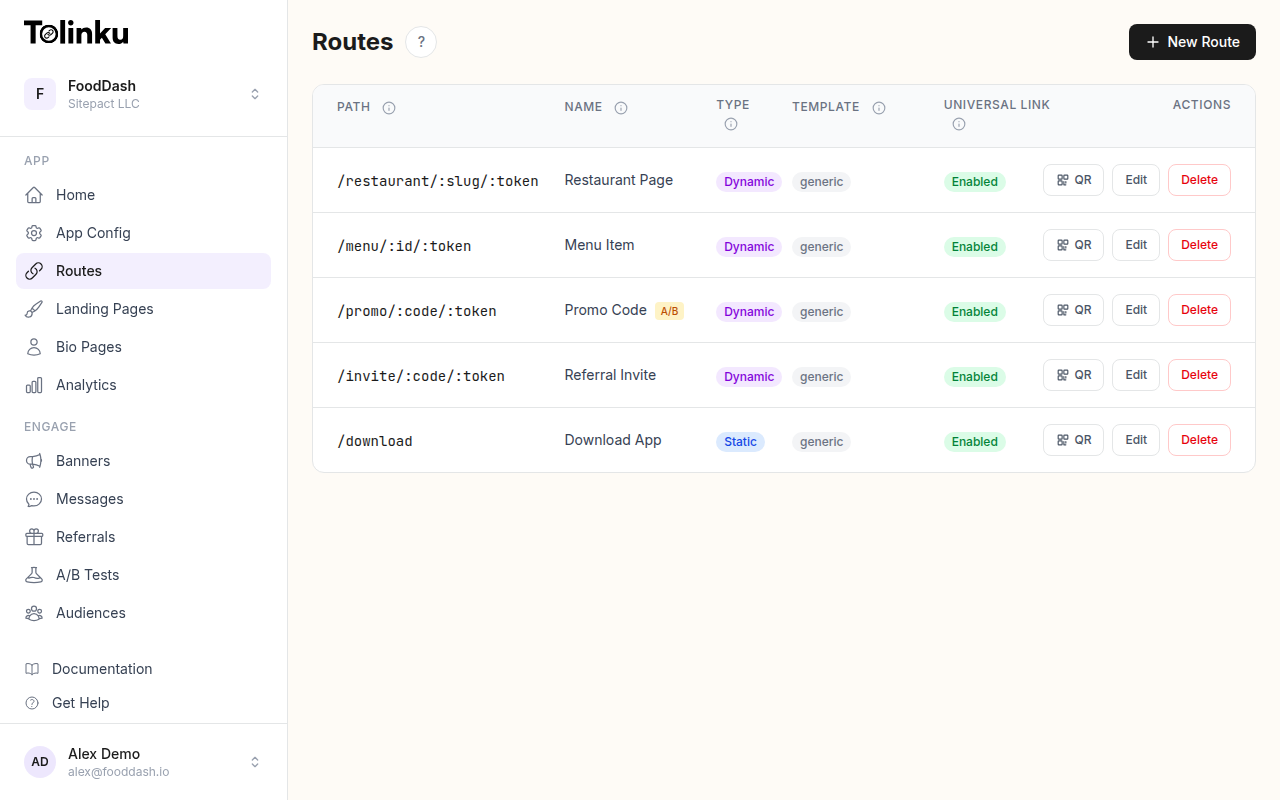 Tolinku route configuration with QR code generation for each deep link.
When You Need Bulk Generation
| Use Case | Volume | Data Source |
|---|---|---|
| Product packaging | Hundreds to thousands per SKU | Product database |
| Store locations | Dozens to hundreds | Location database |
| Event badges | Hundreds to thousands | Registration list |
| Inventory/asset tags | Thousands | Asset management system |
| Direct mail campaigns | Thousands | CRM/mailing list |
| Menu items | Dozens | Menu database |
Approach 1: Script-Based Generation
For one-off batch generation, use a script with a QR code library.
Node.js with qrcode
npm install qrcode
import QRCode from 'qrcode';
import { readFileSync, writeFileSync, mkdirSync } from 'fs';

interface Product {
  sku: string;
  name: string;
  url: string;
}

async function generateBatch(products: Product[], outputDir: string) {
  mkdirSync(outputDir, { recursive: true });

  for (const product of products) {
    const filename = `${outputDir}/${product.sku}.png`;

    await QRCode.toFile(filename, product.url, {
      errorCorrectionLevel: 'M',
      width: 400,
      margin: 4,
      color: {
        dark: '#000000',
        light: '#FFFFFF'
      }
    });

    console.log(`Generated: ${filename}`);
  }
}

// Example: generate from a JSON file
const products: Product[] = JSON.parse(
  readFileSync('products.json', 'utf8')
);

generateBatch(products, './qr-codes');
Python with qrcode
pip install qrcode[pil]
import qrcode
import json
import os

def generate_batch(products, output_dir):
    os.makedirs(output_dir, exist_ok=True)

    for product in products:
        qr = qrcode.QRCode(
            version=None,  # Auto-detect
            error_correction=qrcode.constants.ERROR_CORRECT_M,
            box_size=10,
            border=4
        )
        qr.add_data(product['url'])
        qr.make(fit=True)

        img = qr.make_image(fill_color='black', back_color='white')
        filename = f"{output_dir}/{product['sku']}.png"
        img.save(filename)
        print(f"Generated: {filename}")

# Load products
with open('products.json') as f:
    products = json.load(f)

generate_batch(products, './qr-codes')
Input Data Format
Prepare a CSV or JSON with the data for each QR code:
[
  {
    "sku": "PROD-001",
    "name": "Widget A",
    "url": "https://go.yourcompany.com/products/PROD-001?source=packaging"
  },
  {
    "sku": "PROD-002",
    "name": "Widget B",
    "url": "https://go.yourcompany.com/products/PROD-002?source=packaging"
  }
]
Or CSV:
sku,name,url
PROD-001,Widget A,https://go.yourcompany.com/products/PROD-001?source=packaging
PROD-002,Widget B,https://go.yourcompany.com/products/PROD-002?source=packaging
Approach 2: API-Based Generation
For ongoing QR code generation integrated into your workflow, use a QR code API or your link management platform's API.
Workflow
- Create a short link for each item via the API.
- Generate a QR code for each short link URL.
- Download or store the QR code images.
async function createLinkAndQR(item: Item): Promise<QRResult> {
  // Step 1: Create a short link
  const link = await createShortLink({
    destination: `https://yoursite.com/products/${item.sku}`,
    slug: item.sku.toLowerCase(),
    tags: ['packaging', item.category]
  });

  // Step 2: Generate QR code for the short link
  const qrBuffer = await generateQRCode(link.shortUrl, {
    size: 400,
    errorCorrection: 'M'
  });

  // Step 3: Save the QR code
  writeFileSync(`./qr-codes/${item.sku}.png`, qrBuffer);

  return {
    sku: item.sku,
    shortUrl: link.shortUrl,
    qrPath: `./qr-codes/${item.sku}.png`
  };
}

// Process all items
const results = [];
for (const item of items) {
  const result = await createLinkAndQR(item);
  results.push(result);
}

// Save manifest
writeFileSync('qr-manifest.json', JSON.stringify(results, null, 2));
Approach 3: Spreadsheet-Based
For marketing teams who prefer spreadsheets:
- Prepare a spreadsheet with one row per QR code (columns: ID, URL, label).
- Use a Google Sheets add-on or Excel macro to generate QR codes.
- Export as a ZIP of images.
Google Sheets Formula (Simple)
Google Sheets can generate QR codes using the Google Charts API:
=IMAGE("https://chart.googleapis.com/chart?chs=200x200&cht=qr&chl=" & ENCODEURL(B2))
This generates a preview in the spreadsheet. For print-quality images, use a dedicated tool.
Output Formats
| Format | Use Case | File Size |
|---|---|---|
| PNG | Print and digital; most compatible | Medium |
| SVG | Print (vector, scales perfectly) | Small |
| Print-ready with bleed marks | Medium | |
| EPS | Professional print workflows | Medium |
For print, SVG or PDF is preferred because vector formats maintain sharp edges at any size.
Naming and Organization
File Naming
Use a consistent naming convention:
{sku}-qr.png          → PROD-001-qr.png
{location-id}-qr.png  → store-downtown-qr.png
{badge-id}-qr.png     → attendee-12345-qr.png
Manifest File
Generate a manifest that maps each QR code to its metadata:
{
  "generated": "2026-08-05T10:00:00Z",
  "count": 500,
  "codes": [
    {
      "id": "PROD-001",
      "file": "PROD-001-qr.png",
      "url": "https://go.yourcompany.com/products/PROD-001",
      "errorCorrection": "M",
      "size": 400
    }
  ]
}
This manifest is useful for print production, audit trails, and regeneration.
Quality Assurance
Automated Scanning Tests
After generating a batch, verify scannability programmatically:
import { readQRCode } from 'qr-scanner-library';

async function verifyBatch(qrDir: string, manifest: Manifest) {
  const failures = [];

  for (const code of manifest.codes) {
    const imagePath = `${qrDir}/${code.file}`;
    const decoded = await readQRCode(imagePath);

    if (decoded !== code.url) {
      failures.push({
        id: code.id,
        expected: code.url,
        decoded: decoded || 'SCAN_FAILED'
      });
    }
  }

  if (failures.length > 0) {
    console.error(`${failures.length} QR codes failed verification`);
    console.error(JSON.stringify(failures, null, 2));
    process.exit(1);
  }

  console.log(`All ${manifest.codes.length} QR codes verified`);
}
Print Proofs
Before a full print run:
- Print 5-10 sample QR codes at actual size.
- Scan each with at least 3 different phones.
- Verify the destination URL is correct.
- Check contrast and quiet zone on the printed material.
Performance at Scale
| Volume | Script Time (Node.js) | Notes |
|---|---|---|
| 100 | ~5 seconds | Simple batch |
| 1,000 | ~30 seconds | Add parallel generation |
| 10,000 | ~3 minutes | Stream output, parallel processing |
| 100,000 | ~30 minutes | Consider worker threads |
For very large batches, use parallel generation:
import { Worker } from 'worker_threads';

// Split items into chunks and process in parallel
const chunkSize = 100;
const chunks = [];
for (let i = 0; i < items.length; i += chunkSize) {
  chunks.push(items.slice(i, i + chunkSize));
}

await Promise.all(
  chunks.map(chunk => generateInWorker(chunk))
);
Tolinku for Bulk QR Codes
Tolinku supports route creation via the API, enabling programmatic link and QR code generation at scale. Each route includes built-in analytics, so you can track scans per QR code without additional setup.
For short link APIs, see short link APIs: programmatic link creation. For the complete guide, see QR codes and short links for mobile apps.
Get deep linking tips in your inbox
One email per week. No spam.