

URLGenius provides app deep linking focused on routing users to specific content inside apps. If you are considering moving to a platform with more control over your deep linking infrastructure, including native SDKs, route configuration, analytics, and AASA/assetlinks.json management, this guide walks through the migration process.
This article covers what to evaluate before migrating, how to set up Tolinku as a replacement, how to transition your existing links, and what capabilities you gain.
For a feature comparison, see Tolinku vs URLGenius. For general migration considerations, see migrating to Tolinku.
Why Migrate?
URLGenius focuses on creating deep links that route users to app content. Tolinku provides a broader deep linking platform. Key differences:
Route configuration. Tolinku lets you define routes with path parameters, fallback URLs, and platform-specific behavior from a dashboard. Routes support wildcards, dynamic segments, and custom redirect logic.
AASA and assetlinks.json management. Tolinku generates and hosts your Apple App Site Association file and Android assetlinks.json automatically. You configure your Team ID, Bundle ID, and package name in the dashboard, and the files are generated correctly. See AASA file setup for background.
Native SDKs. Tolinku provides SDKs for iOS, Android, React Native, Flutter, and web. These handle deep link reception, deferred deep linking, and attribution.
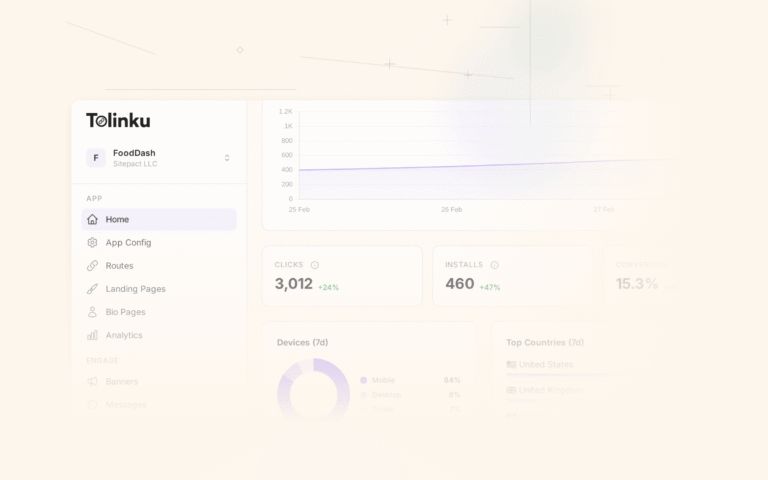
Analytics. Click tracking, conversion funnels, geographic distribution, device and platform breakdowns, and campaign performance. See analytics features.
Smart banners. Web-to-app banners that you design and target from the dashboard. See smart banners.
Custom domains. Use your own domain for deep links instead of a third-party subdomain.
Transparent pricing. Tolinku offers a free tier with 1 Appspace, 5 routes, and 1,200 clicks per month. Paid plans start at $39/month per Appspace with 50,000 clicks included.
Pre-Migration Checklist
Before starting the migration:
Inventory your existing links. List all URLGenius links currently in use: marketing emails, social media posts, QR codes on printed materials, SMS campaigns, web pages. Identify which ones can be updated and which are permanently distributed (printed QR codes, for example).
Document your current routing behavior. For each link type, note where users are sent: which app, which screen, what fallback URL, what happens if the app is not installed.
Identify your app identifiers. You will need your iOS Team ID and Bundle ID, and your Android package name and SHA-256 fingerprints. These are required for Tolinku's iOS configuration and Android configuration.
Choose your domain strategy. Tolinku provides a default subdomain (e.g.,
yourapp.tolinku.com), or you can use a custom domain. A custom domain gives you full control and avoids dependency on any third-party domain.Plan the transition window. Old URLGenius links will continue to work as long as your URLGenius account is active. You can run both systems in parallel during the transition.
Step 1: Set Up Tolinku
- Create an account and set up an Appspace for your app.
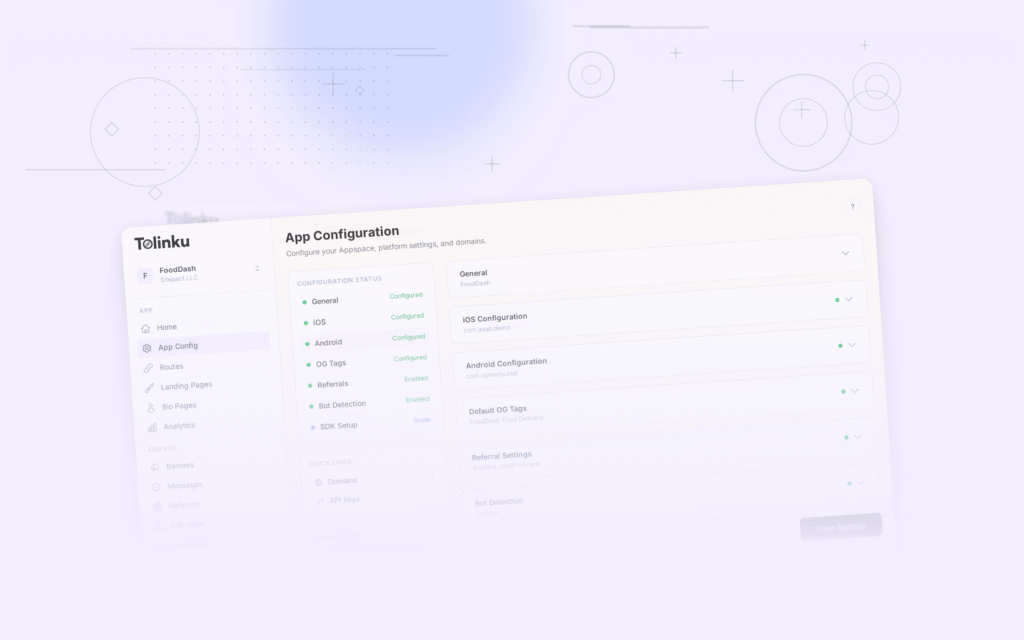
- Configure your iOS settings (Team ID, Bundle ID) and Android settings (package name, SHA-256 fingerprints).
- Set up your domain. Either use the default Tolinku subdomain or configure a custom domain.
- Verify your AASA and assetlinks.json files are being served correctly. See the Universal Links developer guide for verification steps.
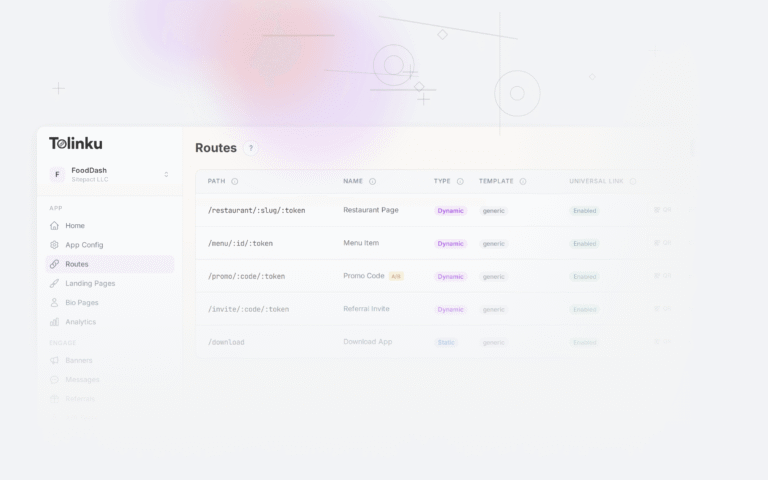
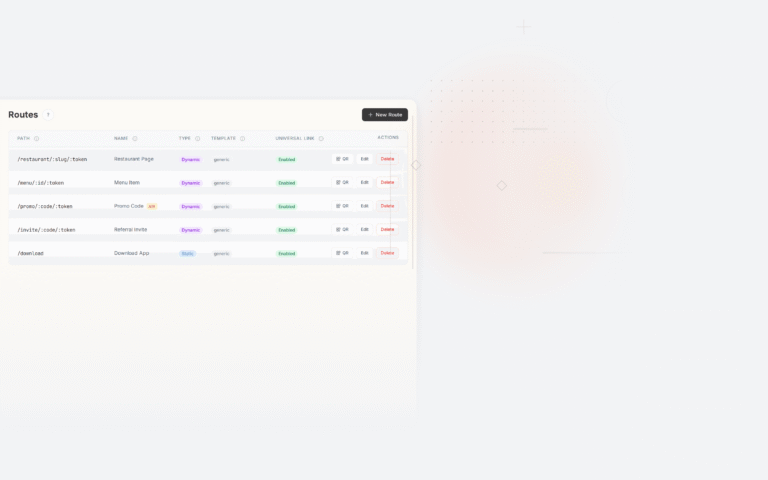
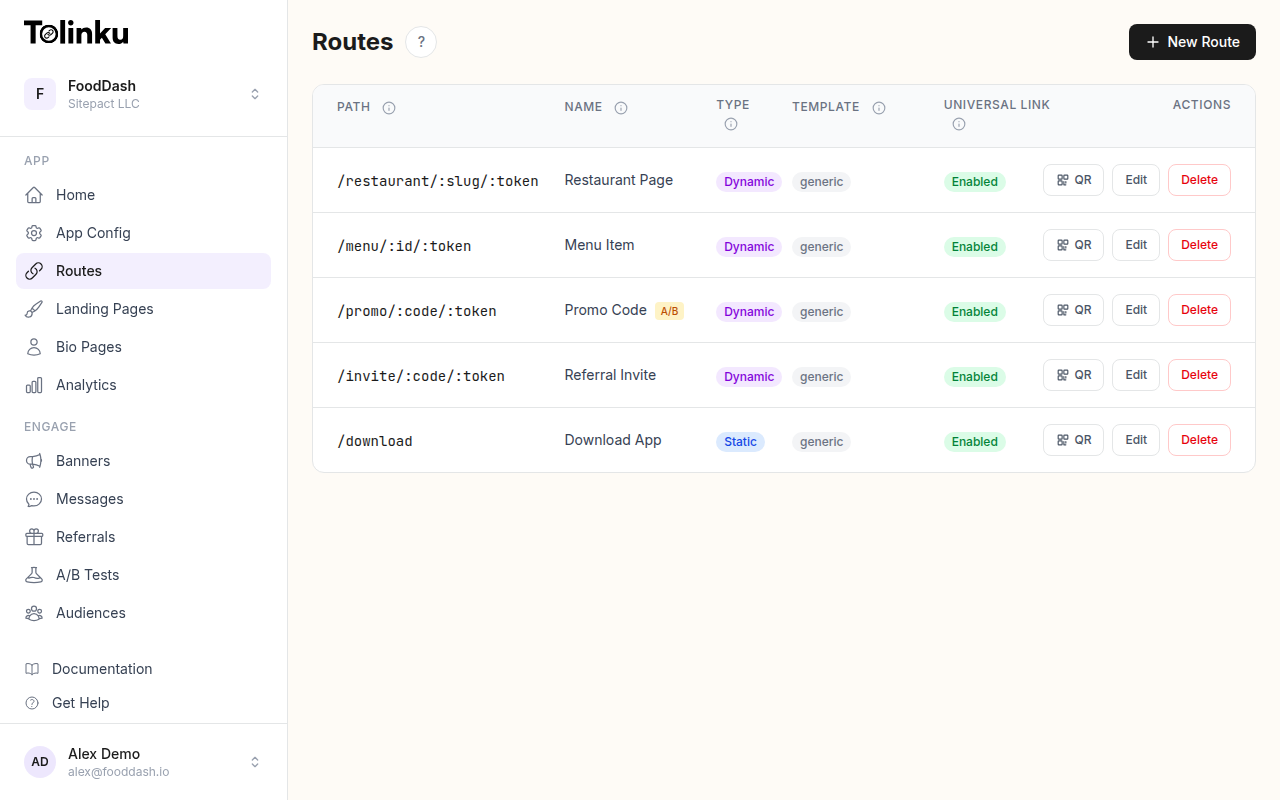 The Tolinku routes dashboard where you configure deep link paths and behavior.
Step 2: Recreate Your Routes
For each link type in your URLGenius inventory, create a corresponding route in Tolinku:
- Go to Routes in the Tolinku dashboard.
- Create a new route with the path pattern that matches your content structure.
- Configure the iOS and Android deep link destinations.
- Set the fallback URL for users without the app installed.
- For links with dynamic parameters, use dynamic routes with path parameters (e.g.,
/product/:id).
Test each route by opening the link on a device with your app installed and on a device without it.
Step 3: Integrate the SDK
Add the Tolinku SDK to your app to handle incoming deep links:
- iOS: Add the iOS SDK via Swift Package Manager. Configure the Associated Domains entitlement to point to your Tolinku domain.
- Android: Add the Android SDK via Gradle. Update your AndroidManifest.xml with intent filters for your Tolinku domain.
- React Native / Flutter: Use the respective SDK packages.
The SDK handles deep link reception and provides deferred deep linking (routing users to the right content even after installing the app from the store).
Step 4: Update Your Links
Replace URLGenius links with Tolinku links across your channels:
Digital channels (updatable):
- Email templates: update the deep link URLs.
- Social media profiles and posts: update the links.
- Website buttons and banners: update href attributes.
- SMS templates: update the URLs.
- Push notification payloads: update the deep link URLs.
Physical/permanent channels (not updatable):
- Printed QR codes, brochures, signage: these cannot be changed after distribution.
- For permanent links, keep your URLGenius account active during the transition period, or set up redirects from your URLGenius links to your new Tolinku links.
For strategies around managing link redirects during migration, see link redirects during migration.
Step 5: Verify and Monitor
After updating your links:
- Test each link type on iOS and Android, with and without the app installed.
- Monitor the analytics dashboard for click volume and conversion rates.
- Compare the traffic patterns with your URLGenius analytics to ensure no links are being missed.
- Keep your URLGenius account active for at least 30 days after the migration to catch any links you missed.
What You Gain
After migrating to Tolinku:
- Full control over your AASA and assetlinks.json files. No dependency on a third party to manage your app verification files.
- Route-level analytics. See which routes are being clicked, from which platforms, and conversion rates.
- Smart banners. Drive app installs from your website with customizable banners.
- A/B testing. Test different deep link destinations and landing pages. See A/B testing features.
- Webhooks. Get notified of deep link events in real time. See webhook features.
- QR codes. Generate QR codes for any route directly from the dashboard. See QR code features.
For the comparison page, see Tolinku vs URLGenius. For the complete migration guide, see migrating to Tolinku.
Get deep linking tips in your inbox
One email per week. No spam.