The scariest part of migrating deep linking platforms is breaking existing links. Links are everywhere: in sent emails, printed materials, social media posts, ad campaigns, and partner integrations. Breaking any of them means lost users, broken attribution, and a support inbox full of complaints.
This guide covers strategies for maintaining link continuity during a migration, from parallel running to DNS cutover techniques.
For the general migration guide, see Migrating to Tolinku from Branch, Firebase, and AppsFlyer.
Understanding the Risk
When you migrate deep linking platforms, you're changing where links resolve. A link that previously pointed to Platform A's servers now needs to point to Platform B's servers. The risk depends on which domain your links use.
Vendor-Owned Domains
If your links use a vendor-owned domain (like yourapp.app.link for Branch, yourapp.page.link for Firebase, or yourapp.onelink.me for AppsFlyer), you have no control over the DNS. These links can only be served by the vendor that owns the domain.
Impact: These links will continue working as long as you maintain your account with the old vendor. They can never be transferred to a new platform.
Custom Domains
If your links use a custom domain you own (like go.yourapp.com), you control the DNS. You can point the domain to any server by updating your CNAME or A record.
Impact: These links can be migrated with zero downtime if done correctly. This is why using your own domain is always recommended.
Strategy 1: Parallel Running (Recommended)
The safest approach is running both platforms simultaneously during the transition.
How It Works
- Set up the new platform with a different subdomain (e.g.,
links.yourapp.comwhile the old platform usesgo.yourapp.com) - All new links use the new subdomain
- Existing links continue to resolve through the old platform
- Gradually, as old links age out of active use, traffic on the old platform decreases
- When traffic on the old platform is negligible, deactivate it
Timeline
- Week 1-2: Set up new platform, create routes, integrate SDK
- Week 3: Begin using new platform for all new campaigns
- Week 4-8: Parallel running period
- Week 8+: Evaluate old platform traffic; if minimal, deactivate
Pros
- Zero risk of breaking existing links
- Gradual transition with no hard cutover
- Can fall back to old platform if issues arise
Cons
- Maintaining two platforms costs money (two subscriptions during overlap)
- Users may see two different domains for your app's links
- Some link management complexity during the transition
Strategy 2: DNS Cutover
If you want to use the same custom domain on the new platform, you need to switch DNS from the old platform to the new one.
Pre-Cutover Preparation
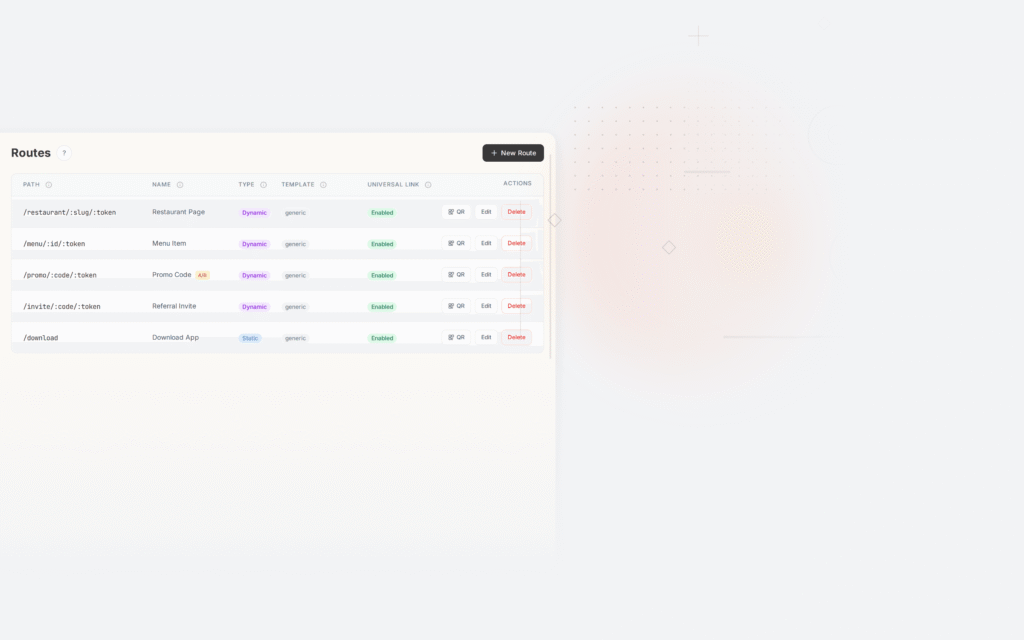
1. Recreate all routes: Every link path that exists on the old platform must be recreated on the new platform with identical paths. If go.yourapp.com/summer-sale exists on Platform A, create a route for /summer-sale on Platform B.
2. Lower TTL: 24-48 hours before the cutover, lower your DNS TTL to 60 seconds. This ensures the DNS change propagates quickly once you make it.
# Check current TTL
dig go.yourapp.com CNAME +short

# Lower TTL to 60 seconds in your DNS provider
3. Prepare the CNAME change: Have the new CNAME value ready to paste into your DNS provider.
Cutover Process
- Final route audit: Verify every route on the new platform matches the old platform
- Update the CNAME record: Change from old platform's target to new platform's target
- Wait for propagation: With a 60-second TTL, this should take 1-5 minutes
- Verify SSL: The new platform needs to provision an SSL certificate for your domain. This usually happens automatically within minutes.
- Test critical links: Click your most important links and verify they resolve correctly
- Monitor: Watch for any issues in real-time
Post-Cutover
- Raise TTL back to 3600 or higher (after confirming everything works)
- Monitor analytics for any traffic drop
- Keep the old platform account active for 1-2 weeks (just in case you need to switch back)
Downtime Window
With proper preparation, the actual downtime window is:
- DNS propagation time: 1-5 minutes (with low TTL)
- SSL provisioning time: 1-10 minutes (usually automatic)
- Total potential downtime: 2-15 minutes
During this window, some users may see an SSL error or a temporary error page. For most apps, this is acceptable, especially if you do the cutover during low-traffic hours.
Strategy 3: Redirect Server
For teams that need zero downtime and handle very high link volumes, a redirect server provides the most control.
How It Works
- Point your custom domain to your own redirect server (a simple web server you control)
- The redirect server receives link clicks and forwards them to the active platform
- During migration, update the redirect server to forward to the new platform
- No DNS changes needed (your domain always points to your server)
Implementation
A basic redirect server can be as simple as an Nginx config:
# During migration: forward to new platform
server {
    listen 443 ssl;
    server_name go.yourapp.com;

    location / {
        proxy_pass https://link.tolinku.com;
        proxy_set_header Host go.yourapp.com;
        proxy_set_header X-Real-IP $remote_addr;
    }
}
Pros
- Complete control over the redirect
- Zero DNS propagation delay
- Can route different paths to different platforms (gradual per-path migration)
- Can add logging and monitoring at the redirect layer
Cons
- Additional infrastructure to maintain
- Your server becomes a single point of failure
- May add latency to link resolution
- Need to handle SSL certificates on your server
- Need to serve AASA and assetlinks.json files correctly for Universal Links / App Links
Handling Links That Can't Be Migrated
Some links can't be redirected regardless of your strategy:
Vendor Domain Links
Links on domains you don't own (app.link, page.link, onelink.me) stay with the vendor. Your only options:
- Keep the old vendor account active (just for link resolution)
- Accept that these links will eventually break
- Contact the vendor about link forwarding options (some offer this as a paid service)
Printed QR Codes
QR codes on physical materials are permanent. If they point to your old platform's domain:
- If it's your custom domain, the DNS cutover covers them
- If it's the vendor's domain, they'll break when you deactivate the old account
- For future materials, always use your own custom domain
Cached Social Media Posts
Social media platforms cache link previews. After migration, the cached previews may show outdated OG metadata. You can flush caches manually:
- Facebook: Use the Sharing Debugger
- Twitter: Use the Card Validator
- LinkedIn: Use the Post Inspector
Testing After Migration
After any migration strategy, verify:
- Click resolution: Links resolve to the correct destination
- Deep link routing: App opens to the correct screen (not just the home screen)
- Deferred deep linking: New installs receive the link context
- Web fallback: Users without the app reach the correct web page
- Universal Links / App Links: AASA and assetlinks.json files are served correctly from the new domain
- OG previews: Social media previews render correctly
- Analytics: Clicks are tracked in the new platform's dashboard
Key Takeaway
The single most important thing you can do for future migration safety: always use your own custom domain for links. Your domain is the one piece of the deep linking stack that you fully control. Platforms come and go; your domain stays.
For the complete migration checklist, see Deep Linking Migration Checklist: 30 Steps. For platform-specific guides, see Migrating to Tolinku from Branch, Firebase, and AppsFlyer.
Get deep linking tips in your inbox
One email per week. No spam.