Android App Link verification is what separates a fully functional deep link from a URL that opens a browser chooser. When verification succeeds, Android routes matching URLs directly to your app. When it fails, users see a dialog asking which app to open, or the link opens in a browser entirely.
Most App Link problems trace back to verification. Understanding exactly how the process works, what Android checks, when it checks, and what causes failures will save significant debugging time.
The Verification Model
The foundation of App Link verification is the Digital Asset Links protocol. Your app claims ownership of a domain by declaring intent filters with android:autoVerify="true". Android then verifies that claim by checking whether your domain publishes a file that acknowledges your app's signing certificate.
This is a two-way handshake: your app says "I handle URLs on this domain," and your domain says "I authorize this app (identified by its signing certificate) to handle my URLs." Both sides must agree, or verification fails.
The file Android checks is assetlinks.json, hosted at https://yourdomain.com/.well-known/assetlinks.json. The path and filename are fixed by the protocol.
What the assetlinks.json File Must Contain
The minimum valid structure for a single app:
[{
  "relation": ["delegate_permission/common.handle_all_urls"],
  "target": {
    "namespace": "android_app",
    "package_name": "com.yourcompany.app",
    "sha256_cert_fingerprints": [
      "A1:B2:C3:D4:E5:F6:..."
    ]
  }
}]
The sha256_cert_fingerprints array accepts multiple fingerprints, which matters if you have both a debug build and a release build, or if you use multiple signing keys. Each fingerprint is a colon-delimited uppercase hex string.
To get the fingerprint for your release keystore:
keytool -list -v \
  -keystore /path/to/release.keystore \
  -alias your-alias
If your app is signed by Google Play (using Play App Signing), get the fingerprint from the Play Console under Setup > App integrity > App signing key certificate. The fingerprint from your upload key will not match what Play uses to sign the distributed APK.
This is one of the most common causes of verification failure: the fingerprint in assetlinks.json matches the upload key, not the Play signing key.
Server Requirements for Verification
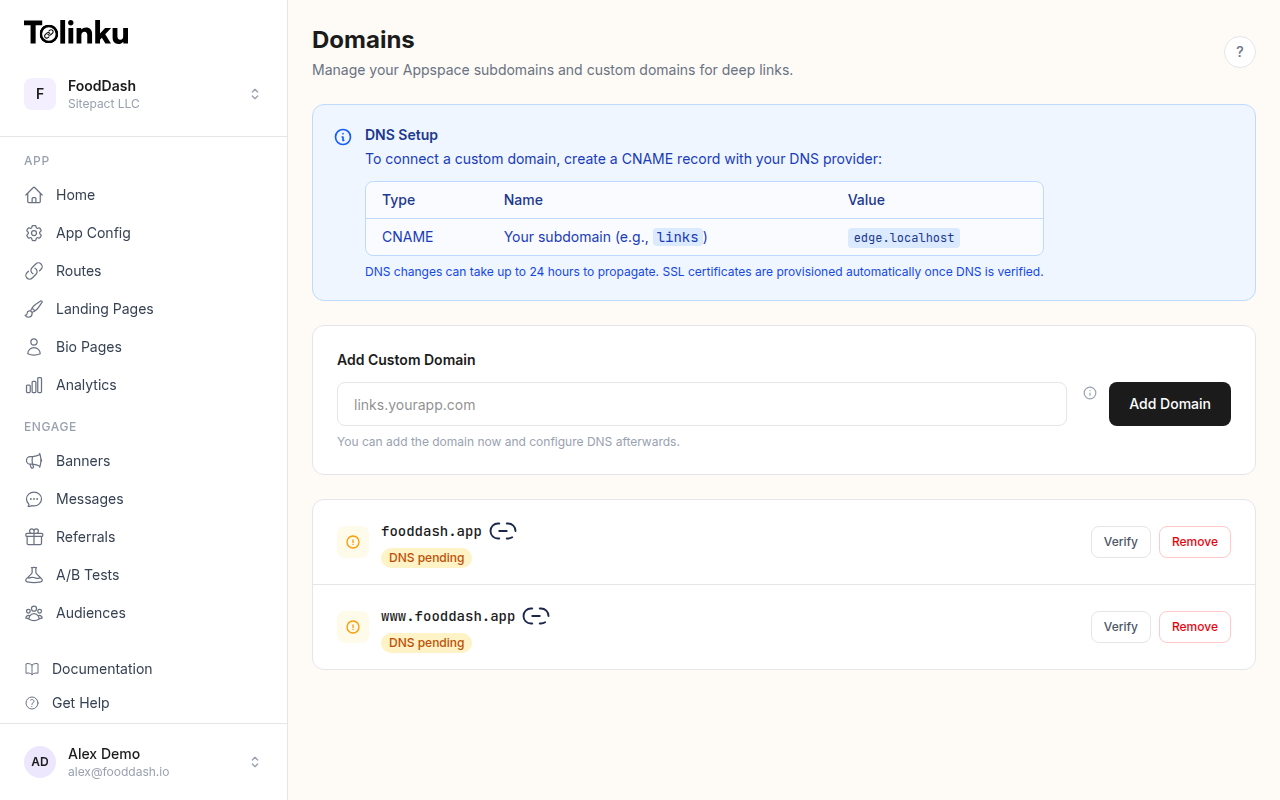
Android's verification agent has specific requirements for how your server must respond. All of these must be true:
HTTPS only. The file must be accessible via HTTPS. HTTP is not checked. Your SSL certificate must be valid (not expired, not self-signed, not a certificate for a different domain).
Status 200. The server must return HTTP 200. Redirects are not followed. If /.well-known/assetlinks.json redirects to another path, verification will fail. This catches setups where a CDN redirects bare paths, or where www.yourdomain.com redirects to yourdomain.com but the intent filter specifies the former.
Correct Content-Type. The response must have Content-Type: application/json. Some servers serve files from .well-known/ with application/octet-stream or text/plain. Both will cause verification to fail.
No authentication. The file must be publicly accessible without any authentication headers, cookies, or IP restrictions. Android's verification system cannot authenticate.
Reasonable response time. Android has a timeout for the verification check. If your server is slow or the file is behind a CDN edge that takes too long on first request, verification may time out.
Valid JSON. The file must parse as valid JSON. A trailing comma, unclosed bracket, or encoding issue will cause the verification to fail silently.
You can test server compliance with:
curl -v "https://yourdomain.com/.well-known/assetlinks.json"
Check the response code, Content-Type header, and that the body is valid JSON.
For multi-domain setups, each domain needs its own assetlinks.json. A common mistake is hosting the file only on the primary domain when intent filters cover subdomains.
When Android Runs Verification
Android does not verify on every link click. Verification happens at specific points:
On app install. When your app is installed (or updated), Android reads the intent filters with android:autoVerify="true" and schedules verification for each unique domain.
Immediately after install. Android attempts verification shortly after the install completes, using background network access.
On periodic re-verification. Android re-verifies periodically to detect if the domain's assetlinks.json has changed. This is not on a fixed schedule and is not user-visible.
After a failed verification. If verification fails, Android does not continuously retry. It marks the domain as unverified and may attempt again at the next install or update.
This timing has practical implications. If you ship your app before your server is ready to serve assetlinks.json, the app will install without App Link verification. Users who installed during that window will have unverified links until they reinstall or update the app.
The verification result is stored per domain per app. It is not re-checked at launch time.
Verification States
You can inspect the current verification state using ADB:
adb shell pm get-app-links com.yourcompany.app
Output looks like:
com.yourcompany.app:
    ID: a1b2c3d4
    Signatures: [AA:BB:CC:...]
    Domain verification state:
      yourdomain.com: verified
      sub.yourdomain.com: failed
The possible states are:
verified: Android confirmed the domain and the app are linked.failed: Verification was attempted and failed.pending: Verification has been scheduled but not yet completed.none: No verification has been attempted for this domain.
If you see failed, the next step is determining why. On Android 12 and higher, the Domain Verification API lets you request re-verification for testing:
adb shell pm set-app-links --package com.yourcompany.app 0 all
adb shell pm verify-app-links --re-verify com.yourcompany.app
The first command resets the verification state. The second triggers a fresh verification attempt. Wait a few seconds, then run get-app-links again to see the new state.
Multiple Domains
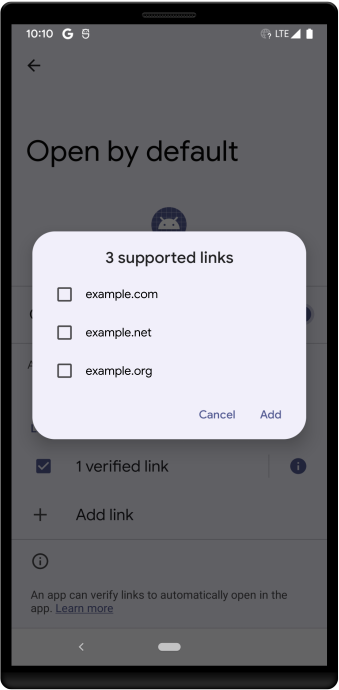
If your app handles URLs on multiple domains, each domain needs its own assetlinks.json and each domain must be listed in your intent filters.
Source: Android Developer Documentation
<intent-filter android:autoVerify="true">
    <action android:name="android.intent.action.VIEW" />
    <category android:name="android.intent.category.DEFAULT" />
    <category android:name="android.intent.category.BROWSABLE" />
    <data android:scheme="https" android:host="yourdomain.com" />
    <data android:scheme="https" android:host="www.yourdomain.com" />
    <data android:scheme="https" android:host="partner.yourdomain.com" />
</intent-filter>
Note that yourdomain.com and www.yourdomain.com are treated as distinct domains. Both need intent filter entries and both need assetlinks.json files. If www redirects to the apex domain, you still need the assetlinks.json on the www domain to be served directly (not via redirect).
For subdomains controlled by a platform or CDN, verify that each subdomain can independently serve the file. Some CDN configurations serve the file correctly on the primary domain but not on subdomains.
The Include Mechanism
If you manage many subdomains, maintaining assetlinks.json on each one is cumbersome. The Digital Asset Links protocol supports an include statement:
[{
  "include": "https://yourdomain.com/.well-known/assetlinks.json"
}]
A subdomain's assetlinks.json can include the primary domain's file. Android will follow the include and use the authoritative file. Includes can be nested, but keep the chain short to avoid timeout issues.
This is useful when you have many subdomains (for example, per-user subdomains in a SaaS product) and want to maintain a single authoritative file.
Wildcards
Android App Links do not support wildcard domains in intent filters. You cannot specify android:host="*.yourdomain.com" and have it match all subdomains. Each subdomain must be explicitly listed.
This is a meaningful constraint for apps with dynamic subdomains. One common pattern is to not use subdomains for the deep-linked paths, and instead use path parameters: yourdomain.com/user/username/ rather than username.yourdomain.com/.
Why Verification Fails in Production
Beyond the server configuration issues covered above, these are the most common production verification failures:
Play App Signing fingerprint mismatch. This is the single most common cause. If your app is enrolled in Play App Signing (which is now the default for new apps), the fingerprint in assetlinks.json must match the signing key that Google Play uses, not your upload key. Get the correct fingerprint from the Play Console.
CDN caching the wrong response. If you initially served a 404 or wrong Content-Type, and a CDN cached that response, Android may see the cached error response even after you fix the underlying file. Purge your CDN cache after making changes.
Different fingerprints for debug and release. Debug builds use a different signing certificate than release builds. If you test with a debug APK against a assetlinks.json that only has the release fingerprint, verification will fail on your test device.
File served only on certain paths. Some routing configurations only handle certain paths. Verify that /.well-known/assetlinks.json is not being caught by a catch-all redirect rule or authentication middleware.
Clock skew on SSL certificates. If your server's clock is significantly wrong, SSL certificate validation may fail, causing the HTTPS request to fail before the file is even fetched.
Verification on Android 11 and Earlier
The verification behavior changed with Android 12. On Android 11 and earlier, a single failed domain verification would cause all App Links in the same intent filter to fall back to browser behavior. On Android 12 and later, each domain is verified independently.
If you support Android 11, split intent filters by domain rather than combining them:
<!-- Separate intent filter per domain for Android 11 compatibility -->
<intent-filter android:autoVerify="true">
    <action android:name="android.intent.action.VIEW" />
    <category android:name="android.intent.category.DEFAULT" />
    <category android:name="android.intent.category.BROWSABLE" />
    <data android:scheme="https" android:host="yourdomain.com" />
</intent-filter>

<intent-filter android:autoVerify="true">
    <action android:name="android.intent.action.VIEW" />
    <category android:name="android.intent.category.DEFAULT" />
    <category android:name="android.intent.category.BROWSABLE" />
    <data android:scheme="https" android:host="www.yourdomain.com" />
</intent-filter>
This ensures a verification failure on one domain does not affect the other.
Testing Verification Locally
During development, you cannot verify against localhost or an internal IP. App Links require a publicly accessible HTTPS domain. Options for local testing:
- Use a service like ngrok to expose a local server via a public HTTPS URL
- Deploy to a staging environment with your real domain under a subdomain
- Manually override App Link handling during development using ADB to set the domain as verified without actual network verification
The ADB override approach is useful for UI testing:
adb shell pm set-app-links-user-selection \
  --user 0 \
  --package com.yourcompany.app \
  enabled \
  yourdomain.com
This tells Android to route App Links for that domain to your app without verification, which is useful for automated tests that do not have a live server.
For a practical setup guide covering hosting and configuration, see the Android App Links developer documentation and the configuring Android guide. If you are working through verification failures, the troubleshooting guide has a diagnostic checklist.
Summary
Android App Link verification is straightforward when everything is configured correctly, and opaque when something is wrong. The key points:
- The
assetlinks.jsonfile must be served at exactly the right path, with HTTPS, status 200, andContent-Type: application/json - The SHA-256 fingerprint must match the certificate used to sign the distributed APK, not your upload key or debug key
- Verification happens at install and update time, not at click time
- Each domain is verified independently on Android 12 and later
adb shell pm get-app-linksis your primary diagnostic tool- Redirects on the
assetlinks.jsonpath will silently fail verification
Getting verification right once means your deep links work reliably across all Android versions your app supports. The investment in understanding this process pays off every time a user clicks a link and lands exactly where they expected.
Get deep linking tips in your inbox
One email per week. No spam.