Every Android App Link has a fallback destination. On a device with the app installed, Android intercepts the URL and opens the app directly. But on a device without the app, the link falls back to the web. What the user finds on that web page determines whether you keep them or lose them.
This article covers how Android App Links fallback behavior works, what you should serve at fallback URLs, and how to build landing pages that turn a missed deep link into a conversion opportunity.
How Android App Links Fallback Works
Android App Links are standard HTTPS URLs. When a user taps a link and the associated app is installed and verified, Android opens the app to the matching activity. When the app is not installed (or when App Links verification has failed), Android treats the URL as a normal web URL and opens the default browser.
This is different from custom URI schemes (like myapp://path), which fail silently or show an error dialog when the app is not present. App Links degrade to the web, which gives you full control over the fallback experience.
The Android documentation on App Links verification explains the verification flow in detail, including how the system checks your assetlinks.json file and what happens when verification is incomplete.
The key scenarios you need to handle:
- App not installed (new or potential user)
- App installed but App Links verification failed (link opens in browser instead of app)
- App installed, link handled, but app crashes or cannot find the content
Scenarios 2 and 3 are bugs to fix. Scenario 1 is an expected state you should design for intentionally.
The Play Store Redirect Pattern
The most common fallback strategy is to redirect users without the app to the Play Store listing. This works well for links shared in contexts where users are likely to want the app (email campaigns, social posts, referral flows).
A basic implementation redirects based on user agent detection:
const userAgent = navigator.userAgent || navigator.vendor;
const isAndroid = /android/i.test(userAgent);

if (isAndroid) {
  window.location.href = "https://play.google.com/store/apps/details?id=com.yourapp.package";
} else {
  // Show web content or iOS App Store link
}
This pattern has a significant limitation: it sends users to the Play Store before they understand what they're installing. For cold traffic (users who have never heard of your app), bouncing straight to the Play Store produces poor conversion rates.
A better approach shows a landing page first, gives context about what the app does, then provides a clear call to action to install.
Designing a Purpose-Built Fallback Page
A fallback landing page serves a specific job: it bridges the gap between a link tap and either an app install or a web-based completion of the original intent.
The page should answer two questions immediately:
- What was the user trying to do?
- How do they continue from here?
If someone tapped a product link and doesn't have your app, the page should show that product with an option to install the app (and a promise that it will open the right screen) or a way to complete the action on the web.
Key elements for an effective fallback page:
Clear context. Show the content or offer the user expected. If the link was for a referral program, show the referral offer. If it was a product link, show the product. This reassures the user they landed in the right place.
An install prompt with a specific promise. "Install the app to get 20% off your first order" converts better than a generic "Download our app" button. The promise should connect directly to what the link was offering.
A web fallback action. Not every user wants to install another app. Provide a way to complete the action on the web. This is especially important for one-time transactions or users who are already logged in to the web version.
Minimal friction. Avoid asking for an email address or account creation before showing the user any value. Let them see what they clicked for first.
Passing Intent Through the Install Flow
The frustrating part of the naive Play Store redirect: even if the user installs the app, they end up at the home screen rather than the content they originally wanted. You lose the context from the original link.
This is the problem deferred deep linking solves. Before redirecting to the Play Store, you store the original deep link URL (or the intent it represents) and retrieve it after the app installs and opens for the first time.
Tolinku's deferred deep linking handles this automatically. When a user visits a fallback page via an App Link URL, the platform captures the intended destination. After the user installs and opens the app, the SDK reads the stored intent and navigates to the right screen on first launch. You can read more about how this works in the complete guide to deep linking.
For a technical breakdown of how fallback behavior works across different link types and platforms, see the deep link fallback behavior guide.
JavaScript-Based Smart Redirects
A common technique is to attempt to open the app via its URI scheme first, then fall back to the Play Store if the app doesn't respond. This approach predates App Links and has significant drawbacks on modern Android, but it is still used as a supplemental technique.
The pattern looks like this:
function attemptAppOpen(deepLink, fallbackUrl) {
  let appOpened = false;

  window.addEventListener('blur', () => {
    appOpened = true;
  });

  // Attempt to open the app via custom URI scheme
  window.location.href = deepLink;

  setTimeout(() => {
    if (!appOpened) {
      window.location.href = fallbackUrl;
    }
  }, 1500);
}
This relies on the page losing focus when the app opens, which is unreliable. Modern browsers have also restricted the ability to trigger custom URI scheme navigation without a user gesture.
For Android App Links specifically, this approach is mostly unnecessary. If the user has your app installed and App Links is correctly configured, the OS handles the interception before the browser even loads your page. JavaScript redirects only matter for the fallback scenario (app not installed) where you want to send users to the Play Store after showing them a landing page.
A cleaner approach is to detect Android from the user agent, show the landing page content, and make the "Install App" button link directly to the Play Store. No timers, no focus event hacks.
const isAndroid = /Android/i.test(navigator.userAgent);
const playStoreUrl = "https://play.google.com/store/apps/details?id=com.yourapp.package";

document.getElementById('install-btn').href = isAndroid ? playStoreUrl : '/download';
Web Content Fallbacks
For apps that have meaningful web equivalents (e-commerce, content platforms, SaaS tools), the best fallback is often not the Play Store at all. It's the web version of whatever content the link points to.
If your App Link points to https://yourapp.com/products/123, the fallback page at that URL should show product 123. If the user is already logged in to the web app, they might not need the native app at all. If they're not logged in, you can offer both options: log in on the web or install the app.
This approach requires your web routes to mirror your app's route structure, which is also a requirement for App Links to work correctly (the assetlinks.json file must be hosted at the same domain, and your AndroidManifest.xml intent filters must declare the URL patterns your app handles). You can read more about configuring these in the Tolinku App Links documentation.
Caching and the 404 Problem
One common source of broken fallback experiences is stale content. If a link points to a product that has been removed, a campaign that has ended, or a user account that no longer exists, the web fallback page will show a 404 or an error state.
Handle this at the route level:
- Return HTTP 200 with a graceful "this content is no longer available" message rather than a hard 404 when the content was once valid
- For campaigns, redirect to the campaign's root page or a "this offer has ended" page rather than an error
- Log 404s from App Link fallback URLs (you can identify them via the referrer header or a query parameter) so you can fix broken links proactively
Building Custom Landing Pages in Tolinku
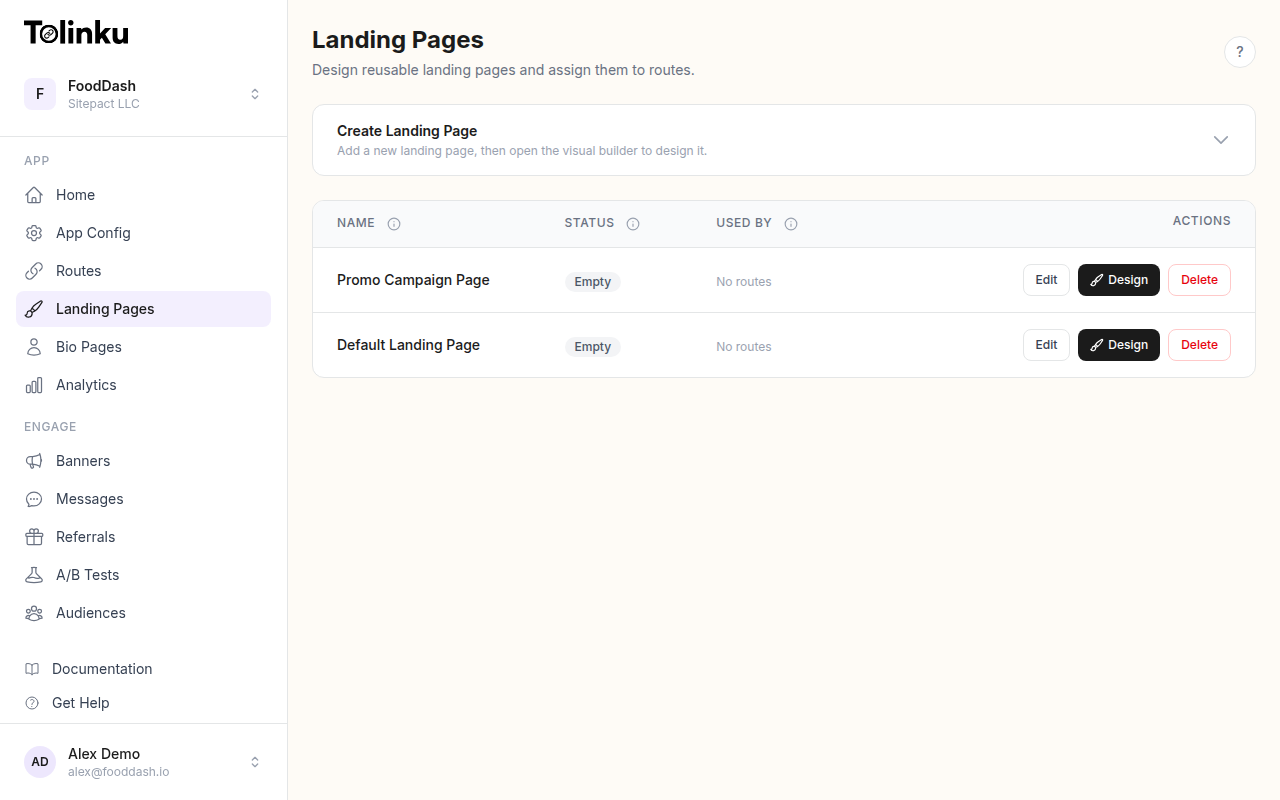
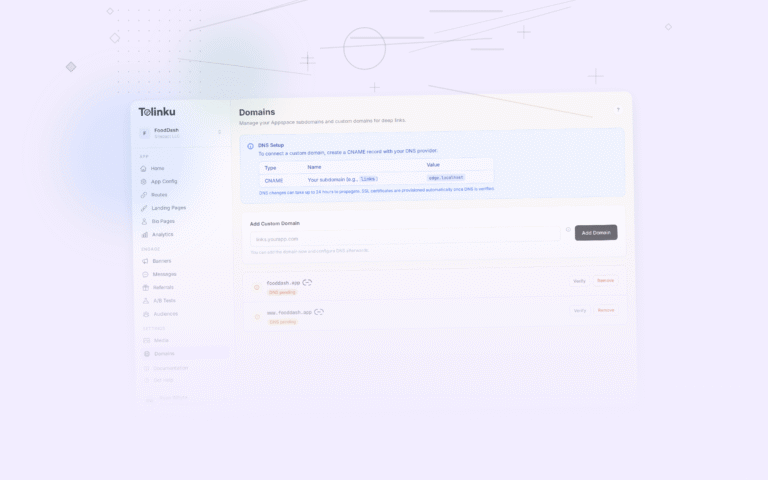
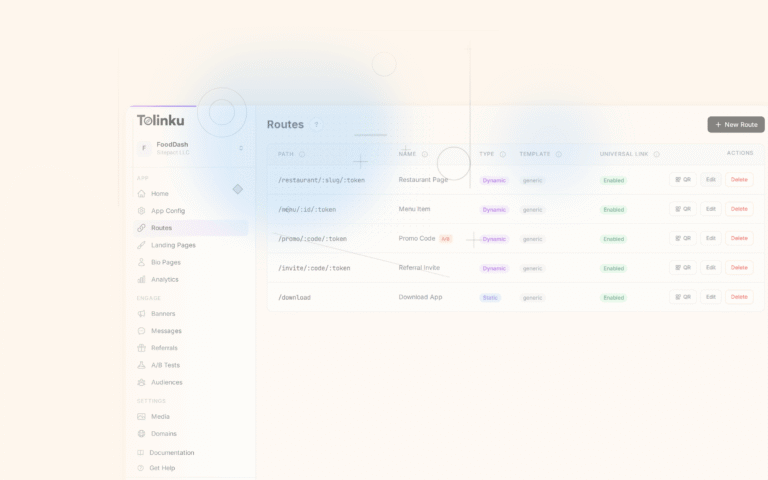
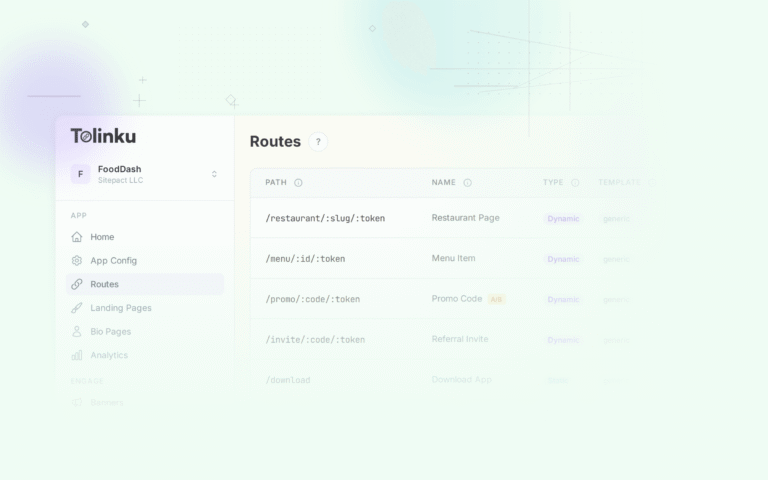
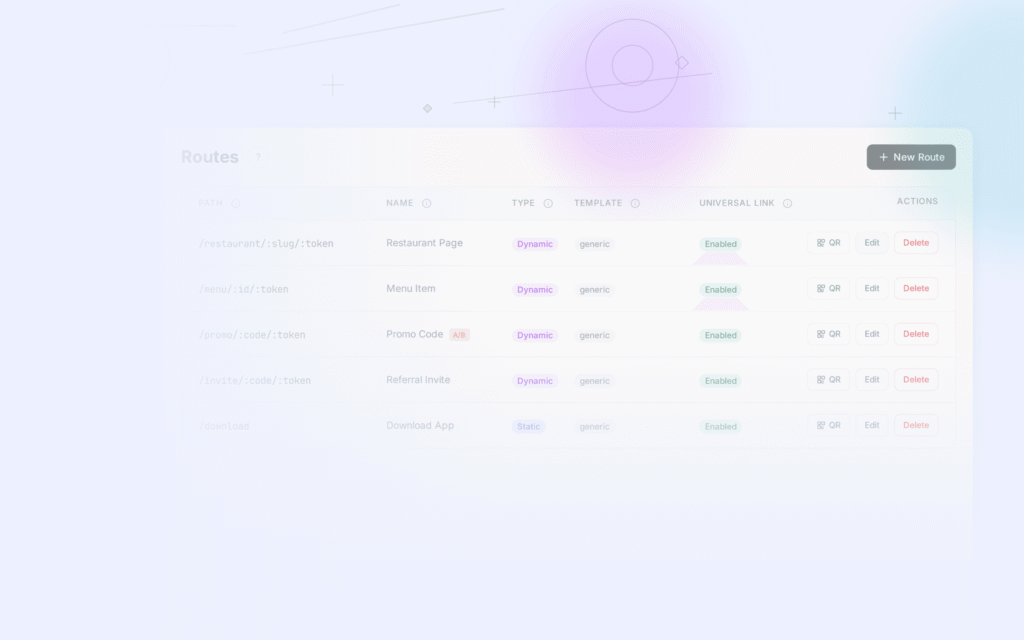
Tolinku's landing page builder lets you create custom fallback pages for each campaign or link type without writing web code. You can configure what content appears, which install buttons are shown, and how deferred deep linking captures the intent for post-install routing.
See the landing pages documentation for setup instructions, and the Android configuration guide for how to connect your fallback pages to your App Links configuration.
Testing Your Fallback Pages
Testing fallback behavior requires simulating the "app not installed" state, which is harder than it sounds if you develop on a device where the app is always installed.
Use these approaches:
A clean device or emulator. An Android emulator with a fresh image and no app installed is the most reliable test environment. Open App Links URLs in Chrome and verify the fallback page loads correctly.
Uninstall the app. On a physical device, uninstall your app and tap a shared App Link. This tests the real user experience for new users.
Check both paths. Verify the Play Store button reaches the correct listing. Verify the web fallback action (if you have one) works for logged-in and logged-out states. Verify that deferred deep linking correctly captures and replays the intent after reinstalling the app.
Use Google Search Console. If your App Links are associated with indexed content, Google Search Console's App Indexing reports can surface fallback issues where Google's crawler encounters broken web content at your App Link URLs.
A well-designed fallback page is not a consolation prize. For users who don't have your app yet, it's the first real impression of your product. Getting it right turns a technical edge case into a reliable part of your acquisition funnel.
For a broader look at how Android App Links work end to end, see the Android App Links complete guide.
Get deep linking tips in your inbox
One email per week. No spam.