

Landing Pages
Landing pages are what users see when they tap a deep link but do not have your app installed. Instead of a bare redirect to the App Store, you can show a branded page that explains what the link is about, previews the content, and gives the user a reason to install.
How landing pages work
Section titled “How landing pages work”When a user taps a Tolinku link on mobile without the app:
- Tolinku checks if the route has a custom landing page assigned.
- If yes, the landing page is rendered with your design, branding, and content.
- The page includes download buttons (App Store / Play Store) and optionally a web fallback link.
- If no custom landing page is assigned, the user sees a generic branded page or is redirected to your fallback URL.
On desktop, users typically see the landing page (or are redirected to the web fallback URL).
Landing page types
Section titled “Landing page types”Every route can use one of three landing page modes:
| Mode | What the user sees |
|---|---|
| Generic | A default branded page with your app name, icon, and download buttons. No custom design needed. |
| Custom | A page you designed with the visual builder. Full control over layout and content. |
| None | No landing page. The user is redirected directly to the store or fallback URL. |
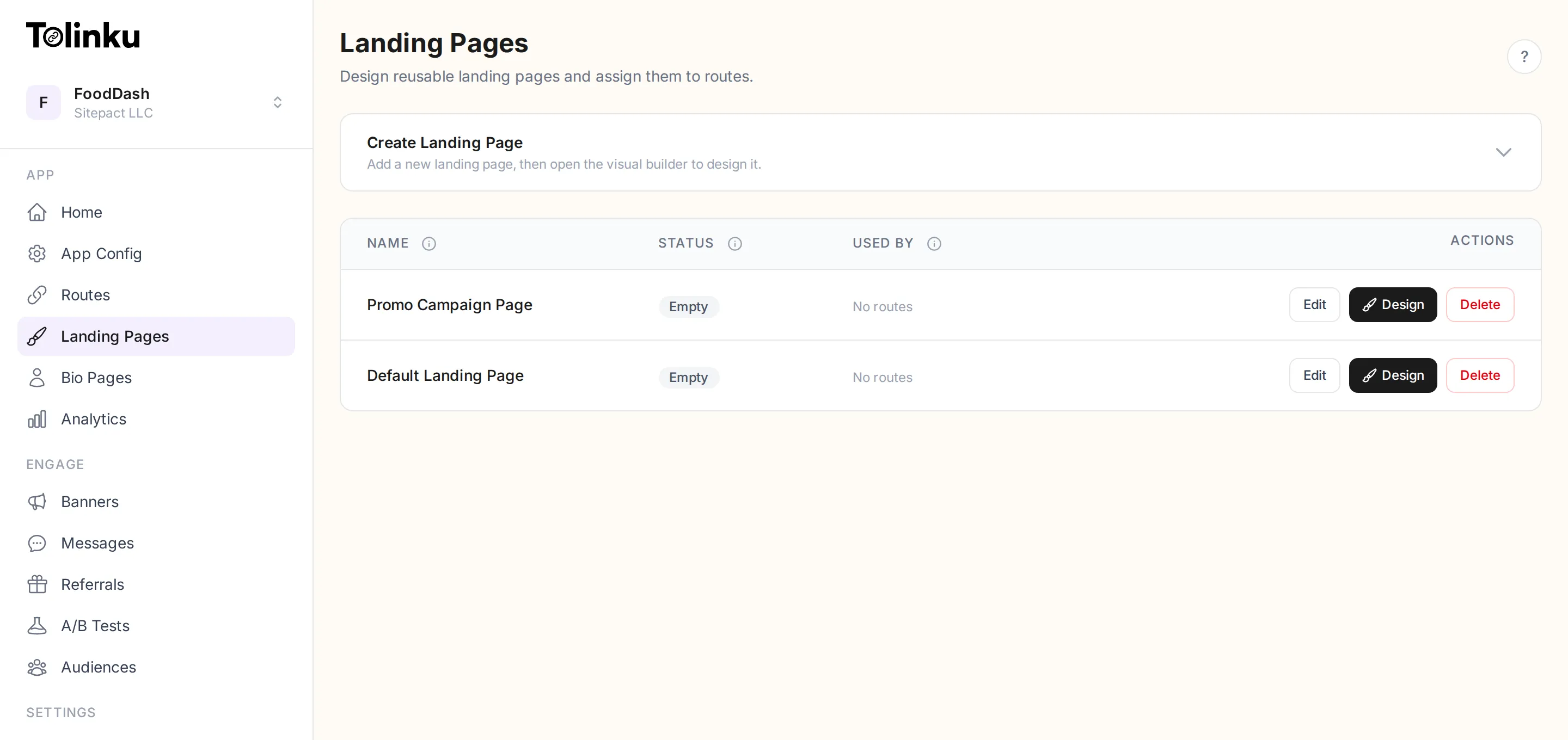
Creating a landing page
Section titled “Creating a landing page”- Go to Landing Pages in the sidebar.
- Click New Landing Page.
- Enter a name for internal reference (e.g. “Summer Promo Page”).
- Click Create.
This creates the page and opens the visual builder where you can design it.
Next steps
Section titled “Next steps” Designing Build your page with the visual editor.
Linking to Routes Assign a landing page to one or more routes.
A/B Testing Test different page designs against each other.