Your deep link domain is the foundation of your entire linking infrastructure. Every QR code, email campaign, social post, and ad creative points to it. Changing that domain, or changing where it resolves, is one of the highest-risk operations in a platform migration.
This guide covers how to migrate your deep link domain safely: the DNS changes, SSL certificate provisioning, verification file hosting, and redirect strategies that keep existing links working. For the overall migration timeline, see migration timeline planning. For risk mitigation strategies, see migration risk mitigation.
Why Domain Migration Is Different
Changing a deep link platform is not just an API migration. Your domain is embedded in:
- App verification files. Both Apple's AASA file and Android's assetlinks.json are hosted on your domain. If these files are not served correctly after the switch, deep links stop opening the app.
- Millions of existing links. Links in emails, print materials, QR codes, and social posts cannot be updated after distribution.
- DNS caches worldwide. DNS changes propagate gradually. During propagation, some users hit the old server and some hit the new one.
- SSL certificates. The new platform must have valid SSL certificates for your domain before it receives traffic.
A domain migration done poorly results in broken links for hours or days. Done well, users never notice.
Scenario 1: Same Domain, New Platform
This is the most common migration path. You keep your existing custom domain (e.g., links.yourapp.com) and point it to the new platform's servers instead of the old platform's servers.
Step 1: Configure the Domain on the New Platform
Before changing any DNS records, set up your domain on the new platform:
- Add the domain in the new platform's dashboard.
- Configure all your deep link routes on the new platform.
- Verify that the platform is ready to serve your domain's verification files.
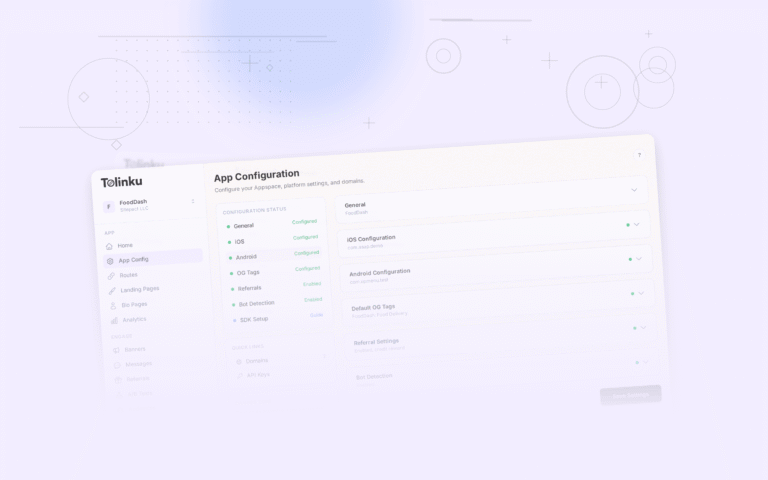
With Tolinku, you add your custom domain in the Appspace settings and configure your routes. Tolinku automatically generates and serves both apple-app-site-association and assetlinks.json files based on your app configuration.
Step 2: Pre-Provision SSL Certificates
The new platform needs a valid SSL certificate for your domain before it starts receiving traffic. If the platform uses Let's Encrypt, it needs to verify domain ownership first.
Options for certificate provisioning:
DNS validation (preferred): Add a TXT record for the certificate authority to verify. This works before you change the A/CNAME records, so the certificate is ready when you switch.
HTTP validation: Requires the domain to already point to the new platform. This creates a chicken-and-egg problem: you need the certificate before switching, but you need to switch before getting the certificate.
To avoid downtime, use DNS validation or ask the new platform to pre-provision the certificate.
Step 3: Lower DNS TTL
At least 48 hours before the migration, lower your DNS TTL (Time to Live) to 60-300 seconds:
; Before (typical production TTL)
links.yourapp.com.  3600  IN  CNAME  old-platform.example.com.

; 48 hours before migration (lower TTL)
links.yourapp.com.  60    IN  CNAME  old-platform.example.com.
This ensures that when you make the switch, DNS caches expire quickly. Without this step, some users may see the old DNS records for up to 24 hours after you change them.
Step 4: Switch DNS
Once the new platform is fully configured, SSL is provisioned, and routes are set up, update your DNS records:
; Migration switch
links.yourapp.com.  60  IN  CNAME  new-platform.example.com.
Step 5: Verify After Switch
Immediately after switching, verify:
# Check DNS resolution
dig links.yourapp.com

# Check SSL certificate
openssl s_client -connect links.yourapp.com:443 -servername links.yourapp.com < /dev/null 2>/dev/null | openssl x509 -noout -dates

# Check verification files
curl -s https://links.yourapp.com/.well-known/apple-app-site-association | python3 -m json.tool
curl -s https://links.yourapp.com/.well-known/assetlinks.json | python3 -m json.tool

# Test a deep link
curl -sI https://links.yourapp.com/your-route
Step 6: Restore TTL
After 24-48 hours of stable operation, restore your DNS TTL to a normal value (3600 seconds or higher):
links.yourapp.com. 3600 IN CNAME new-platform.example.com.
Scenario 2: New Domain
If you are changing your deep link domain entirely (e.g., from links.oldname.com to links.newname.com), you need to handle redirects from the old domain to the new one.
Set Up Permanent Redirects
Configure your old domain to redirect to the new domain. Use HTTP 301 (permanent) redirects:
Old: https://links.oldname.com/promo/summer
 → 301 redirect to: https://links.newname.com/promo/summer
The path should be preserved in the redirect. If the route structure differs between platforms, you need a redirect map:
// Redirect map for domain migration
const redirectMap = {
  '/old-campaign-path': '/new-campaign-path',
  '/product/:id': '/shop/:id',
};
Keep the Old Domain Running
Do not shut down the old domain immediately. Keep it running with redirects for at least 6-12 months. Links in emails, print materials, and cached web pages will continue to reference the old domain long after migration.
Update App Verification for Both Domains
If you are running both domains during the transition, both must serve valid verification files:
links.oldname.com/.well-known/apple-app-site-association(redirects to new domain)links.newname.com/.well-known/apple-app-site-association(primary)
On iOS, Apple follows redirects when fetching the AASA file, so a redirect from the old domain to the new domain works. On Android, the Digital Asset Links specification requires the file to be served directly (no redirects) at the domain in the intent filter. This means your Android AndroidManifest.xml must be updated to reference the new domain.
App Configuration Changes
iOS: Associated Domains
Update your app's associated domains entitlement to include both the old and new domains during migration:
<!-- Associated Domains entitlement -->
<key>com.apple.developer.associated-domains</key>
<array>
  <string>applinks:links.newname.com</string>
  <string>applinks:links.oldname.com</string>
</array>
After the migration period (6-12 months), remove the old domain from the entitlement.
Android: Intent Filters
Add intent filters for both domains during migration:
<intent-filter android:autoVerify="true">
    <action android:name="android.intent.action.VIEW" />
    <category android:name="android.intent.category.DEFAULT" />
    <category android:name="android.intent.category.BROWSABLE" />
    <data android:scheme="https" android:host="links.newname.com" />
</intent-filter>

<!-- Keep old domain during migration -->
<intent-filter android:autoVerify="true">
    <action android:name="android.intent.action.VIEW" />
    <category android:name="android.intent.category.DEFAULT" />
    <category android:name="android.intent.category.BROWSABLE" />
    <data android:scheme="https" android:host="links.oldname.com" />
</intent-filter>
Both domains must serve valid assetlinks.json files for Android App Links verification to succeed.
Handling the Verification File Gap
The most dangerous moment in a domain migration is the period between switching DNS and the new platform serving verification files. If there is a gap, even for a few minutes, some devices may cache the failed verification.
iOS Behavior
Apple fetches the apple-app-site-association file when the app is installed or updated, and caches it for up to 24 hours (via the Apple CDN). If your verification file is unavailable during the DNS switch, newly installed apps or recently updated apps may not open your deep links for up to 24 hours.
After iOS 14, Apple uses a CDN-based system to fetch and cache AASA files. The CDN updates are not instant.
Android Behavior
Android re-verifies App Links periodically and when the app is updated. If assetlinks.json is unavailable during the switch, Android may fall back to showing a disambiguation dialog instead of opening the app directly.
You can force re-verification on a test device:
adb shell pm verify-app-links --re-verify com.yourapp.android
Mitigation: Serve Files from Your Own Infrastructure
For maximum control during migration, serve the verification files from your own web server or CDN, independent of the deep linking platform:
# Nginx: serve verification files directly
location /.well-known/apple-app-site-association {
    alias /var/www/well-known/aasa.json;
    default_type application/json;
}

location /.well-known/assetlinks.json {
    alias /var/www/well-known/assetlinks.json;
    default_type application/json;
}

# All other requests: proxy to the deep linking platform
location / {
    proxy_pass https://new-platform.example.com;
}
This guarantees the verification files are always available, regardless of the platform's state during migration.
DNS Propagation and the Split-Brain Problem
During DNS propagation, some users resolve your domain to the old platform and some to the new platform. This "split-brain" period typically lasts 1-4 hours with a low TTL, but can extend to 48 hours with high TTLs.
What Happens During Split-Brain
- Users hitting the old platform: links work as before (old routes, old analytics).
- Users hitting the new platform: links work with new routes and new analytics.
- New links created on the new platform: only work for users who have the new DNS.
Mitigating Split-Brain Issues
- Keep the old platform running during the propagation window. Do not delete routes or disable the account.
- Freeze link creation on the old platform. All new links should be created on the new platform.
- Monitor traffic on both platforms during propagation. When traffic on the old platform drops to near zero, propagation is complete.
- Use a health check to detect when propagation finishes:
# Check from multiple locations (using a service like dig from different regions)
for ns in 8.8.8.8 1.1.1.1 208.67.222.222; do
  echo "Checking via $ns:"
  dig @$ns links.yourapp.com +short
done
Post-Migration Domain Cleanup
After the migration is stable (2-4 weeks), clean up:
- Restore DNS TTL to production values (3600+ seconds).
- Remove old platform DNS records if you used a separate staging subdomain for testing.
- Update documentation with the new platform's domain configuration.
- Notify the old platform that you are done migrating (they may have infrastructure allocated for your domain).
- Monitor for 30 days to catch any stragglers or cached DNS entries.
Tolinku Domain Migration
Tolinku supports custom domains with automatic SSL provisioning via Let's Encrypt. When you add a custom domain to your Appspace, Tolinku automatically serves the correct apple-app-site-association and assetlinks.json files based on your iOS and Android app configuration.
For branded link domains, see branded link domains. For the complete migration process, see migrating to Tolinku. For redirect strategies during migration, see link redirects during migration.
Get deep linking tips in your inbox
One email per week. No spam.