Google App Indexing lets your app content appear directly in Google Search results. When a user searches for something your app contains, Google can show a link that opens the app directly to that content, or prompt installation if the app is not installed.
This is not just an SEO tactic. It is a user acquisition and re-engagement channel. Users who find your content through search and land directly in your app skip the browser entirely, resulting in higher engagement and better conversion rates.
This guide covers the full setup process: Digital Asset Links verification, deep link handling, content indexing, and Search Console validation. For the broader app indexing strategy, see app indexing and SEO for mobile apps. For Android App Links implementation, see the Android App Links guide.
How Google App Indexing Works
Google App Indexing connects your web content to your app content through deep links. The flow works like this:
- Google crawls your website and finds deep links (App Links or custom scheme URLs).
- Google verifies that your app handles those URLs via Digital Asset Links.
- When a user on an Android device searches for content that matches your indexed pages, Google shows an "Open in app" button or directly opens the app.
- If the user does not have the app installed, Google may show an install prompt alongside the search result.
There are two types of app indexing:
- HTTP deep links (App Links): Your app handles
https://URLs that match your website. This is the preferred method because it uses the same URLs as your website. - Custom scheme deep links: Your app handles URLs like
yourapp://products/123. These are less preferred because they require explicit annotation in your web pages.
Prerequisites
Before setting up app indexing, you need:
- A website with indexable content. Google needs web pages to crawl. Each page that you want indexed in-app must have a corresponding web URL.
- An Android app with deep link handling. Your app must handle incoming URLs and route them to the correct content.
- Digital Asset Links verification. Your website must host an
assetlinks.jsonfile that declares your app as a handler for your domain. - Google Search Console access. You need access to verify and monitor your app indexing status.
Step 1: Set Up Android App Links
Android App Links are the foundation of Google App Indexing. They tell Android (and Google) that your app can handle specific HTTPS URLs.
Add Intent Filters
In your AndroidManifest.xml, add intent filters for the URLs your app handles:
<activity android:name=".ProductActivity"
    android:exported="true">
    <intent-filter android:autoVerify="true">
        <action android:name="android.intent.action.VIEW" />
        <category android:name="android.intent.category.DEFAULT" />
        <category android:name="android.intent.category.BROWSABLE" />
        <data
            android:scheme="https"
            android:host="www.yourapp.com"
            android:pathPrefix="/products" />
    </intent-filter>
</activity>

<activity android:name=".ArticleActivity"
    android:exported="true">
    <intent-filter android:autoVerify="true">
        <action android:name="android.intent.action.VIEW" />
        <category android:name="android.intent.category.DEFAULT" />
        <category android:name="android.intent.category.BROWSABLE" />
        <data
            android:scheme="https"
            android:host="www.yourapp.com"
            android:pathPrefix="/articles" />
    </intent-filter>
</activity>
The android:autoVerify="true" attribute tells Android to verify your app's ownership of these URLs using Digital Asset Links.
Handle Incoming Deep Links
In each Activity, extract the URL and route to the correct content:
class ProductActivity : AppCompatActivity() {
    override fun onCreate(savedInstanceState: Bundle?) {
        super.onCreate(savedInstanceState)

        val uri = intent.data ?: return
        val productId = uri.lastPathSegment ?: return

        // Load the product
        loadProduct(productId)
    }
}
Step 2: Host Digital Asset Links
Create the assetlinks.json file and host it at https://www.yourapp.com/.well-known/assetlinks.json:
[
  {
    "relation": ["delegate_permission/common.handle_all_urls"],
    "target": {
      "namespace": "android_app",
      "package_name": "com.yourapp.android",
      "sha256_cert_fingerprints": [
        "AA:BB:CC:DD:EE:FF:00:11:22:33:44:55:66:77:88:99:AA:BB:CC:DD:EE:FF:00:11:22:33:44:55:66:77:88:99"
      ]
    }
  }
]
Get Your SHA-256 Fingerprint
For your debug keystore:
keytool -list -v -keystore ~/.android/debug.keystore -alias androiddebugkey -storepass android -keypass android
For your release keystore:
keytool -list -v -keystore your-release-key.keystore
If you use Google Play App Signing, get the SHA-256 fingerprint from the Google Play Console under Setup > App signing.
Verify the File
After hosting the file, verify it with Google's tool:
curl -s "https://digitalassetlinks.googleapis.com/v1/statements:list?source.web.site=https://www.yourapp.com&relation=delegate_permission/common.handle_all_urls" | python3 -m json.tool
The response should include your app's package name and fingerprint.
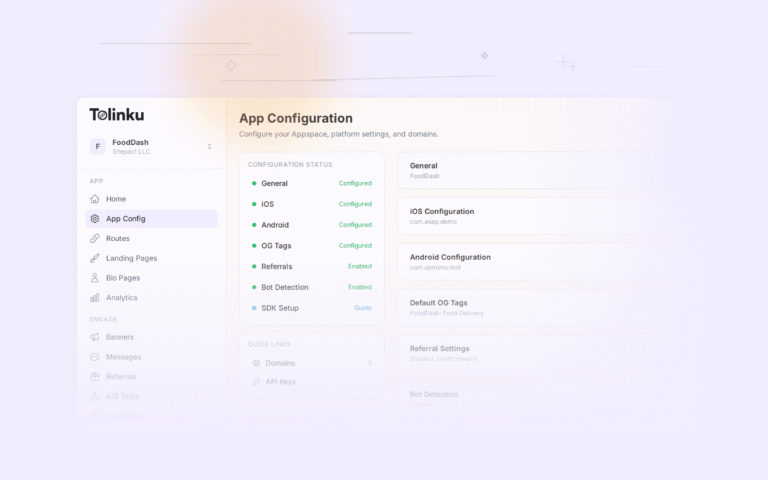
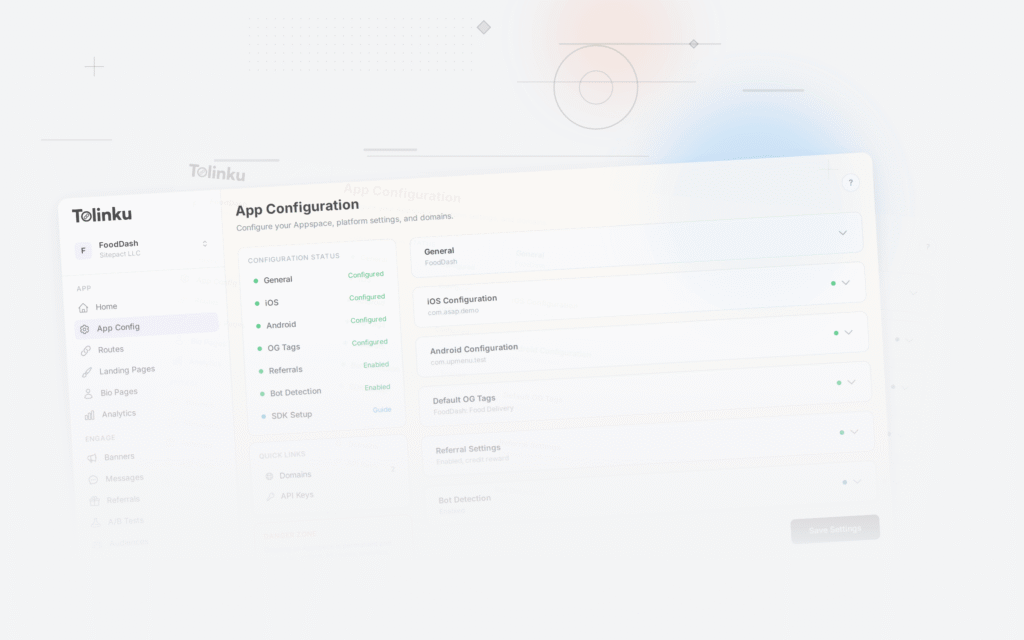
Tolinku automatically generates and hosts the assetlinks.json file for your custom deep link domain based on your Appspace's Android configuration.
Step 3: Add Web Markup
For Google to connect your web pages to your app content, add link elements to your HTML pages:
Option A: App Links Meta Tags
If your web URLs and app URLs use the same structure (recommended):
<head>
  <!-- Android App Link -->
  <link rel="alternate" href="android-app://com.yourapp.android/https/www.yourapp.com/products/123" />
</head>
Option B: Schema.org Markup
Add structured data to your pages:
<script type="application/ld+json">
{
  "@context": "https://schema.org",
  "@type": "Product",
  "name": "Product Name",
  "url": "https://www.yourapp.com/products/123",
  "potentialAction": {
    "@type": "ViewAction",
    "target": [
      "https://www.yourapp.com/products/123",
      "android-app://com.yourapp.android/https/www.yourapp.com/products/123"
    ]
  }
}
</script>
Option C: Sitemap
Add app deep links to your XML sitemap:
<urlset xmlns="http://www.sitemaps.org/schemas/sitemap/0.9"
        xmlns:xhtml="http://www.w3.org/1999/xhtml">
  <url>
    <loc>https://www.yourapp.com/products/123</loc>
    <xhtml:link rel="alternate"
                href="android-app://com.yourapp.android/https/www.yourapp.com/products/123" />
  </url>
</urlset>
Step 4: Test App Indexing
Test with adb
Verify that your app handles deep links correctly:
# Test a deep link
adb shell am start -a android.intent.action.VIEW \
  -d "https://www.yourapp.com/products/123" \
  com.yourapp.android

# Verify App Links
adb shell pm verify-app-links --re-verify com.yourapp.android
adb shell pm get-app-links com.yourapp.android
Test with Google's URL Testing Tool
Use the URL Inspection tool in Google Search Console to test specific URLs. It shows whether Google can find your app link annotations and whether the page is eligible for app indexing.
Test with the App Indexing API (Optional)
Google provides an App Indexing API that lets you proactively report viewed content from your app. This is optional but can help Google discover new content faster:
import com.google.firebase.appindexing.FirebaseAppIndex
import com.google.firebase.appindexing.Indexable

class ProductActivity : AppCompatActivity() {
    override fun onStart() {
        super.onStart()

        val url = "https://www.yourapp.com/products/$productId"
        val indexable = Indexable.Builder()
            .setName(productName)
            .setUrl(url)
            .build()

        FirebaseAppIndex.getInstance(this).update(indexable)
    }
}
Step 5: Monitor in Search Console
Link Your App
- Go to your website property.
- Navigate to Settings > Associations.
- Add your Android app (by package name).
- Verify ownership via the Google Play Console.
Check Indexing Status
After linking, check:
- Coverage report: Shows which of your app-linked pages are indexed.
- Enhancement report: Shows app indexing-specific issues (missing
assetlinks.json, broken deep links). - Performance report: Filter by "App" to see clicks and impressions from app results.
Common Issues
| Issue | Cause | Fix |
|---|---|---|
| "App not verified" | assetlinks.json not found or incorrect |
Verify file is served at correct URL with correct content |
| "Deep link not handled" | App does not have intent filter for the URL | Add matching intent filter in AndroidManifest.xml |
| "Page not indexed" | Google has not crawled the page yet | Submit URL in Search Console, wait for crawl |
| "Soft 404" | Page returns 200 but has no meaningful content | Ensure pages have real content, not empty shells |
Best Practices
URL Structure
Use the same URL structure for your website and app. If your website has https://www.yourapp.com/products/123, your app should handle that exact URL. This eliminates the need for complex URL mapping.
Canonical URLs
Ensure your web pages have proper canonical tags. Google uses canonical URLs when associating web content with app content. If your canonicals point elsewhere, app indexing may not work.
Content Parity
Google expects your app content to match your web content. If a user clicks an app-indexed result and the app shows different content than the web page, Google may demote or remove the app result.
Deep Link Every Indexable Page
Every web page that you want indexed in-app needs a corresponding deep link. If you have 10,000 product pages on your website but only handle deep links for 100 products, only those 100 are eligible for app indexing.
Tolinku and App Indexing
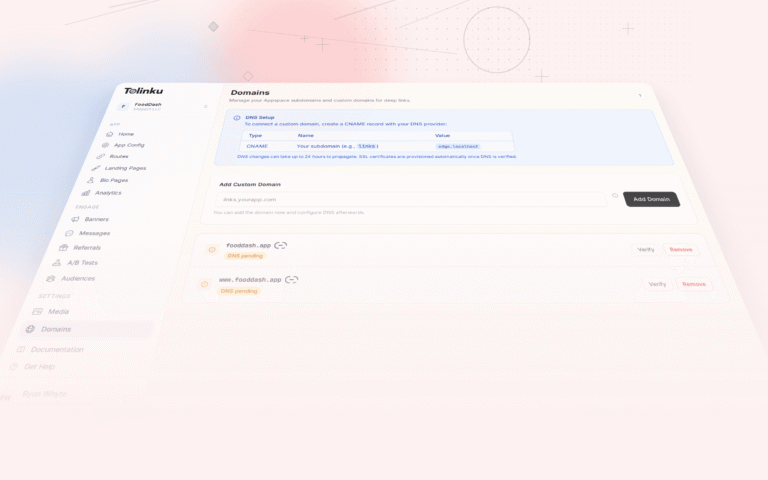
Tolinku handles the infrastructure side of app indexing: hosting the assetlinks.json file, managing your custom domain, and routing deep links to the correct in-app content. Configure your routes in the Tolinku dashboard and Tolinku serves the verification files automatically.
For iOS indexing, see Apple Spotlight indexing. For the broader app indexing strategy, see app indexing and SEO for mobile apps.
Get deep linking tips in your inbox
One email per week. No spam.