Android lets apps claim to handle URLs through intent filters, but not all URL-handling claims are equal. When an app is verified to handle a domain, Android routes matching URLs directly to the app. When an app is not verified, Android shows a disambiguation dialog that asks the user which app or browser should open the link.
That dialog is the dividing line between a good user experience and a frustrating one. This guide explains exactly what verification means, what changes when it passes or fails, and why getting it right matters for your app's web-to-app conversion rate.
What "Verified" Means
An Android App Link is considered verified when Android has confirmed two things:
- The
assetlinks.jsonfile athttps://{domain}/.well-known/assetlinks.jsoncontains an entry for your app's package name and signing certificate. - Your app's intent filter declares
android:autoVerify="true"for that domain.
When both conditions are true and the verification check succeeds, Android marks your app as the trusted default handler for that domain. The trust is domain-specific. An app can be verified for one domain and unverified for another.
The Android documentation on verifying App Links describes the technical details of the verification process. The short version: Android (or Google's servers on Android 12 and later) fetches the assetlinks.json file during or shortly after app installation and checks whether the file authorizes your app.
The User Experience: Verified
When your app is verified for a domain and a user taps a link on that domain, the experience is direct:
- User taps
https://example.com/products/123in a browser, email, or any other app. - Android immediately launches your app and delivers the link.
- Your app opens to the product page.
No dialog. No delay. No choice presented to the user. The link behaves like a first-class feature of the platform.
This matters most in high-intent moments. Someone taps a product link from an email promotion, or follows a referral link from a friend. The fewer steps between tapping the link and seeing the content, the better the conversion. Even a single extra tap on a disambiguation dialog causes measurable drop-off, because some users will choose the browser (or simply close the dialog).
The User Experience: Unverified
When your app is not verified, the experience depends on several factors:
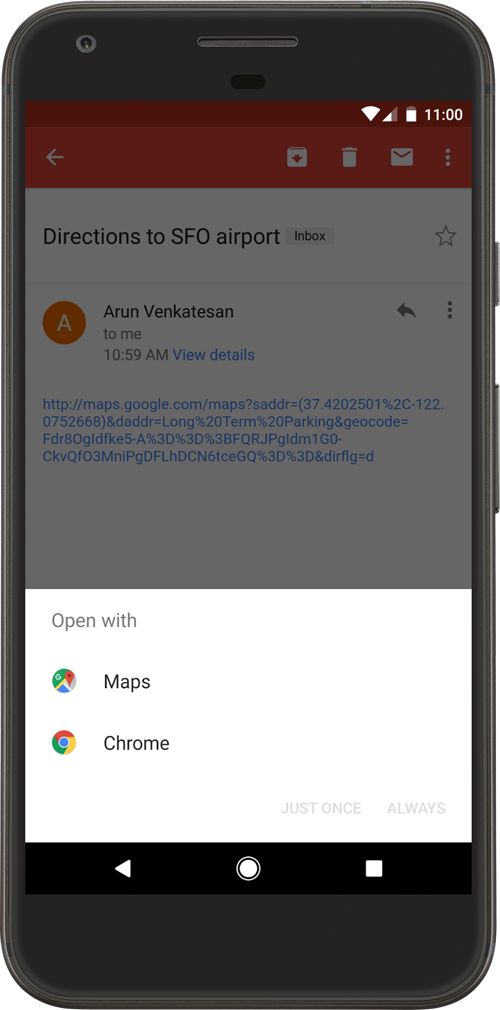
Source: Android Developer Documentation
If only one app has an intent filter matching the URL: Android may still show a dialog asking the user to confirm which app should handle the link, even if there is only one candidate. This is the default disambiguation behavior for unverified links.
If no app has a matching intent filter (or none pass verification): The URL opens in the browser. The user never sees your app.
If the user previously chose an app: Android remembers the user's choice. If a user once selected your app from the disambiguation dialog, Android may route subsequent links from that domain to your app without showing the dialog again, but this preference is fragile. On Android 12 and later, this implicit preference behavior changed and became less reliable.
The disambiguation dialog itself looks like a bottom sheet with app icons and names. For most users, it is an interruption. For technical users, it is information they can act on. For everyone, it adds friction.
The autoVerify Attribute
The android:autoVerify attribute is what tells Android to attempt verification for your intent filter. Without it, your intent filter works as an unverified deep link claim.
Correct placement:
<intent-filter android:autoVerify="true">
    <action android:name="android.intent.action.VIEW" />
    <category android:name="android.intent.category.DEFAULT" />
    <category android:name="android.intent.category.BROWSABLE" />
    <data
        android:scheme="https"
        android:host="example.com" />
</intent-filter>
The attribute goes on the <intent-filter> element, not on the <data> element. A common mistake is placing it on <data>, where it is silently ignored.
If you add autoVerify="true" but do not host a valid assetlinks.json file, verification fails and the intent filter behaves exactly like an unverified one. The attribute alone is not enough; the server-side file is required.
What Happens When Verification Fails
If Android attempts verification and the assetlinks.json file is missing, unreachable, or contains incorrect data, your app is treated as unverified for that domain. The intent filter still exists and still matches URLs, but without verified status.
On Android 11 and earlier, failure for one domain in an intent filter affected all domains in that filter. On Android 12 and later, each domain is evaluated independently. A failure for www.example.com does not remove verified status for example.com if that domain's file is correct.
Verification failure is silent by default. Users see the disambiguation dialog (or links go to the browser) and there is no visible error. To check verification status programmatically during development:
adb shell pm get-app-links --package com.example.myapp
The output shows each domain and its status. verified means the check passed. rejected means the check ran but the assetlinks.json file did not match your app. none usually means verification has not run yet, the domain is unreachable, or there was a network error.
For common failure reasons and how to diagnose them, see the Tolinku Android troubleshooting guide.
Fallback Behavior When the App Is Not Installed
Neither verified nor unverified App Links help when the app is not installed. If a user taps a link and the app is not on their device, the link opens in a browser regardless of verification status.
This is where deferred deep linking becomes important. When the user installs the app after tapping a link, the app can retrieve the original link and route the user to the correct content. This requires a deep linking platform that stores the original URL and delivers it to the app on first launch.
Tolinku handles this through its deep linking platform. The Tolinku SDK captures the intent at the web layer and replays it after installation, so the user arrives at the right place even if they had to install the app first.
Verified App Links and Instant Apps
Android Instant Apps are a special case. Instant Apps can open URLs without being fully installed, and they use App Links for URL routing. Instant App verification works through the same assetlinks.json mechanism, but the instant app variant of your app requires its own entry in the Digital Asset Links file.
If you are building an Instant App alongside your main app, both package names (or both applications if they share a package name with different build types) need to be authorized in the file.
Comparing the Two Outcomes
| Aspect | Verified App Link | Unverified Deep Link |
|---|---|---|
| Disambiguation dialog | Not shown | Usually shown |
| User choice required | No | Often yes |
| URL ownership proof | Required (assetlinks.json) | Not required |
| Intent filter attribute | autoVerify="true" |
Optional / omitted |
| Android version dependency | Works on Android 6.0+ | Works on all versions |
| Link handling preference | Managed per-domain (Android 12+) | Based on user choice history |
Why Verification Is Worth the Effort
The case for verification is straightforward: users who do not have to make a choice are more likely to end up in your app. The disambiguation dialog is not a disaster, but it introduces a decision point where users can choose the browser, can close the dialog, or can simply feel frustrated that clicking a link did not "just work."
Apps that rely on links for re-engagement (push notifications, email campaigns, referral programs, social sharing) see real differences in conversion when App Links are properly verified. A link that routes directly to the right screen in your app performs better than one that sends the user to a browser with a banner asking them to open the app.
The implementation effort is modest: host one JSON file, add one attribute to your intent filter, and get the correct certificate fingerprint. For guidance on the full setup, see the Tolinku Android configuration guide and the Android App Links complete guide.
Summary
Verified App Links skip the disambiguation dialog and send users directly into your app. Unverified links show a dialog and give users a chance to choose the browser instead. The android:autoVerify="true" attribute triggers verification, but verification only passes if you also host a valid assetlinks.json file with the correct certificate fingerprint for your app. The effort to get verification working is low relative to the improvement in user experience and conversion.
Get deep linking tips in your inbox
One email per week. No spam.