Switching deep linking platforms is a multi-phase project that touches your mobile apps, website, marketing links, analytics pipelines, and team workflows. Rushing it leads to broken links, lost attribution, and frustrated users. Planning too conservatively delays the benefits of the new platform.
A realistic migration timeline for most teams is 4-8 weeks from start to full cutover. This guide provides a week-by-week plan with clear milestones. For analytics data migration, see analytics data migration. For risk mitigation, see migration risk mitigation.
Timeline Overview
Week 1-2: Preparation and Setup
Week 3-4: SDK Integration and Testing
Week 5-6: Staged Rollout
Week 7-8: Full Cutover and Cleanup
For simpler setups (single app, few links, small team), this can compress to 3-4 weeks. For enterprise setups (multiple apps, thousands of links, large teams), allow 8-12 weeks.
Week 1-2: Preparation and Setup
Week 1: Audit and Account Setup
Day 1-2: Audit current state
- Document all existing deep link routes and their destinations.
- List all active marketing links (campaigns, referrals, QR codes, email templates).
- Identify all apps and platforms that use the deep linking SDK.
- Export analytics baselines from the current platform.
Day 3-4: Set up the new platform
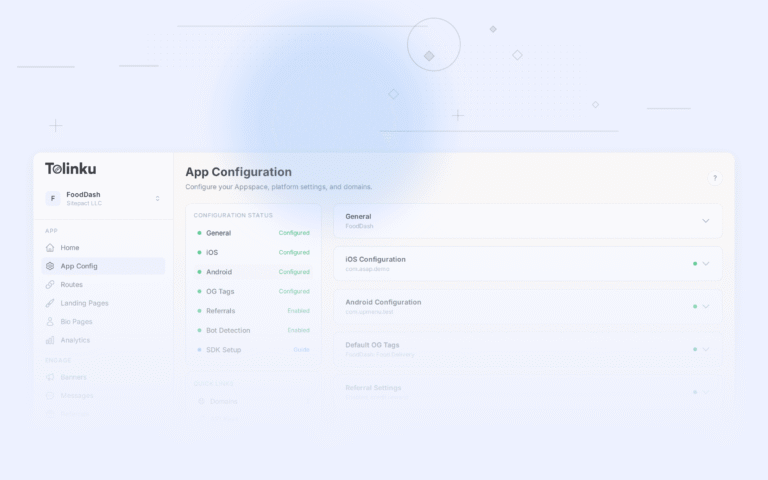
- Create your account and configure your Appspace.
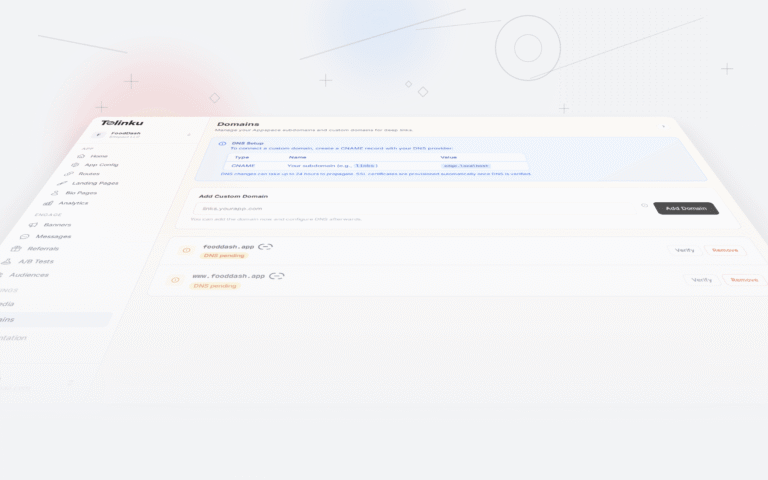
- Set up domains (custom domain or platform subdomain).
- Configure iOS settings (Bundle ID, Team ID, App Store ID).
- Configure Android settings (package name, SHA-256 fingerprints).
- Verify Digital Asset Links and Apple App Site Association files are serving correctly.
Day 5: Map existing routes
- Create routes on the new platform that match your existing deep link paths.
- Map link parameters from old format to new format. See link format mapping.
- Set up redirect rules and fallback behaviors.
Week 2: Team Preparation
Day 6-7: Technical documentation
- Document the SDK integration plan for each app.
- Create a testing checklist covering all deep link scenarios.
- Document the rollback plan (how to revert if something goes wrong).
Day 8-9: Stakeholder communication
- Brief the marketing team on the migration timeline and what will change for them.
- Brief the QA team on the testing plan.
- Brief customer support on potential issues and how to triage them.
Day 10: Freeze existing links
- Stop creating new links on the old platform.
- Any new campaigns should use the new platform's links (they will be tested first).
Week 3-4: SDK Integration and Testing
Week 3: SDK Integration
Day 11-13: iOS SDK integration
- Add the new SDK to your iOS project.
- Initialize the SDK in your AppDelegate or SceneDelegate.
- Implement deep link handling (Universal Links, custom schemes).
- Implement deferred deep link resolution.
- Keep the old SDK installed (for parallel tracking during rollout).
Day 14-16: Android SDK integration
- Add the new SDK to your Android project.
- Initialize the SDK in your Application class.
- Implement deep link handling (App Links, intent filters).
- Implement deferred deep link resolution.
- Keep the old SDK installed (for parallel tracking during rollout).
Day 17: Web SDK / Smart Banner integration
- Add the new platform's smart banner script to your website.
- Configure banner settings (position, copy, targeting).
- Ensure the banner uses the new platform's deep links.
Week 4: Testing
Day 18-19: Unit and integration testing
- Test each deep link route on both iOS and Android.
- Test deferred deep linking (click link, install, verify routing).
- Test fallback behavior (link click without app installed).
- Test Smart Banner display and click-through.
Day 20-21: Edge case testing
- Test on multiple device models and OS versions.
- Test with VPNs and different network configurations.
- Test the App Links and Universal Links verification (check
assetlinks.jsonandapple-app-site-associationfiles). - Test the old links still work (they should redirect through the old platform).
Day 22: Regression testing
- Full regression test of the app's core flows.
- Verify the new SDK does not affect app performance (startup time, memory).
- Verify analytics events are being sent correctly.
Week 5-6: Staged Rollout
Week 5: Internal Rollout
Day 23-24: Internal beta
- Release the app with the new SDK to internal testers.
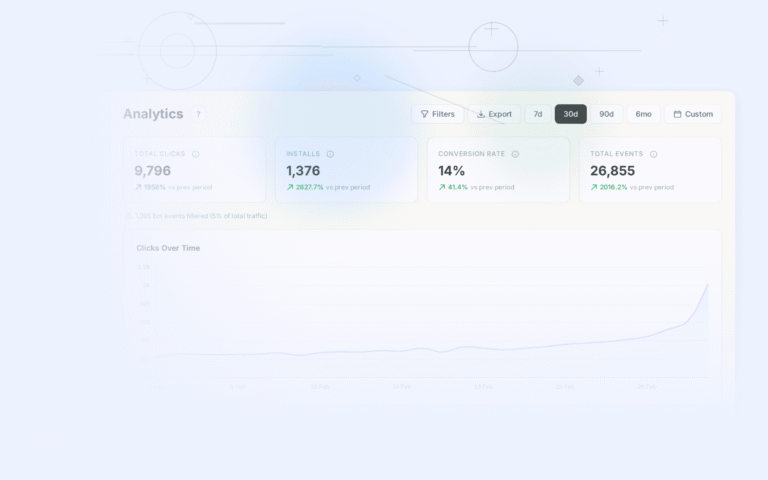
- Monitor analytics on the new platform. Compare with the old platform's numbers.
- Fix any issues found.
Day 25-26: Limited production rollout
- Release the updated app to 5-10% of users (using staged rollout on both app stores).
- Monitor crash rates, deep link success rates, and attribution numbers.
- Compare key metrics with baselines from the old platform.
Day 27: Evaluate and adjust
- Review the rollout metrics. If everything looks good, proceed.
- If there are issues, pause the rollout, fix, and restart.
Week 6: Broader Rollout
Day 28-30: 50% rollout
- Increase the staged rollout to 50% of users.
- Both SDKs are active: old SDK for users on the old app version, new SDK for users on the new version.
- Marketing team begins creating new campaigns on the new platform.
Day 31-33: 100% rollout
- Release to 100% of users.
- All new installs use the new SDK.
- Old installs still use the old SDK until they update the app.
Week 7-8: Full Cutover and Cleanup
Week 7: Link Migration
Day 34-35: Redirect old links
- Set up redirects from old platform links to new platform links.
- If the old platform supports it, configure a catch-all redirect rule.
- If not, create redirects for the most-trafficked links first.
Day 36-37: Update existing content
- Update links in email templates.
- Update links on your website (blog posts, landing pages, documentation).
- Update links in print materials (new QR codes pointing to the new platform).
- Update links in third-party integrations (partner sites, affiliate links).
Week 8: Cleanup
Day 38-39: Remove old SDK
- Once the old platform's attribution window has expired (7-30 days after the last old-SDK install), remove the old SDK from the app.
- Release the updated app.
Day 40: Final validation
- Verify all deep link routes work on the new platform.
- Verify analytics match expected baselines.
- Verify no old platform links are still generating significant traffic.
Day 41-42: Documentation and closure
- Update internal documentation to reference the new platform.
- Archive the old platform account (do not delete; keep for historical reference).
- Document lessons learned for future migrations.
Common Delays
Factor these into your timeline:
- App Store review: iOS app updates typically take 1-3 days for review. Plan for this in your rollout schedule.
- DNS propagation: If changing domains for your deep links, DNS changes take up to 48 hours to propagate globally.
- Staged rollout ramp-up: App stores throttle staged rollouts. Going from 5% to 100% takes 1-2 weeks.
- Stakeholder sign-off: Getting approval from product, marketing, and engineering can add 1-2 weeks if not coordinated early.
- Bug fixes: Budget 3-5 days for unexpected issues discovered during testing or rollout.
Tolinku Migration
Tolinku provides migration support including route mapping, link redirect setup, and SDK integration guidance. Set up your Appspace in the Tolinku dashboard and configure your deep linking routes before starting the SDK integration.
For analytics data continuity, see analytics data migration. For running both platforms simultaneously, see parallel running during migration. For converting existing links, see link format mapping.
Get deep linking tips in your inbox
One email per week. No spam.