Universal links let iOS users tap a standard HTTPS URL and land directly inside your app. No custom scheme. No browser redirect. No confirmation dialog asking "Open in App?" The link just works. If the app is installed, it opens. If not, the URL loads in Safari like any normal web page.
Apple introduced universal links in iOS 9 to replace the fragile yourapp:// custom URI scheme pattern. Custom schemes had real problems: they showed ugly error dialogs when the app was not installed, they could be hijacked by other apps claiming the same scheme, and they required awkward JavaScript hacks to detect whether the app was present. Universal links solved all of that by tying your app to your domain through a cryptographic verification process.
If you are building an iOS app that needs to open from links (emails, social media, QR codes, websites, or marketing campaigns), universal links are the standard you should be using. This guide walks through how they work, how to set them up, and how to fix them when they break.
How Universal Links Work
The mechanism behind universal links is straightforward, but there are several moving parts.
Here is the full flow:
You host a file on your web server. This file is called
apple-app-site-association(AASA). It lives athttps://yourdomain.com/.well-known/apple-app-site-association. It tells Apple which URL paths your app can handle.Apple downloads and caches the AASA file. When a user installs your app (or updates it), Apple's CDN fetches your AASA file and caches the result. This happens on Apple's servers, not on the user's device. Starting in iOS 14, Apple moved this verification to their own CDN instead of having each device fetch it directly.
A user taps a link. When someone taps a URL that matches a pattern in your AASA file, iOS checks its cached copy of the file. If there is a match and your app is installed, iOS opens the app and passes the URL to it.
Your app receives the URL. Your app gets the URL through the
NSUserActivityAPI. You parse the URL, extract the path and parameters, and navigate to the correct screen.The key detail here: Apple's CDN fetches your AASA file, not the user's device. This means changes to the file are not instant. Apple re-crawls AASA files periodically (roughly every 24-48 hours, though Apple does not publish an exact schedule). During development, you can force a re-download using Apple's developer mode, but in production, expect a delay.
For a conceptual overview, see Tolinku's Universal Links documentation.
Setting Up Universal Links Step by Step
There are three things you need to configure: the AASA file on your server, the Associated Domains entitlement in Xcode, and the link-handling code in your app.
Step 1: Create the AASA File
Create a file named
apple-app-site-association(no file extension) and place it at/.well-known/apple-app-site-associationon your domain. The file must be served over HTTPS with a valid TLS certificate. No redirects. The content type should beapplication/json.Here is a minimal AASA file:
{
  "applinks": {
    "details": [
      {
        "appIDs": ["ABCDE12345.com.example.myapp"],
        "components": [
          {
            "/": "/product/*",
            "comment": "Matches product pages"
          },
          {
            "/": "/user/*",
            "comment": "Matches user profiles"
          }
        ]
      }
    ]
  }
}
The
appIDsvalue combines your Apple Team ID with your app's bundle identifier, separated by a period. You can find your Team ID in the Apple Developer portal under Membership.Step 2: Configure Xcode
Open your project in Xcode and select your target. Go to "Signing & Capabilities" and click "+ Capability" to add "Associated Domains." Add an entry in this format:
applinks:yourdomain.comIf you want to test with a specific mode during development, you can append
?mode=developer:applinks:yourdomain.com?mode=developerDeveloper mode tells iOS to fetch the AASA file directly from your server instead of Apple's CDN. This is useful during development because you do not have to wait for Apple to re-crawl your file after every change. Remove the
?mode=developerflag before shipping to the App Store.Step 3: Handle Incoming Links in Your App
When iOS opens your app from a universal link, it delivers the URL through the
NSUserActivitycontinuation mechanism. How you receive it depends on your app's architecture.We will cover the code for each approach in the next section.
The Apple App Site Association File in Detail
The AASA file is the most critical piece of the universal links setup. Get it wrong and nothing works. For a dedicated walkthrough, see the AASA file setup guide. Here is what you need to know.
Format and Structure
The AASA file is JSON. Apple supports two formats: the legacy format (iOS 12 and earlier) and the modern format (iOS 13+). Use the modern format with
componentsunless you need to support very old iOS versions.Here is a more complete example:
{
  "applinks": {
    "details": [
      {
        "appIDs": ["ABCDE12345.com.example.myapp"],
        "components": [
          {
            "/": "/product/*",
            "comment": "All product pages"
          },
          {
            "/": "/invite/*",
            "comment": "Invitation links"
          },
          {
            "/": "/share/*",
            "?": { "ref": "?*" },
            "comment": "Share links with referral parameter"
          },
          {
            "/": "/admin/*",
            "exclude": true,
            "comment": "Never open admin pages in the app"
          }
        ]
      }
    ]
  }
}
Path Matching
The
"/"key defines URL path patterns. You can use these wildcards:*matches any substring within a single path segment./product/*matches/product/123but not/product/123/reviews.?matches any single character./user/a?cmatches/user/abcbut not/user/abbc.
To match across multiple path segments, chain wildcards:
/product/*/reviewsmatches/product/shoes/reviews.Excluding Paths
Set
"exclude": trueon a component to prevent specific URL patterns from opening your app. This is useful for admin panels, login pages, or API endpoints that should always load in the browser.Apple evaluates components in order. Put your exclusion rules before your inclusion rules. The first matching rule wins.
Query Parameters and Fragments
The modern AASA format also lets you match on query parameters and URL fragments:
{
  "/": "/product/*",
  "?": { "campaign": "?*" },
  "#": "details",
  "comment": "Product links with a campaign parameter and #details fragment"
}
The
"?"key matches query string parameters. The"#"key matches the URL fragment. Both support the same wildcard syntax as paths.Multiple Apps
You can list multiple apps in a single AASA file. Each entry in the
detailsarray can have a differentappIDsvalue:{ "applinks": { "details": [ { "appIDs": ["ABCDE12345.com.example.mainapp"], "components": [{ "/": "/product/*" }] }, { "appIDs": ["ABCDE12345.com.example.liteapp"], "components": [{ "/": "/lite/*" }] } ] } }File Serving Requirements
The AASA file must:
- Be served over HTTPS (no HTTP, no self-signed certificates)
- Return
Content-Type: application/json - Not require authentication
- Not use redirects (Apple's CDN does not follow 3xx responses)
- Be less than 128 KB in size
If you are using a CDN like Cloudflare or Fastly, make sure the CDN does not block Apple's crawler or require a CAPTCHA challenge.
Handling Universal Links in Your App
Once iOS opens your app from a universal link, you need code to receive the URL and route the user to the right screen. Here are the three common patterns.
UIKit with SceneDelegate (iOS 13+)
If your app uses
UISceneDelegate(the default for apps created since iOS 13), implement thescene(_:continue:)method:import UIKit class SceneDelegate: UIResponder, UIWindowSceneDelegate { func scene(_ scene: UIScene, continue userActivity: NSUserActivity) { guard userActivity.activityType == NSUserActivityTypeBrowsingWeb, let url = userActivity.webpageURL else { return } handleUniversalLink(url) } private func handleUniversalLink(_ url: URL) { let path = url.path let components = path.split(separator: "/") if components.first == "product", let productID = components.last { // Navigate to product screen navigateToProduct(String(productID)) } else if components.first == "user", let userID = components.last { // Navigate to user profile navigateToProfile(String(userID)) } } }UIKit with AppDelegate (Legacy)
For older apps that do not use scenes, implement
application(_:continue:restorationHandler:):import UIKit @UIApplicationMain class AppDelegate: UIResponder, UIApplicationDelegate { func application(_ application: UIApplication, continue userActivity: NSUserActivity, restorationHandler: @escaping ([UIUserActivityRestoring]?) -> Void) -> Bool { guard userActivity.activityType == NSUserActivityTypeBrowsingWeb, let url = userActivity.webpageURL else { return false } handleUniversalLink(url) return true } }SwiftUI
In SwiftUI, use the
.onOpenURLmodifier. For a full SwiftUI integration guide, see Universal Links with SwiftUI.import SwiftUI @main struct MyApp: App { var body: some Scene { WindowGroup { ContentView() .onOpenURL { url in handleUniversalLink(url) } } } }The
.onOpenURLmodifier handles both universal links and custom URL schemes. It is the simplest approach if you are building a new SwiftUI app. Apple documents this in the SwiftUI App structure reference.Parsing URLs Safely
Regardless of which delegate pattern you use, parse URLs defensively. Users (and attackers) can craft arbitrary URLs that match your AASA patterns. Validate every component:
func handleUniversalLink(_ url: URL) {
    guard let components = URLComponents(url: url, resolvingAgainstBaseURL: true) else {
        return
    }

    let pathSegments = components.path
        .split(separator: "/")
        .map(String.init)

    switch pathSegments.first {
    case "product":
        guard pathSegments.count == 2,
              let id = Int(pathSegments[1]) else { return }
        router.navigate(to: .product(id: id))

    case "invite":
        guard pathSegments.count == 2 else { return }
        let token = pathSegments[1]
        router.navigate(to: .invite(token: token))

    default:
        // Unknown path, open home screen
        router.navigate(to: .home)
    }
}
Common Universal Links Problems and Fixes
Universal links have a reputation for being finicky. Most issues come down to one of a few root causes.
Problem: Links Open in Safari Instead of the App
This is the most common issue. Check these causes in order:
- AASA file not reachable. Verify your file is at
https://yourdomain.com/.well-known/apple-app-site-association. Test it with curl:
curl -v https://yourdomain.com/.well-known/apple-app-site-associationConfirm the response is valid JSON, the status code is 200 (not 301 or 302), and the
Content-Typeheader isapplication/json.Team ID or Bundle ID mismatch. The
appIDsvalue must exactly match{TeamID}.{BundleID}. Check both values in the Apple Developer portal.Associated Domains entitlement missing. Open your
.entitlementsfile and confirmapplinks:yourdomain.comis listed. Also check that the Associated Domains capability is enabled in the Apple Developer portal under "Certificates, Identifiers & Profiles."Apple CDN has not updated. After changing your AASA file, Apple's CDN may take 24-48 hours to re-fetch it. During development, use
?mode=developeron your associated domain to bypass the CDN. For details on CDN behavior, see Apple CDN validation for Universal Links.User previously dismissed the link. If a user taps-and-holds a universal link and chooses "Open in Safari," iOS remembers that choice for your domain. The user has to long-press the link again and choose "Open in [Your App]" to restore the behavior.
For a full troubleshooting checklist, see Tolinku's iOS troubleshooting guide.
Problem: AASA File Validation Errors
Apple provides a validation tool (though it is not always reliable). Common issues:
- Trailing commas in JSON. Apple's parser is strict. Run your file through
python3 -m json.toolor jsonlint.com to validate. - Wrong Content-Type. Some web servers serve files without an extension as
application/octet-stream. Configure your server to returnapplication/jsonfor this specific path. - File too large. Keep your AASA file under 128 KB. If you have many paths, consider consolidating them with wildcard patterns.
Problem: Links Work in Some Apps but Not Others
Some apps (particularly social media apps) use in-app browsers that do not support universal links. Links tapped inside Instagram's in-app browser, for example, may load in the embedded web view instead of handing off to your app. This is a known limitation.
The workaround: on your web page, include a smart banner or a button that explicitly opens the universal link. The
metatag for Safari Smart App Banners can help:<meta name="apple-itunes-app" content="app-id=123456789, app-argument=https://yourdomain.com/product/123">Problem: Universal Links Break After App Update
If your Team ID or Bundle ID changes between app versions, or if you change your domain, universal links will break. Make sure the AASA file on your server always matches the entitlements in your currently shipped app binary.
Testing Universal Links
Testing universal links takes some care because you cannot just tap a link in Safari's address bar. For a comprehensive testing guide, see testing Universal Links. Here are reliable methods.
On a Real Device
The most reliable test. Type your universal link into the Notes app, then tap it. If the app opens, universal links are working.
You can also use the terminal to open a link on a connected device:
xcrun simctl openurl booted "https://yourdomain.com/product/123"This command works with the iOS Simulator. For a physical device, paste the link into Notes or Messages and tap it.
Apple's CDN Diagnostic Tool
Check what Apple's CDN has cached for your domain:
curl -v "https://app-site-association.cdn-apple.com/a/v1/yourdomain.com"This returns the AASA file as Apple's CDN sees it. If the response does not match your server's file, Apple has not re-crawled it yet.
Using Console.app
Connect your iOS device to your Mac and open Console.app. Filter for
swcd(the daemon responsible for associated domains). You will see log messages showing whether iOS successfully validated your AASA file and whether incoming URLs matched any patterns.Automated Validation
You can validate your AASA file programmatically as part of your CI/CD pipeline:
# Fetch and validate the AASA file
AASA=$(curl -s https://yourdomain.com/.well-known/apple-app-site-association)

# Check it's valid JSON
echo "$AASA" | python3 -m json.tool > /dev/null 2>&1
if [ $? -ne 0 ]; then
  echo "ERROR: AASA file is not valid JSON"
  exit 1
fi

# Check for the applinks key
echo "$AASA" | python3 -c "import sys, json; d = json.load(sys.stdin); assert 'applinks' in d" 2>/dev/null
if [ $? -ne 0 ]; then
  echo "ERROR: AASA file missing 'applinks' key"
  exit 1
fi

echo "AASA file is valid"
Universal Links vs. Custom URL Schemes
Both open your app from a URL, but they work differently and have different tradeoffs.
Feature Universal Links Custom URL Schemes URL format https://yourdomain.com/pathyourapp://pathRequires server Yes (AASA file) No Fallback if app not installed Opens in Safari Error or nothing Unique to your app Yes (domain verified) No (any app can claim the scheme) Works in all contexts Most (some in-app browsers excluded) Yes Requires Apple Developer account Yes No Use universal links for anything user-facing: marketing links, emails, QR codes, social sharing. Use custom URL schemes for app-to-app communication on the same device or for OAuth callback URLs where you control both ends. For a deeper comparison, see URI schemes vs Universal Links.
Apple's documentation on defining a custom URL scheme covers the custom scheme approach if you need it.
Universal Links with Tolinku
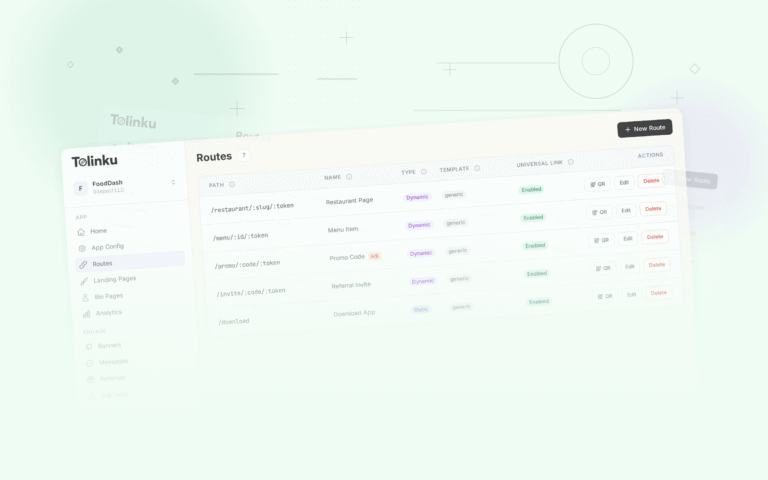
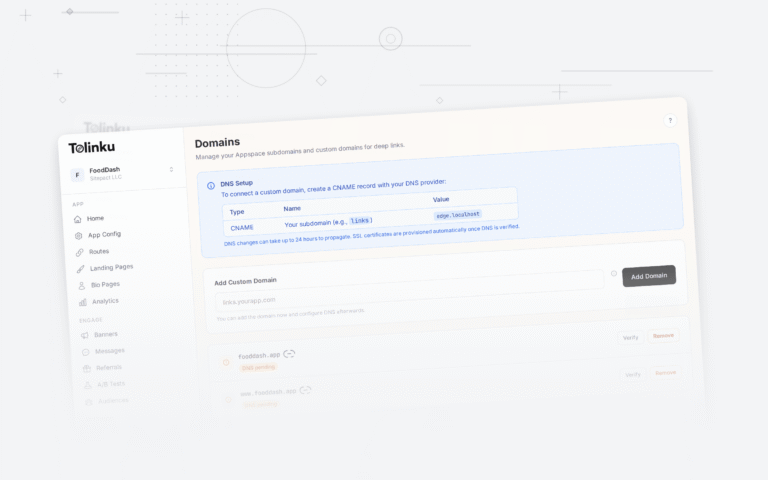
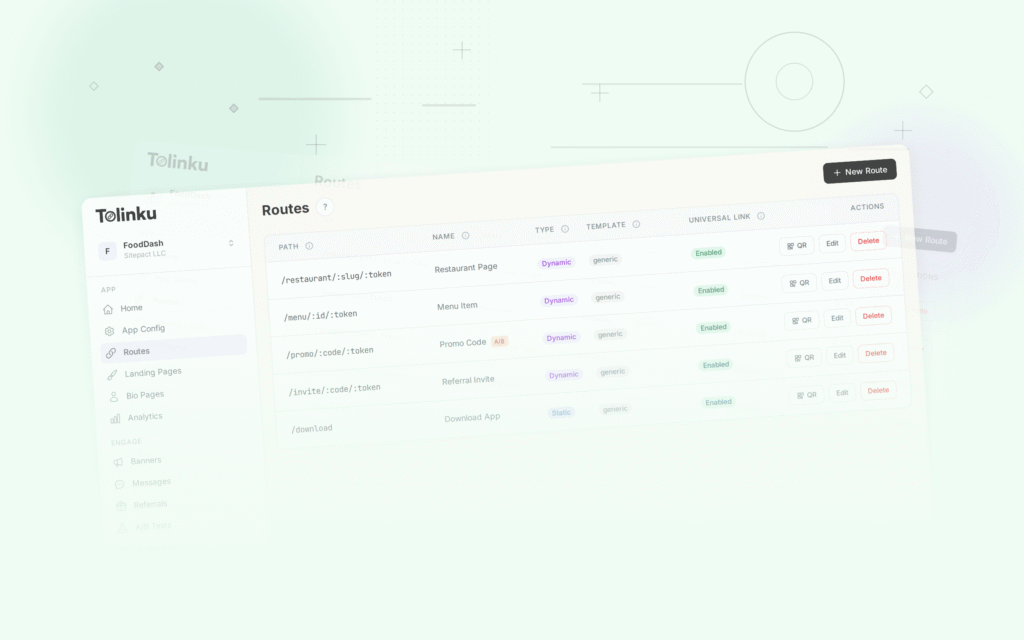
Setting up universal links from scratch involves hosting the AASA file, keeping it in sync with your app's entitlements, and managing paths across environments. Tolinku simplifies this by hosting the AASA file for you and providing a dashboard where you can manage your link routes without touching server configuration.
When you configure an Appspace in Tolinku, the platform generates and serves the AASA file automatically based on the routes you define. You point your Associated Domains entitlement to the Tolinku-managed domain, and the platform handles the rest: path matching, fallback behavior, analytics, and AASA file updates.
For step-by-step setup instructions, see the Tolinku developer guide for universal links and the iOS configuration guide.
This approach is especially useful if you manage multiple apps or need to update link routing without shipping a new app version. The AASA file updates are immediate because you control the hosting, and there is no waiting for Apple's CDN to re-crawl your personal server (though the CDN caching delay still applies on Apple's end).
Best Practices
Here are the patterns that save time and prevent headaches:
Keep your AASA file simple. Fewer, broader path patterns are easier to maintain than dozens of specific ones. Use wildcards generously.
/product/*is better than listing every product ID.Version your AASA file. Track it in source control alongside your app code. When your app's URL handling changes, the AASA file should change in the same pull request.
Test on real devices before every release. The iOS Simulator does not always behave identically to real hardware for universal links. Budget time for manual testing on a physical iPhone.
Handle fallbacks gracefully. Your web page at the universal link URL should show useful content, not just a "download our app" splash page. Some users will land there because they do not have the app, because they are on a desktop browser, or because an in-app browser intercepted the link. Give them a good web experience too.
Monitor your AASA file availability. If your server goes down or your CDN misconfigures the AASA path, universal links will silently stop working for new installs. Set up uptime monitoring for
/.well-known/apple-app-site-association.Do not rely on universal links for critical flows. Because users can manually override universal link behavior (by choosing to open in Safari), your app should have alternative ways for users to get to important screens. Deep link handling should enhance the experience, not be the only path.
Use the
?mode=developerflag during development. It saves significant time by bypassing Apple's CDN cache. Just remember to remove it before submitting to the App Store.Test across iOS versions. The AASA format and universal link behavior have changed across iOS 12, 13, 14, and later versions. If you support older iOS versions, test on each one. The Apple developer documentation on supporting universal links covers version-specific differences.
Conclusion
Universal links are the correct way to open your iOS app from a URL. They are more secure than custom URL schemes, provide a built-in web fallback, and give users a smooth transition from the web to your app. The setup involves three pieces: a JSON file on your server, an entitlement in Xcode, and a few lines of Swift to handle incoming URLs.
The most common stumbling blocks (AASA file formatting, CDN caching delays, server misconfiguration) are all solvable once you know what to look for. Test early, test on real devices, and monitor your AASA file in production.
If you want to skip the manual AASA hosting and manage your link routing through a dashboard, Tolinku's deep linking platform handles the infrastructure so you can focus on building your app.
- Trailing commas in JSON. Apple's parser is strict. Run your file through
Get deep linking tips in your inbox
One email per week. No spam.