

Since iOS 14, Apple's CDN sits between your server and iOS devices for AASA file delivery. Instead of each device fetching your AASA file directly, Apple's CDN fetches it, validates it, caches it, and serves it to devices. This architecture improves reliability but introduces caching behavior that every developer working with Universal Links needs to understand.
This article explains how Apple's CDN validation works, what happens when you update your AASA file, and how to troubleshoot propagation delays.
For AASA setup basics, see AASA file setup guide. For general caching considerations, see CDN and AASA caching.
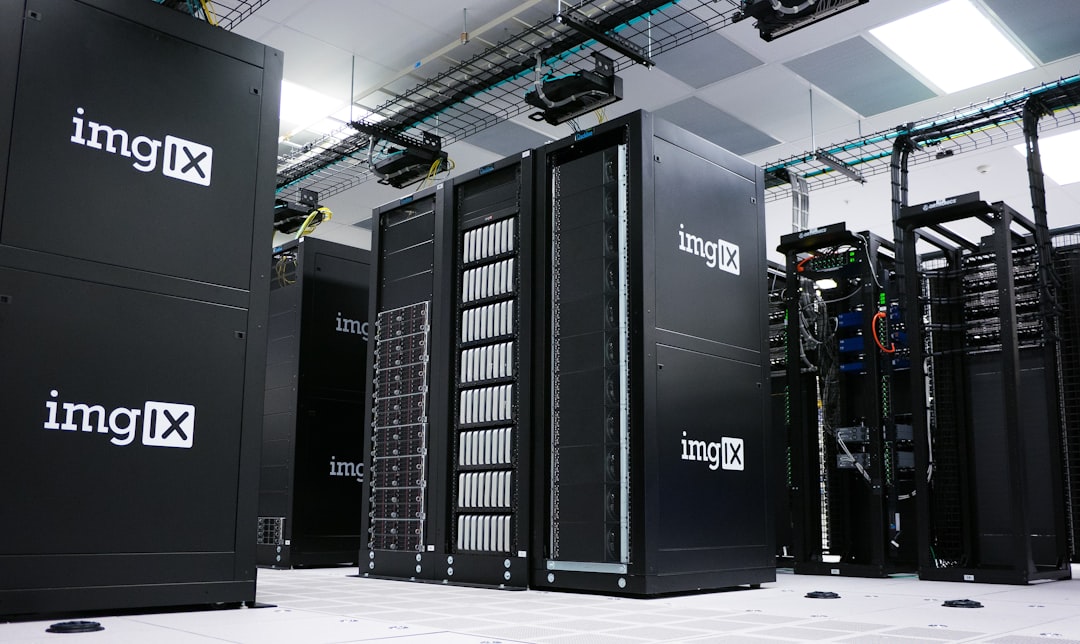 Photo by imgix on Unsplash
The Validation Flow
Here is what happens when a user installs your app (or when iOS periodically re-validates):
App installation triggers a check. When a user installs your app from the App Store, iOS looks at the Associated Domains entitlement to find which domains the app claims.
iOS requests the AASA from Apple's CDN. The device contacts
app-site-association.cdn-apple.com(not your server) and requests the AASA file for each claimed domain.Apple's CDN checks its cache. If the CDN has a fresh cached version, it returns that immediately. If not, it fetches the file from your server.
Apple's CDN fetches from your server. The CDN makes an HTTPS request to
https://yourdomain.com/.well-known/apple-app-site-association. It validates that the response is valid JSON and contains the expected structure.The CDN caches the result. The validated AASA file is cached on Apple's CDN. Subsequent device requests get the cached version.
iOS processes the AASA. The device parses the AASA file, extracts the
applinksconfiguration, and stores the URL patterns that should open the app.Apple's reference: Supporting Associated Domains.
Checking Apple's CDN Cache
You can inspect what Apple's CDN currently has cached for your domain:
curl -s "https://app-site-association.cdn-apple.com/a/v1/yourdomain.com" | jq .This returns the AASA file as Apple's CDN sees it. Compare this to what your server is currently serving:
curl -s "https://yourdomain.com/.well-known/apple-app-site-association" | jq .If these two responses differ, the CDN has not yet picked up your latest changes.
Update Propagation Timing
This is the question every developer asks: "How long does it take for AASA changes to propagate?"
The honest answer is that Apple does not publish a guaranteed propagation time. Based on documented behavior and developer experience:
- Best case: Hours. The CDN refreshes and picks up your changes within a few hours.
- Typical case: 24-48 hours. Most developers report changes propagating within a day or two.
- Worst case: Several days. In some cases, particularly during high-traffic periods or if your server had temporary issues, propagation can take longer.
Factors That Affect Propagation
Server availability. If Apple's CDN attempts to fetch your AASA file and your server returns an error (500, timeout, certificate issue), the CDN may continue serving the old cached version. Fix your server, and the next CDN refresh will pick up the new file.
HTTP caching headers. Your server's
Cache-ControlandETagheaders influence how Apple's CDN treats the file. While Apple's CDN has its own refresh schedule, setting appropriate headers does not hurt:Cache-Control: max-age=3600 Content-Type: application/jsonJSON validity. If your updated AASA file has a JSON syntax error, Apple's CDN will reject it and continue serving the last valid version. Always validate your JSON before deploying.
Domain changes. If you are setting up a new domain (not updating an existing one), the CDN needs to fetch the AASA file for the first time. This happens when a user installs your app with the new domain in its entitlements.
What Happens During the Delay
While you are waiting for CDN propagation:
- Existing installs continue working with the old AASA configuration. The patterns that were cached when the user installed the app remain active.
- New installs get whatever the CDN currently has. If the CDN has not updated yet, new users get the old AASA file.
- Re-validation happens periodically. iOS re-checks the AASA file at intervals that Apple does not disclose. When it does, it picks up the CDN's current version.
This means there is always a window where different users may have different AASA configurations cached on their devices. Plan accordingly.
Developer Mode Bypass
On iOS 16+, you can bypass Apple's CDN entirely during development by using the
?mode=developerflag in your Associated Domains entitlement:applinks:yourdomain.com?mode=developerIn this mode:
- iOS fetches the AASA file directly from your server (not Apple's CDN).
- Changes are picked up immediately (after reinstalling the app or rebooting the device).
- This only works on devices with Developer Mode enabled.
- This should never be used in production builds. Remove the
?mode=developerflag before submitting to the App Store.
For testing approaches, see testing Universal Links.
Common Propagation Problems
Problem: CDN Returns Old AASA File
Symptom: Your server has the correct AASA file, but
app-site-association.cdn-apple.comreturns an outdated version.Solution: Wait. Apple's CDN refreshes on its own schedule. Verify your server is responding correctly (200 status, valid JSON, correct Content-Type). If the delay exceeds 48 hours and your server is healthy, check Apple Developer Forums for known CDN issues.
Problem: CDN Returns No AASA File
Symptom:
app-site-association.cdn-apple.comreturns an error or empty response for your domain.Possible causes:
- Your domain is new and the CDN has not fetched it yet.
- Your server returned an error when the CDN last attempted to fetch.
- Your AASA file is not at the correct path (
/.well-known/apple-app-site-association). - Your SSL certificate is invalid or self-signed.
Solution: Verify all of the above. Install the app on a test device (this triggers a CDN fetch). Wait and re-check.
Problem: CDN Returns Invalid JSON
Symptom: The CDN response is malformed or contains unexpected content.
Possible causes:
- Your web server is injecting HTML (error page, redirect page) instead of serving the JSON file.
- A CDN or reverse proxy in front of your server is modifying the response.
- Your AASA file has a BOM (Byte Order Mark) or non-UTF-8 encoding.
Solution: Fetch the AASA file directly from your server and inspect the raw response:
curl -v "https://yourdomain.com/.well-known/apple-app-site-association"Check for redirects (301/302), unexpected Content-Type headers, or HTML content.
For more debugging techniques, see debugging AASA files.
Best Practices for AASA Updates
Test before deploying. Validate your AASA file locally before deploying to production:
cat apple-app-site-association | python3 -m json.toolDeploy during low-traffic periods. If possible, update your AASA file when you have time to wait for propagation before users notice changes.
Keep the old configuration working. If you are adding new paths, the existing paths continue to work. If you are removing paths, be aware that devices with the old cached AASA file will still try to open the app for those paths until the cache refreshes.
Monitor the CDN. After deploying an AASA update, periodically check
app-site-association.cdn-apple.comuntil the update appears.Use developer mode for pre-release testing. Test new AASA configurations using the
?mode=developerflag before deploying to production.Tolinku and CDN Validation
Tolinku hosts your AASA file on infrastructure optimized for Apple's CDN validation. The file is served with correct headers, valid JSON, and proper HTTPS configuration, eliminating common issues that cause CDN validation failures. When you update routes in the Tolinku dashboard, the AASA file is updated automatically. See the Universal Links developer guide for setup, or the iOS troubleshooting guide for CDN-related debugging.
For the complete Universal Links guide, see universal links: everything you need to know. For domain configuration, see Universal Links domain association.
Get deep linking tips in your inbox
One email per week. No spam.