Your app has a product detail page that loads in under a second, handles offline mode gracefully, and sends push notifications when a user's order ships. Your mobile website has the same content but it's slower, harder to navigate, and lacks those features. Yet a large chunk of your mobile users browse your site in a browser and never make it into your app.
This is the web-to-app gap, and it costs real conversions. Deep linking for web is the set of techniques that closes it: detecting whether the app is installed, routing users into the right screen when it is, and providing a useful fallback experience when it is not.
This article covers the full range of strategies, from the basic HTML meta tag to JavaScript detection APIs, server-side logic, and landing pages that work as graceful fallbacks.
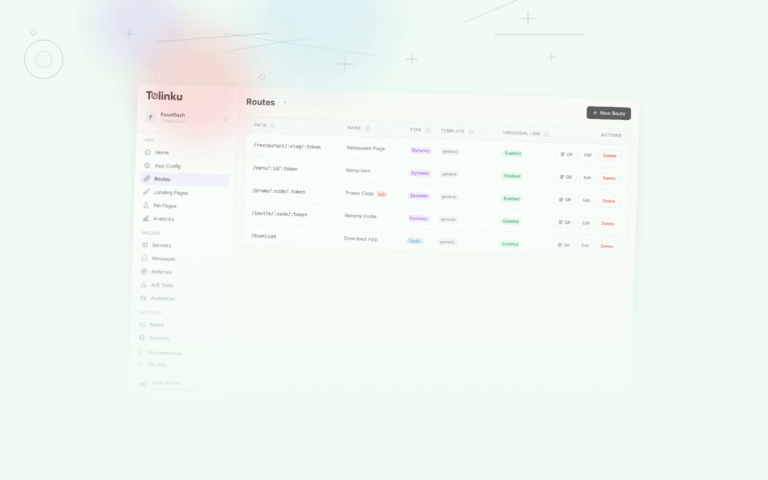
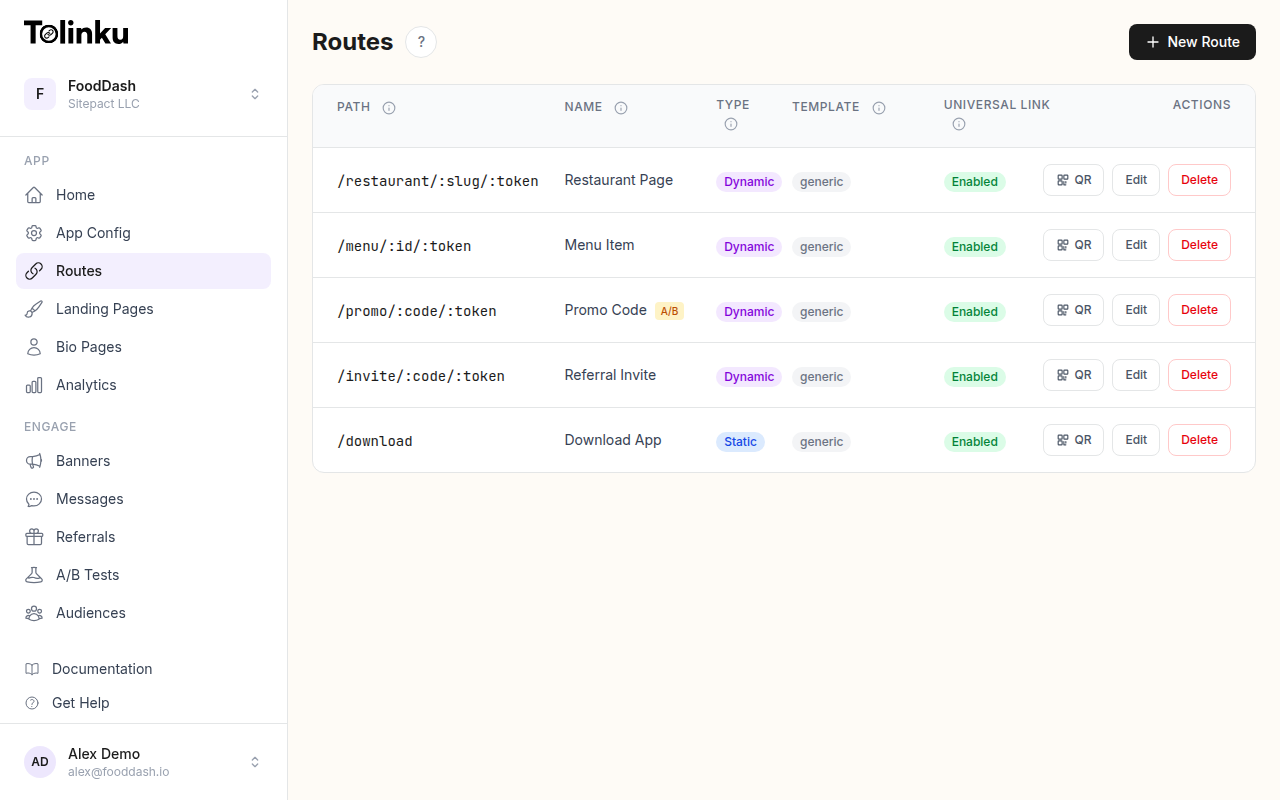 The route list page showing all configured deep link routes with paths, types, and actions.
The Web-to-App Problem in Practice
Consider a few common scenarios:
A user clicks a product link in a marketing email. They open it on their phone. They have your app installed. The link opens in their mobile browser, they browse the product, and they leave. They never saw the smoother in-app experience, and your push notification for abandoned carts never fires because the session was in the browser.
A user searches for your brand on Google and taps an organic result. They land on your mobile site. No banner tells them an app exists. They convert on the web, but their data is siloed and you cannot retarget them with app-specific campaigns.
A user shares a link to a product with a friend. The friend taps it, sees your mobile web page, and eventually finds the app store listing on their own, if at all. The context from that shared link (the specific product, maybe a referral code) is lost.
Each of these scenarios has a solution, and the solutions layer together. None of them require replacing your website. The approach is progressive enhancement: the web experience works fine on its own, and you add layers to route app users into the app while converting non-app users.
The Apple Smart App Banner Meta Tag
The quickest way to surface your app on iOS Safari is the apple-itunes-app meta tag. Add it to your HTML <head> and Safari renders a small banner at the top of the page with your app icon, name, and a button to open or install the app.
<meta name="apple-itunes-app" content="app-id=YOUR_APP_STORE_ID">
If you want the banner to open a specific screen when tapped, add the app-argument parameter:
<meta
  name="apple-itunes-app"
  content="app-id=YOUR_APP_STORE_ID, app-argument=https://yourapp.com/products/42"
>
Your app receives the app-argument value in the application(_:open:options:) delegate method and can parse it to navigate to the right screen. This is Apple's simplest version of deep linking from the web.
The limitations are real. The banner only works in Safari, not Chrome or other browsers on iOS. You cannot customize the banner's appearance. You get no analytics on how many users tapped it. And there is nothing equivalent built into Android.
For many teams, that is enough to start. For teams that need more control, custom banners fill the gaps. Tolinku's smart banner feature provides a cross-platform custom banner you can configure without building it yourself, including targeting rules, scheduling, and click tracking.
Custom Smart Banners with JavaScript
If you want a banner that works on Android, works in Chrome on iOS, and gives you control over appearance and behavior, you build it yourself or use a library. The basic mechanics are straightforward.
<!-- Banner markup (hidden by default) -->
<div id="app-banner" style="display: none;">
  <img src="/app-icon.png" alt="App icon">
  <div>
    <strong>YourApp</strong>
    <span>Open for the best experience</span>
  </div>
  <a id="app-banner-btn" href="#">Open App</a>
  <button id="app-banner-close">✕</button>
</div>
(function() {
  var ua = navigator.userAgent;
  var isIOS = /iPhone|iPad|iPod/.test(ua);
  var isAndroid = /Android/.test(ua);

  if (!isIOS && !isAndroid) return; // Desktop: no banner

  var banner = document.getElementById('app-banner');
  var btn = document.getElementById('app-banner-btn');
  var close = document.getElementById('app-banner-close');

  // Set the deep link URL based on current page
  var deepLinkPath = window.location.pathname + window.location.search;
  if (isIOS) {
    btn.href = 'https://apps.apple.com/app/idYOUR_APP_ID';
  } else {
    btn.href = 'https://play.google.com/store/apps/details?id=com.yourapp';
  }

  banner.style.display = 'flex';

  close.addEventListener('click', function() {
    banner.style.display = 'none';
    // Store in sessionStorage so the banner doesn't reappear
    sessionStorage.setItem('app-banner-dismissed', '1');
  });

  if (sessionStorage.getItem('app-banner-dismissed')) {
    banner.style.display = 'none';
  }
})();
This is a starting point. In production you would also handle the "open app if installed" case with a URI scheme attempt, track clicks, and persist the dismissal in localStorage so users who have already seen and dismissed the banner do not see it again on their next visit.
Attempting to Open the App Directly
The banner above links to the App Store or Google Play. That is safe: it always works. But if the user already has the app installed, you want to open the app directly instead.
The traditional way to do this on the web is a custom URI scheme attempt. You write a deep link URL to your app's custom scheme, try to navigate to it, and see if anything happens.
function tryOpenApp(deepLinkUrl, fallbackUrl, timeout) {
  timeout = timeout || 1500;
  var start = Date.now();

  // Try the custom scheme
  window.location.href = deepLinkUrl; // e.g. "yourapp://products/42"

  // If the app is not installed, nothing happens and we land here
  setTimeout(function() {
    // If the page is still visible (not hidden by app switch), redirect to fallback
    if (Date.now() - start < timeout + 200) {
      window.location.href = fallbackUrl;
    }
  }, timeout);
}
The logic: you try to navigate to the custom scheme. If the app is installed, the OS hands off to the app and the user leaves the browser. If the app is not installed, nothing happens, and after the timeout you redirect to the fallback (usually the App Store or a landing page).
The timeout approach has well-known reliability issues. Some browsers fire the fallback redirect even when the app does launch. Some OSes show a confirmation dialog that pauses the timer. iOS Safari in particular has changed its behavior for custom scheme handling across versions. Custom schemes are also not indexed by search engines and do not benefit from Universal Link or App Link trust.
For more reliable behavior, use Universal Links on iOS and App Links on Android as your primary mechanism, with custom schemes only as a fallback for older OS versions.
The getInstalledRelatedApps API
The Web Application Manifest and the getInstalledRelatedApps API offer a more direct way to check whether your app is installed, at least on Android with Chrome.
First, add your app to your web app manifest:
{
  "name": "YourApp",
  "related_applications": [
    {
      "platform": "play",
      "url": "https://play.google.com/store/apps/details?id=com.yourapp",
      "id": "com.yourapp"
    }
  ],
  "prefer_related_applications": false
}
Then query it from JavaScript:
async function checkAppInstalled() {
  if (!('getInstalledRelatedApps' in navigator)) {
    return false; // API not supported
  }
  try {
    var apps = await navigator.getInstalledRelatedApps();
    return apps.some(function(app) {
      return app.id === 'com.yourapp';
    });
  } catch (e) {
    return false;
  }
}

checkAppInstalled().then(function(installed) {
  if (installed) {
    // Show "Open in App" button with direct deep link
    showOpenInAppButton();
  } else {
    // Show "Get the App" banner
    showInstallBanner();
  }
});
As of 2026, getInstalledRelatedApps works reliably on Chrome for Android. It is not available on iOS, where Safari does not implement it. The API requires that your app declares your website in its asset links (the assetlinks.json file at /.well-known/assetlinks.json), so there is a two-way trust requirement, which is the same verification Android App Links need anyway.
This API is genuinely useful for Android. It lets you show the right CTA without ambiguity: if the app is installed, offer to open it directly; if not, offer to install it. No timeout hacks required.
Server-Side User Agent Detection
Not everything needs to happen in JavaScript. Server-side user agent detection is useful for redirects that should happen before the page renders at all.
If you run a marketing site and want mobile users to land on a page optimized for app conversion while desktop users see the standard page, you can branch at the server or CDN level.
In an Express app, for example:
const mobileRe = /Android|iPhone|iPad|iPod/i;

app.get('/products/:id', (req, res) => {
  const isMobile = mobileRe.test(req.headers['user-agent'] || '');

  if (isMobile) {
    // Serve a lightweight landing page with app CTAs
    res.render('product-mobile', { productId: req.params.id });
  } else {
    res.render('product-desktop', { productId: req.params.id });
  }
});
Be careful with this pattern. Serving completely different content based on user agent can create SEO problems if Google's crawler (which runs as a desktop agent) sees different content than mobile users. For SEO-sensitive pages, client-side progressive enhancement is safer. Server-side redirection makes more sense for dedicated campaign landing pages or post-click flows where SEO ranking is not a concern.
User agent detection is also inherently imprecise. Tablet UA strings vary, in-app browsers report themselves as their host app, and the UA string can be spoofed. Use it as a strong hint, not a definitive signal.
Landing Pages as Fallback
When a user taps a deep link and does not have the app installed, they need somewhere to go. A well-designed fallback landing page does several things at once:
- It explains what the app does and why they should install it
- It preserves the context from the original link (the product they were looking at, the promo code that was shared)
- It stores that context so deferred deep linking can restore it after install
For tips on building landing pages that rank in search while also routing app users effectively, see SEO for app landing pages. The context preservation is the part that requires planning. When a user lands on your fallback page, you can store the original destination (and any parameters) in a server-side session keyed by a fingerprint of device attributes. When the user installs and opens the app for the first time, your SDK sends the same fingerprint to your server, matches it, and retrieves the stored destination.
This is the core mechanism behind deferred deep linking. For more on how attribution works across this web-to-app boundary, see web-to-app attribution. The landing page is not just a dead end: it's the starting point of a chain that continues through the App Store and into the app itself.
A landing page for this purpose should:
- Show the specific content the user was trying to reach (load the product, the promo, or whatever the link pointed to)
- Have a clear primary CTA to the App Store or Google Play
- Have a secondary option to continue on the web (do not trap users who do not want the app)
- Pass the original link parameters to the app store URL as a campaign parameter so you can track attribution
<!-- Example: store the deep link target before redirecting to App Store -->
<a id="get-app-btn" href="#">Get the App</a>

<script>
  var deepLinkTarget = new URLSearchParams(window.location.search).get('target');
  var appStoreUrl = 'https://apps.apple.com/app/idYOUR_APP_ID';
  var playStoreUrl = 'https://play.google.com/store/apps/details?id=com.yourapp';

  if (deepLinkTarget) {
    // Store target for deferred deep link retrieval
    fetch('/api/store-deferred-link', {
      method: 'POST',
      headers: { 'Content-Type': 'application/json' },
      body: JSON.stringify({ target: deepLinkTarget })
    });

    appStoreUrl += '&ct=deferred&mt=8';
    playStoreUrl += '&referrer=' + encodeURIComponent('target=' + deepLinkTarget);
  }

  var ua = navigator.userAgent;
  document.getElementById('get-app-btn').href =
    /iPhone|iPad|iPod/.test(ua) ? appStoreUrl : playStoreUrl;
</script>
Putting the Layers Together
Web-to-app deep linking is not a single technique. It's a stack of techniques, each covering a different scenario:
Apple smart app banner meta tag: Zero-effort baseline for Safari on iOS. Covers users already in Safari and gives them an obvious app install CTA.
Custom JavaScript banner: Covers Android and non-Safari browsers on iOS. Gives you control over appearance and analytics.
getInstalledRelatedAppson Android: Lets you know with high confidence whether the app is installed, so you can show the right CTA without a timeout hack.URI scheme attempt with timeout: Broad fallback for platforms where
getInstalledRelatedAppsis not available. Unreliable but widely deployed.Universal Links / App Links as primary deep link format: For users who have the app installed and tap a link in another app or browser, the OS hands off to your app directly. These should be your canonical deep link URLs.
Landing pages with deferred deep link support: For users who do not have the app installed. The page explains your app, drives installs, and preserves context across the install gap.
Platforms like Tolinku handle the routing, fallback logic, and deferred deep link matching as infrastructure, so you do not have to implement and maintain each layer yourself. But understanding what is happening at each layer is essential when debugging link behavior or evaluating what a platform actually covers.
Testing Your Web-to-App Links
Testing deep links from the web is tedious because the behavior depends on browser, OS version, whether the app is installed, and the specific link type. A few practices help:
- Test on real devices, not simulators. iOS simulators do not support Universal Links.
- Test with the app installed and uninstalled separately.
- Test from multiple entry points: Safari, Chrome, an email client, a social app's in-app browser (each has quirks).
- For the Apple smart app banner, verify that
app-argumentis being passed by logging the value in yourapplication(_:open:options:)implementation. - For Android App Links, use
adb shell am start -W -a android.intent.action.VIEW -d "https://yourapp.com/products/42"to test intent resolution directly.
The in-app browser case deserves specific attention. When users tap a link inside Instagram, TikTok, or LinkedIn, those apps open a built-in WebView rather than Safari or Chrome. Universal Links and App Links often do not fire from these in-app browsers. Your custom banner and URI scheme fallback become the primary mechanism in that context. This is one of the most common sources of reported "broken deep links" and it is worth testing explicitly.
Start with What Matters Most
If your users are primarily iOS and you have a native app, the Apple smart app banner meta tag is two minutes of work and reaches a large portion of your audience. Add the
app-argumentfor deep link support and you have covered the most common case.For cross-platform coverage, a custom smart banner (either built or deployed via a platform) gets you Android users and gives you analytics on how many people actually tap through. For PWA-specific considerations, see deep linking for progressive web apps.
The
getInstalledRelatedAppsAPI is worth adding for Android if you want to show contextually appropriate CTAs without timeout heuristics. It only takes a few lines once your asset links file is in place.And if you run any kind of paid acquisition or sharing campaigns, a proper landing page with deferred deep linking context is the piece that turns installs from anonymous events into meaningful app opens that continue the journey the user started.
The web and your app do not have to be separate worlds. Every technique here makes it more likely that a mobile web visitor ends up in the experience you actually built for them.
Get deep linking tips in your inbox
One email per week. No spam.