Smart banners are small, dismissible strips at the top or bottom of a web page that invite mobile visitors to open or install your app. The Apple meta tag approach has been around since iOS 6, but it gives you almost no control. You get a fixed design, no analytics, and no ability to target specific user segments.
Custom smart banners fix all of that. By building your own, you control exactly how the banner looks, when it appears, how long it waits, and where it sends users. This guide covers the full implementation: HTML structure, CSS styling, JavaScript behavior, responsive layout, animation, and integration with Tolinku's smart banner platform.

The Core HTML Structure
A smart banner needs to be lightweight. It should load fast, sit above your page content, and not cause layout shifts that hurt your Core Web Vitals scores. Here is a solid starting structure:
<div id="tolk-banner" class="tolk-banner tolk-banner--top" role="banner" aria-label="Download our app">
  <div class="tolk-banner__inner">
    <button class="tolk-banner__close" aria-label="Dismiss banner" type="button">
      <svg width="16" height="16" viewBox="0 0 16 16" fill="none" aria-hidden="true">
        <path d="M12 4L4 12M4 4l8 8" stroke="currentColor" stroke-width="2" stroke-linecap="round"/>
      </svg>
    </button>
    <img class="tolk-banner__icon" src="/images/app-icon.png" alt="" width="40" height="40" loading="lazy">
    <div class="tolk-banner__text">
      <span class="tolk-banner__title">MyApp</span>
      <span class="tolk-banner__subtitle">Open in the app for a better experience</span>
    </div>
    <a class="tolk-banner__cta" href="#" id="tolk-banner-link">Open App</a>
  </div>
</div>
A few things matter here. The role="banner" attribute helps screen readers understand the element's purpose. The close button has an aria-label so keyboard users know what it does. The app icon uses loading="lazy" because it is not critical for the initial render.
CSS: Mobile-First Layout
The banner should render cleanly on a 320px screen first, then adapt upward. Avoid fixed widths. Use safe-area-inset-* CSS environment variables for devices with notches or home indicators:
.tolk-banner {
  position: fixed;
  left: 0;
  right: 0;
  z-index: 9999;
  background: #ffffff;
  box-shadow: 0 2px 8px rgba(0, 0, 0, 0.12);
  padding: env(safe-area-inset-top, 0) env(safe-area-inset-right, 0) 0 env(safe-area-inset-left, 0);
  transform: translateY(-100%);
  transition: transform 0.3s ease;
}

.tolk-banner--top {
  top: 0;
}

.tolk-banner--bottom {
  bottom: 0;
  top: auto;
  transform: translateY(100%);
  padding: 0 env(safe-area-inset-right, 0) env(safe-area-inset-bottom, 0) env(safe-area-inset-left, 0);
  box-shadow: 0 -2px 8px rgba(0, 0, 0, 0.12);
}

.tolk-banner--visible {
  transform: translateY(0);
}

.tolk-banner__inner {
  display: flex;
  align-items: center;
  gap: 10px;
  padding: 10px 14px;
  max-width: 680px;
  margin: 0 auto;
}

.tolk-banner__icon {
  width: 40px;
  height: 40px;
  border-radius: 9px;
  flex-shrink: 0;
}

.tolk-banner__text {
  flex: 1;
  min-width: 0;
  display: flex;
  flex-direction: column;
}

.tolk-banner__title {
  font-weight: 600;
  font-size: 14px;
  white-space: nowrap;
  overflow: hidden;
  text-overflow: ellipsis;
}

.tolk-banner__subtitle {
  font-size: 12px;
  color: #666;
  white-space: nowrap;
  overflow: hidden;
  text-overflow: ellipsis;
}

.tolk-banner__cta {
  background: #007aff;
  color: #fff;
  border-radius: 20px;
  padding: 7px 16px;
  font-size: 13px;
  font-weight: 600;
  text-decoration: none;
  white-space: nowrap;
  flex-shrink: 0;
}

.tolk-banner__close {
  background: none;
  border: none;
  cursor: pointer;
  color: #999;
  padding: 4px;
  flex-shrink: 0;
  line-height: 0;
}
The transform: translateY(-100%) default state keeps the banner off screen until you add the tolk-banner--visible class. This approach avoids layout shifts because the banner starts outside the viewport rather than collapsing in the document flow.
Using env(safe-area-inset-*) is important for iPhones with a notch or Dynamic Island. Without it, the banner content can sit under the status bar. The CSS environment variables spec is well-supported across all modern mobile browsers.
JavaScript: Show, Dismiss, and Persist Decisions
The JavaScript layer handles three things: deciding whether to show the banner, building the correct deep link URL, and persisting the dismiss state so the banner does not reappear immediately.
(function () {
  const STORAGE_KEY = 'tolk_banner_dismissed';
  const DISMISS_DURATION_DAYS = 7;

  function isDismissed() {
    try {
      const raw = localStorage.getItem(STORAGE_KEY);
      if (!raw) return false;
      const { timestamp } = JSON.parse(raw);
      const age = Date.now() - timestamp;
      return age < DISMISS_DURATION_DAYS * 24 * 60 * 60 * 1000;
    } catch {
      return false;
    }
  }

  function dismiss() {
    try {
      localStorage.setItem(STORAGE_KEY, JSON.stringify({ timestamp: Date.now() }));
    } catch {}
    const banner = document.getElementById('tolk-banner');
    if (banner) {
      banner.classList.remove('tolk-banner--visible');
      setTimeout(() => banner.remove(), 300);
    }
  }

  function isMobile() {
    return /Android|iPhone|iPad|iPod/i.test(navigator.userAgent);
  }

  function init() {
    if (!isMobile()) return;
    if (isDismissed()) return;

    const banner = document.getElementById('tolk-banner');
    if (!banner) return;

    // Wire up close button
    const closeBtn = banner.querySelector('.tolk-banner__close');
    if (closeBtn) closeBtn.addEventListener('click', dismiss);

    // Show the banner after a short delay
    setTimeout(() => {
      banner.classList.add('tolk-banner--visible');
    }, 1500);
  }

  if (document.readyState === 'loading') {
    document.addEventListener('DOMContentLoaded', init);
  } else {
    init();
  }
})();
The isMobile() check prevents the banner from appearing on desktop browsers where it would not be useful. The dismiss state is stored in localStorage with a timestamp so users who dismissed the banner seven days ago see it again. You can tune that duration based on your audience.
Integrating the Tolinku SDK
The Tolinku SDK handles the most important part: generating the correct deep link for each platform and tracking the click. Without attribution, you cannot tell whether the banner is actually driving installs.
<script src="https://cdn.tolinku.com/sdk/v1/banner.js" async></script>
Once the SDK loads, update the CTA link dynamically:
window.tolinkuReady = function (tolinku) {
  const link = tolinku.createLink({
    campaign: 'smart-banner',
    channel: 'web',
    feature: 'banner',
    data: {
      // Pass the current page path so the app can open the right screen
      $deeplink_path: window.location.pathname,
    },
  });

  const cta = document.getElementById('tolk-banner-link');
  if (cta) cta.href = link;
};
The SDK detects whether the user is on iOS or Android and routes them to the correct store if the app is not installed, or opens the app directly if it is. The $deeplink_path parameter carries the current page context into the app so users land in the right place rather than the app's home screen. Read more in the Tolinku smart banners documentation.
Responsive Design Considerations
On very small screens (under 360px), the subtitle and app name can overlap the CTA button. Add a media query to hide the subtitle in that case:
@media (max-width: 359px) {
  .tolk-banner__subtitle {
    display: none;
  }
}
For tablets, you might not want the banner at all. Tablets often have better screen real estate for web content, and users are less likely to prefer an app experience on a 10-inch screen. Add a tablet exclusion to your isMobile() check:
function isMobile() {
  const ua = navigator.userAgent;
  if (/iPad/i.test(ua)) return false; // exclude iPads
  return /Android|iPhone|iPod/i.test(ua);
}
This respects the Apple Human Interface Guidelines principle of not interrupting tablet users with mobile-oriented prompts.
Animation and Performance
The slide-in animation uses CSS transforms, which run on the compositor thread and avoid triggering layout or paint. Never animate top, height, or margin for a banner. Those properties force the browser to recalculate layout on every frame, which tanks performance on mid-range Android devices.
If you want a fade combined with the slide:
.tolk-banner {
  opacity: 0;
  transform: translateY(-100%);
  transition: transform 0.3s ease, opacity 0.3s ease;
}

.tolk-banner--visible {
  opacity: 1;
  transform: translateY(0);
}
Avoid will-change: transform unless you have confirmed a performance issue. Overusing will-change promotes every element to its own compositor layer, which increases memory usage on mobile.
Positioning: Top vs. Bottom
Top banners are the convention on iOS, matching where Safari's address bar used to live. Bottom banners are more thumb-friendly on tall phones, and they do not collide with the iOS Dynamic Island or Android status bar notifications.
If you go with a bottom banner, invert the transform:
.tolk-banner--bottom {
  bottom: 0;
  top: auto;
  transform: translateY(100%);
}
The Tolinku display behavior documentation covers how to configure position and timing without writing custom code.
Connecting Design to Targeting
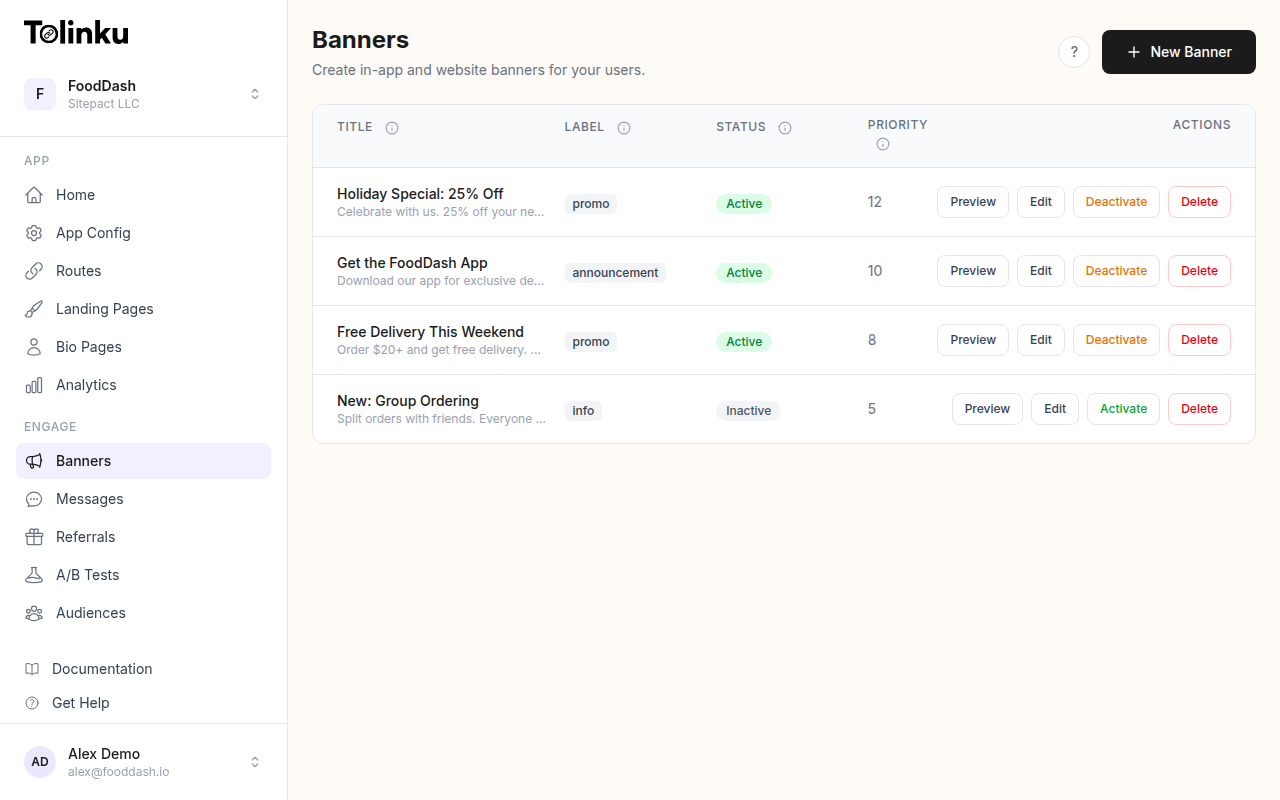
A custom banner is more useful when it knows who it is talking to. Tolinku's audience targeting lets you show different banners to different users based on OS version, browser, geography, or custom attributes. You can build the banner in HTML/CSS as described here and then use Tolinku's configuration layer to control which users see it and when.
For example, you might show a banner with "Update your app" copy to existing users who have an older app version, and "Get the app" copy to first-time visitors. Both banners share the same HTML/CSS structure but pull different copy from the Tolinku dashboard.
See the targeting and scheduling documentation for the full rule syntax.
Testing Your Banner
Before deploying, test on real devices. Chrome DevTools device emulation is useful for layout but does not accurately simulate mobile browser chrome or safe area insets.
Checklist:
- Banner appears within 1-2 seconds on a mid-range Android (not just a flagship)
- Banner does not cause a layout shift that moves page content
- Dismiss persists across page navigation
- CTA link opens the correct app store on iOS and Android separately
- Banner is readable at the smallest supported viewport width
- Screen reader announces the banner and the dismiss button correctly
- Banner does not appear on desktop or tablet
The Tolinku features page shows a live preview tool you can use to check banner designs before publishing.
Get deep linking tips in your inbox
One email per week. No spam.