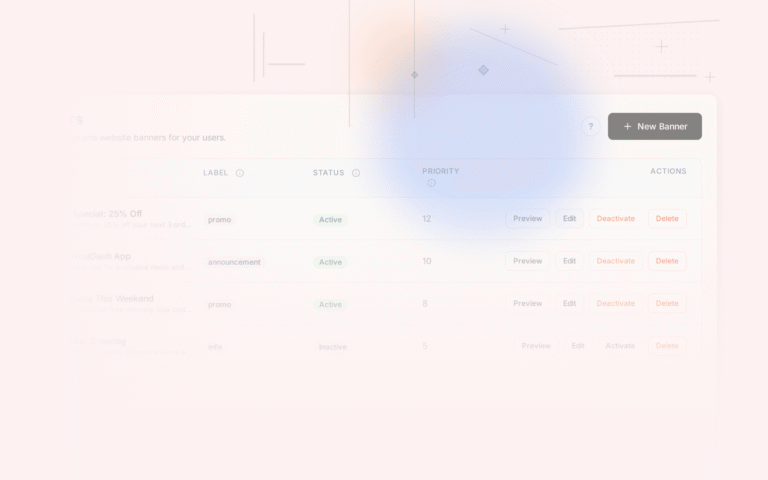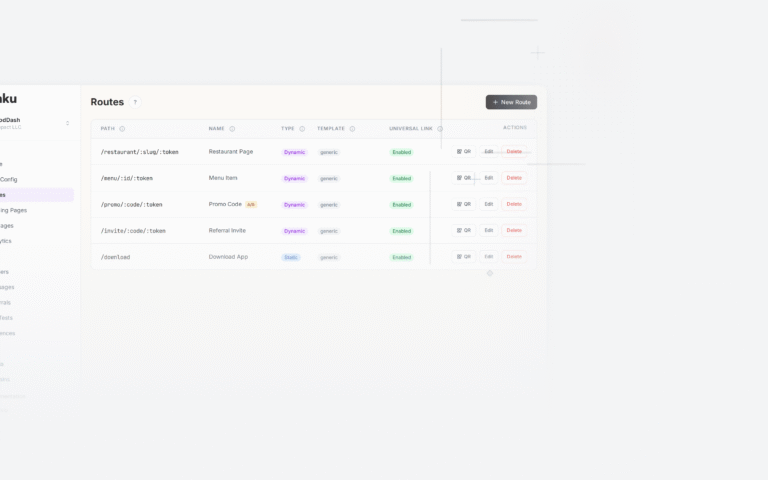
A smart banner that ignores who is looking at it is leaving conversions on the table. An iPhone user does not have the same app store, the same browser behavior, or the same interaction patterns as an Android user. A first-time visitor needs different copy than someone who has visited your site ten times and still has not installed.
Targeting bridges this gap. By defining rules that control who sees which banner, you increase relevance, reduce banner fatigue, and make better use of the impressions you get.
Why Targeting Matters
Generic banners treat all mobile visitors as a single audience. The result is a banner that is mediocre for everyone: it uses App Store language on Android devices, shows "Get the App" to people who already have it, and runs on browsers that cannot actually support the deep link format you are using.
Targeted banners fix each of these problems individually:
- Show App Store links only on iOS; Google Play links only on Android
- Skip the banner entirely for users who have already clicked it three times without converting
- Show a different value proposition to users who arrived from paid search versus organic
- Stop showing the banner to users who opened the app last week (they already have it)
Each targeting rule eliminates a wasted impression and replaces it with either no banner (preserving goodwill) or a more relevant banner (improving conversion).
Device Detection
The first targeting decision is whether to show the banner at all on a given device. The primary split is between mobile phones, tablets, and desktop.
Most apps benefit from showing banners only on mobile phones. Tablet users have a larger screen and may prefer the web experience. Desktop users cannot use a phone app store link at all.
The standard approach reads the User-Agent header server-side or the navigator.userAgent string client-side:
function getDeviceType() {
  const ua = navigator.userAgent;
  if (/iPad/i.test(ua)) return 'tablet';
  if (/iPhone|iPod|Android/i.test(ua)) {
    // Check for Android tablets (large screen devices)
    if (/Android/i.test(ua) && !/Mobile/i.test(ua)) return 'tablet';
    return 'mobile';
  }
  return 'desktop';
}
The Android tablet detection relies on the fact that Android phones include "Mobile" in their user agent string, while many Android tablets do not. This is not perfect (some Android tablets do include "Mobile"), but it covers the majority of cases.
For server-side detection, libraries like ua-parser-js provide more reliable parsing with a maintained device database.
OS Detection and Platform-Specific Banners
iOS and Android users need different banner configurations because:
- The app store links are different (itunes.apple.com vs. play.google.com or a universal link vs. an App Link)
- The app store names are different ("App Store" vs. "Google Play")
- Deep link behavior differs: iOS uses Universal Links, Android uses App Links
- Some UI conventions differ (iOS users expect the banner at the top; Android users are more accustomed to bottom sheets)
A targeting rule detects the OS and serves the appropriate configuration:
function getMobilePlatform() {
  const ua = navigator.userAgent;
  if (/iPhone|iPad|iPod/i.test(ua)) return 'ios';
  if (/Android/i.test(ua)) return 'android';
  return null;
}

const platform = getMobilePlatform();

if (platform === 'ios') {
  // Show iOS-specific banner with App Store link
  showBanner({
    ctaText: 'Get it on the App Store',
    storeLink: 'https://apps.apple.com/app/yourapp/id123456789',
    deepLinkScheme: 'yourapp://',
  });
} else if (platform === 'android') {
  // Show Android-specific banner with Play Store link
  showBanner({
    ctaText: 'Get it on Google Play',
    storeLink: 'https://play.google.com/store/apps/details?id=com.yourapp',
    deepLinkScheme: 'yourapp://',
  });
}
Apple's Universal Links documentation and Google's App Links documentation explain the technical requirements for each platform's deep linking system.
Browser Targeting
Not all mobile browsers handle deep links the same way. Safari on iOS handles Universal Links natively. Chrome on Android handles App Links via intent URLs. In-app browsers (Facebook, Instagram, TikTok, LinkedIn) often block deep link navigation entirely.
Targeting by browser lets you:
- Show a banner with Universal Link behavior to Safari users
- Show a banner with an intent URL to Chrome on Android
- Show a simplified banner (store link only, no deep link attempt) to in-app browser users
Detecting the browser:
function getMobileBrowser() {
  const ua = navigator.userAgent;

  // In-app browsers
  if (/FBAN|FBAV/i.test(ua)) return 'facebook';
  if (/Instagram/i.test(ua)) return 'instagram';
  if (/TikTok/i.test(ua)) return 'tiktok';
  if (/LinkedInApp/i.test(ua)) return 'linkedin';

  // System browsers
  if (/CriOS/i.test(ua)) return 'chrome-ios';
  if (/FxiOS/i.test(ua)) return 'firefox-ios';
  if (/Safari/i.test(ua) && /Version/i.test(ua)) return 'safari';
  if (/Chrome/i.test(ua)) return 'chrome-android';

  return 'other';
}
For in-app browsers, deep links frequently fail because these browsers do not honor Universal Links or App Links. The safest fallback is to send users to the appropriate app store directly, skip the deep link attempt entirely, and adjust the banner copy to set expectations: "Open in Safari to launch the app" or just "Download our app."
OS Version Targeting
Some deep link behaviors changed between OS versions. For example:
- Universal Links gained changes in iOS 13 and iOS 15 that affected how they behave after the user manually switches back to the browser
- Android App Links behavior has evolved across Android versions
If your app requires a minimum OS version, exclude users on older versions from seeing a banner that would produce a broken experience. Show them a fallback message instead: "Update your OS to use the app" or simply do not show the banner.
Detecting OS version from the user agent:
function getIOSVersion() {
  const match = navigator.userAgent.match(/OS (\d+)_(\d+)/);
  if (!match) return null;
  return parseInt(match[1], 10);
}

const iosVersion = getIOSVersion();
if (iosVersion !== null && iosVersion < 15) {
  // Show a simplified banner or skip it
}
Tolinku's targeting rules let you set OS version conditions without writing this detection logic manually.
User Segment Targeting
Device and OS targeting handles the technical requirements. User segment targeting handles the messaging strategy.
Common segment rules:
New vs. returning visitors A visitor on their first session sees "Discover what the app can do." A visitor on their fifth session, who clearly has some interest but has not installed, sees "Still browsing? The app has features the site doesn't."
Source channel Users arriving from a paid campaign with a specific discount code should see a banner that references that discount: "Use your 20% off code in the app." Users from organic search need a more general value proposition.
Page context A user reading a product page should see a banner about completing the purchase in the app. A user reading a support article should see a banner about getting faster help through the app's chat feature.
Existing app users Users who have already installed the app should not see an "install" banner. Instead, show them an "open in app" banner, or no banner at all. Tracking this requires a signal from the app (a cookie set on first launch, for example) that the web page can read.
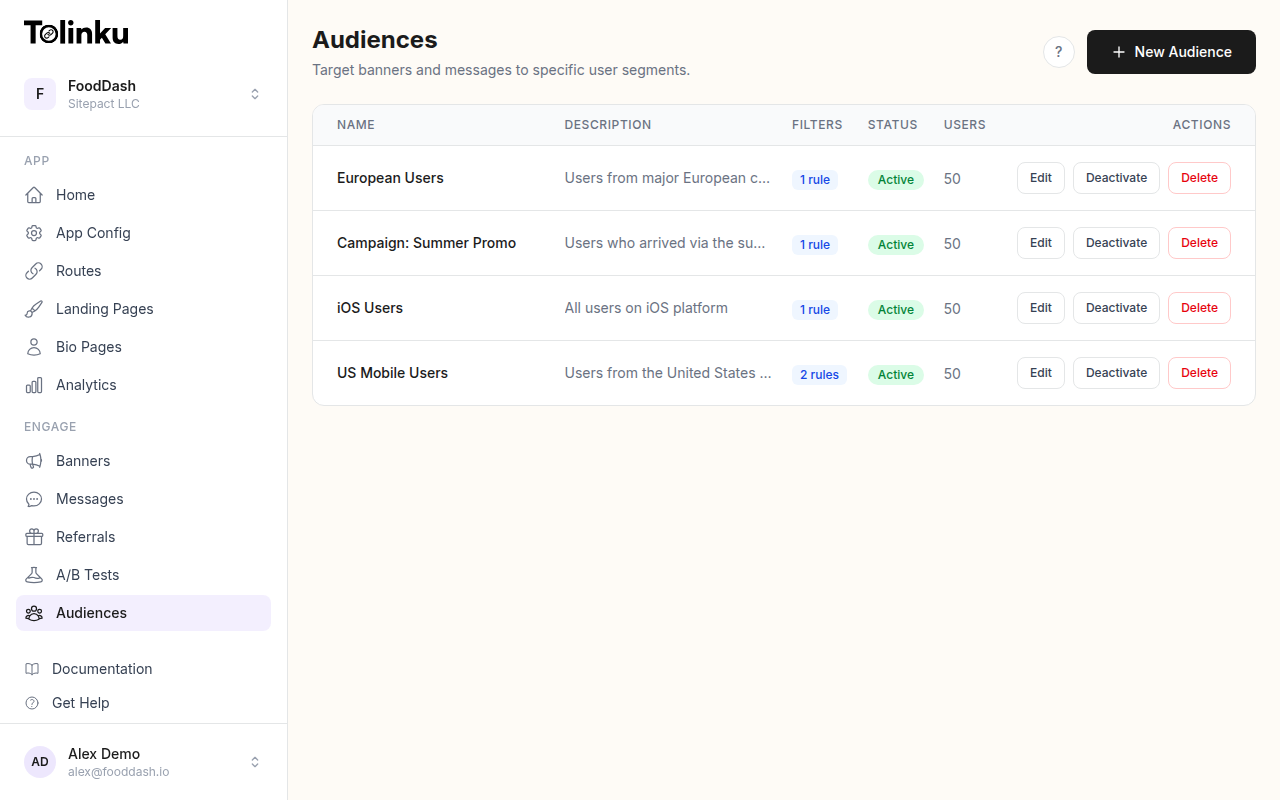
The Tolinku audiences feature lets you build reusable audience definitions that feed into your banner targeting rules, so you define a segment once and apply it across multiple banners.
Scheduling: Time-Based Targeting
Targeting does not only mean "who." It also means "when."
Some scheduling rules that work well:
Time of day: A food delivery app might show a "Order dinner in the app" banner between 4pm and 9pm, and a "Plan your lunch" banner between 10am and 1pm.
Day of week: A retail app might increase banner aggressiveness on Friday and Saturday, when purchase intent is higher for many categories.
Post-event: After a user completes a purchase on the web, show a banner that invites them to track their order in the app. This is a high-intent moment.
Campaign windows: Show a specific banner only during a sale period. Schedule it to start and end at exact times so you do not have to manually disable it.
The Tolinku targeting and scheduling documentation covers the full scheduling rule syntax, including relative time rules (e.g., "show this banner for 48 hours after user registration").
Combining Rules
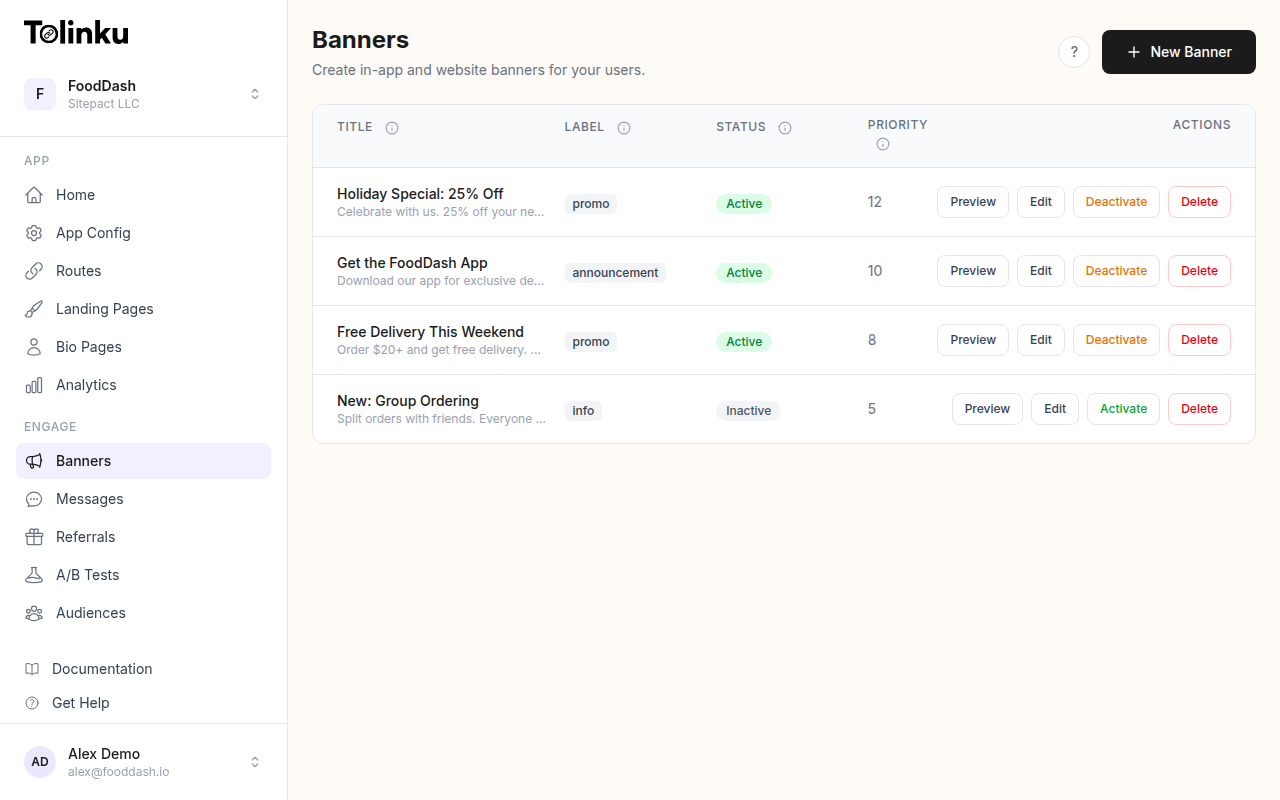
Targeting rules compound. A well-configured banner might have rules that say:
- Show only on iOS devices, Safari browser, version 15 or higher
- Only to users who have not installed the app (no install cookie present)
- Only on product and category pages (not on checkout or confirmation pages)
- Only between 7am and 11pm in the user's local timezone
- With copy personalized to the page category (pulled from a page-level data attribute)
None of these rules individually requires complex engineering. Together, they produce a banner experience that feels relevant to each user, which is the core driver of higher click-through and install rates.
The Tolinku smart banners overview and features page cover how to configure combined targeting rules through the dashboard UI, which lets non-engineers update targeting rules without a code deploy.
Get deep linking tips in your inbox
One email per week. No spam.