Migrating deep linking platforms is only half the work. The other half is verifying everything works. A missed edge case during testing means a broken link in production, which means lost users and a support ticket you could have avoided.
This guide covers every test you should run after migrating your deep linking platform, organized by priority.
For the migration checklist, see Deep Linking Migration Checklist: 30 Steps. For troubleshooting, see the Tolinku troubleshooting guide.
Priority 1: Link Resolution
The most basic test: do your links actually work?
Click-to-Web Fallback
Open each link in a browser where the app is not installed. The link should redirect to the correct web fallback URL.
What to check:
- The redirect happens (no error page, no timeout)
- The destination URL is correct (not a generic homepage if a specific page was expected)
- HTTPS is enforced (no mixed content or certificate warnings)
- Query parameters are preserved through the redirect
How to test:
- Desktop browser (Chrome, Safari, Firefox)
- Mobile browser (Safari on iOS, Chrome on Android) without the app installed
- Use incognito/private mode to avoid caching
Click-to-App (Direct Deep Link)
With the app installed, tap a link. The app should open and navigate to the correct screen.
What to check:
- The app opens (not the App Store or Play Store)
- The correct screen loads (not the home screen)
- Parameters are passed correctly (product ID, referral code, etc.)
- The app handles the link within 1-2 seconds (no long loading state)
How to test on iOS:
- Paste a link in Notes, long-press, and tap "Open"
- Send the link via iMessage and tap it
- Paste it in Safari and navigate to it (note: typing a URL in Safari's address bar does NOT trigger Universal Links; you must navigate from another app or tap a link)
How to test on Android:
- Paste a link in a text message and tap it
- Use
adb shell am start -a android.intent.action.VIEW -d "https://go.yourapp.com/test"from terminal - Share the link from Chrome to verify intent resolution
Priority 2: Universal Links and App Links Verification
These are the configuration files that tell iOS and Android which links your app handles.
Apple App Site Association (AASA) File
The AASA file must be served from your domain at /.well-known/apple-app-site-association.
Verify the file is accessible:
curl -I https://go.yourapp.com/.well-known/apple-app-site-association
The response should return:
- HTTP 200 status
Content-Type: application/json- Valid JSON content with your app's Team ID and Bundle ID
Verify the content:
curl https://go.yourapp.com/.well-known/apple-app-site-association | python3 -m json.tool
Check that:
applinks.detailscontains your app's identifier (TEAMID.com.yourapp.bundleid)- The path patterns match your routes (
/product/*,/invite/*, etc.) - There are no wildcard-only patterns that could interfere with other paths
Apple's CDN validation: Apple caches AASA files through their CDN. After migration, verify Apple has picked up the new file:
curl "https://app-site-association.cdn-apple.com/a/v1/go.yourapp.com"
If the cached version is stale, it can take 24-48 hours for Apple to re-fetch. You can force a refresh by opening Apple's search validation tool and entering your domain.
Android assetlinks.json
The Digital Asset Links file must be served at /.well-known/assetlinks.json.
Verify:
curl https://go.yourapp.com/.well-known/assetlinks.json | python3 -m json.tool
Check that:
- The
target.package_namematches your Android app's package name - The
sha256_cert_fingerprintsincludes your signing certificate's fingerprint - If you use Google Play App Signing, include both your upload key AND Google's signing key fingerprint
Google's verification tool: Use Google's Digital Asset Links tool to verify your assetlinks.json is configured correctly.
Priority 3: Deferred Deep Linking
Deferred deep linking is the hardest to test because it requires a full install cycle.
Test Process
- Uninstall the app from your test device
- Clear any cookies or cached data from the browser
- Tap a deep link (e.g.,
https://go.yourapp.com/product/123) - You should be redirected to the App Store or Play Store
- Install the app
- Open the app
- The app should navigate to the correct screen (e.g., product 123)
What Can Go Wrong
- Fingerprinting mismatch: The platform uses device fingerprinting (IP, user agent, device model) to match the click to the install. If you're on a VPN or your IP changed between click and install, the match may fail.
- Time window expired: Most platforms have a matching window (30 minutes to 24 hours). If you wait too long between clicking and installing, the match expires.
- App not checking on first launch: Your app needs to call the deferred deep link check on first launch. If the SDK initialization is delayed or the check is missing, the link data won't be retrieved.
- Test device already known: If the device previously had the app installed, some platforms may have cached state that interferes with deferred matching. Use a fresh device or clear all app data.
Testing Tips
- Test on a physical device, not a simulator (fingerprinting relies on real device signals)
- Use a different network than your development machine to avoid IP-based false matches
- Test both iOS and Android separately
- Test with both the shortest and longest link formats
For more testing tools and approaches, see Best Deep Link Testing Tools.
Priority 4: Cross-Platform Behavior
iOS Specific
- Universal Links from different apps: Test links from Mail, Messages, Notes, Safari, Twitter, Slack. Each app handles Universal Links slightly differently.
- Universal Links clipboard banner: When you copy a Universal Link and switch to Safari, iOS may show a banner suggesting to open the app. Verify this works.
- Long-press behavior: Long-pressing a Universal Link should show "Open in [App Name]" in the context menu.
Android Specific
- App Links auto-verification: After install, Android verifies your domain ownership. Check that your app is set as the default handler: Settings → Apps → [Your App] → Open by default → Supported links.
- Intent filter conflicts: If another app on the device claims the same domain, Android may show a disambiguation dialog. Verify your app is the only one claiming your deep link domain.
- Chrome behavior: Chrome handles App Links differently from other browsers. Specifically test links from within Chrome.
Cross-Platform
- Same link, both platforms: Send the same link to an iOS device and an Android device. Both should open the app and navigate to the same screen.
- Desktop fallback: Open the link on a desktop browser. It should redirect to your web fallback, not show an error or try to open an app.
Priority 5: Analytics and Tracking
Click Tracking
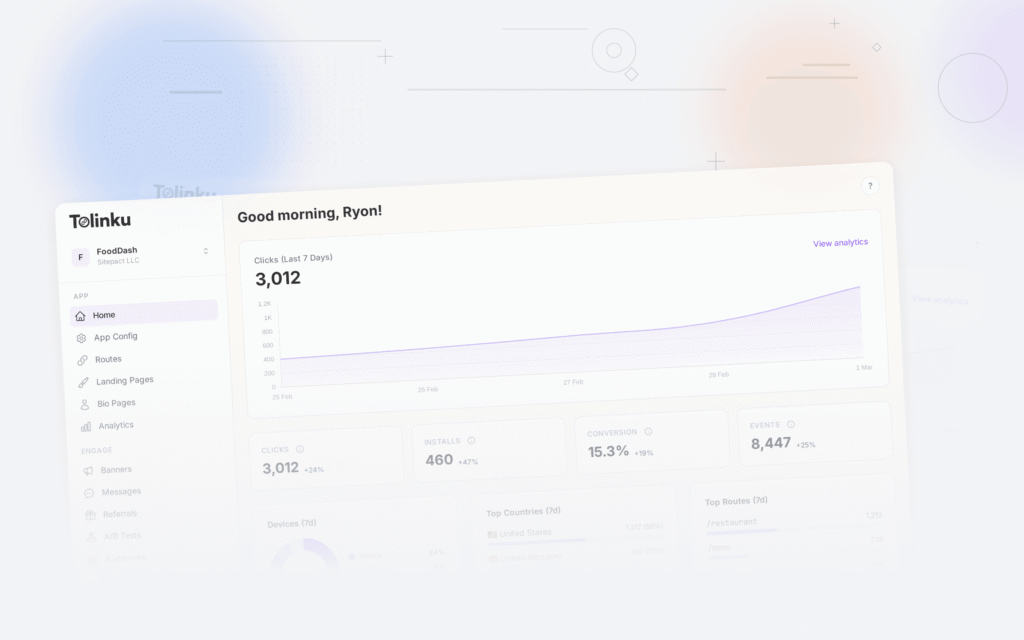
After clicking test links, verify that clicks appear in your new platform's analytics dashboard.
What to check:
- Clicks are recorded with the correct timestamp
- Source information is captured (referrer, UTM parameters)
- Geographic data is recorded (country, region)
- Device information is captured (OS, browser, device type)
Conversion Tracking
If you track conversions (install, sign-up, purchase) through your deep linking platform:
- Trigger a conversion through a tracked link
- Verify the conversion appears in the dashboard
- Verify the conversion is attributed to the correct link/campaign
- Check that the time-to-convert metric is reasonable
UTM Parameter Passthrough
If your links include UTM parameters, verify they reach your analytics tool:
- Click a link with UTM parameters:
https://go.yourapp.com/page?utm_source=test&utm_medium=email&utm_campaign=migration_test - Open the app or web page
- Check your analytics tool (Google Analytics, Mixpanel, etc.) for the session with those UTM values
Priority 6: Edge Cases
Malformed Links
Test links with:
- Missing parameters (
/product/without an ID) - Invalid parameters (
/product/not-a-number) - Extra path segments (
/product/123/extra/segments) - Special characters in parameters (
/search?q=hello%20world&lang=en) - Extremely long URLs
The app should handle all of these gracefully: either navigate to a reasonable default or show an appropriate error. It should never crash.
Expired or Removed Links
If you delete a route on your new platform, what happens when someone clicks an old link that used that path? The platform should return a reasonable fallback (your default web URL), not a 500 error.
Rate Limiting
If your app generates links programmatically or receives high click volume, test under load:
- Create 100 links in quick succession via the API
- Click multiple links rapidly
- Verify no rate limiting issues or degraded performance
Verification Checklist
Use this as a final sign-off before considering the migration complete:
- AASA file accessible and valid at
/.well-known/apple-app-site-association - assetlinks.json accessible and valid at
/.well-known/assetlinks.json - Direct deep links work on iOS (app opens, correct screen)
- Direct deep links work on Android (app opens, correct screen)
- Deferred deep link works on iOS (install, first open, correct screen)
- Deferred deep link works on Android (install, first open, correct screen)
- Web fallback works (correct page, HTTPS, no errors)
- OG previews render on Facebook, Twitter, iMessage
- Analytics recording clicks in new platform dashboard
- UTM parameters passing through to analytics tools
- Edge cases handled gracefully (malformed, expired, missing params)
- All critical routes tested (product, invite, promo, etc.)
Ongoing Monitoring
Testing is not a one-time event. After migration, monitor for 2-4 weeks:
- Click volume: Compare daily click counts to pre-migration baselines. A significant drop indicates broken links somewhere.
- Deep link success rate: Track how often users land on the correct screen vs. the home screen.
- User reports: Watch app store reviews and support channels for link-related complaints.
- AASA/assetlinks changes: If you update your app or domain configuration, re-run the verification checks.
For the complete migration walkthrough, see Migrating to Tolinku from Branch, Firebase, and AppsFlyer. For the SDK swap process, see SDK Swap Guide.
Get deep linking tips in your inbox
One email per week. No spam.