Most apps start with a single domain for deep linking: links.yourapp.com. Then growth adds complexity. Marketing wants go.yourapp.com for campaigns. The rebrand adds newbrand.com. A partner integration needs partner.co/yourapp. Each domain needs its own App Links configuration, its own Digital Asset Links file, and its own intent filter entries.
Getting multi-domain App Links right requires understanding how Android verifies each domain independently, how intent filters interact when multiple domains are declared, and how to avoid the common pitfalls that cause verification to fail on some domains while working on others.
For the single-domain setup, see the Android App Links complete guide. For the Digital Asset Links file format, see the setup and verification guide.
How Multi-Domain Verification Works
Android verifies each domain in your intent filters independently. When your app is installed, the system:
- Scans all
<intent-filter>elements withandroid:autoVerify="true". - Extracts every unique
android:hostvalue. - Fetches
https://{host}/.well-known/assetlinks.jsonfor each host. - Verifies that each file contains your app's package name and SHA-256 fingerprint.
Critical rule (Android 12+): If ANY domain fails verification, ALL domains may be treated as unverified on some devices. On Android 11 and below, each domain was verified independently: a failure on one domain didn't affect others. Android 12 changed this to an all-or-nothing model for some OEMs.
This means every domain you declare must have a valid, accessible assetlinks.json file. A single misconfigured domain can break App Links for all your domains.
Manifest Configuration
Declaring Multiple Domains
Each domain gets its own <data> element within the intent filter:
<activity
    android:name=".DeepLinkRouter"
    android:exported="true">
    <intent-filter android:autoVerify="true">
        <action android:name="android.intent.action.VIEW" />
        <category android:name="android.intent.category.DEFAULT" />
        <category android:name="android.intent.category.BROWSABLE" />

        <data android:scheme="https" android:host="links.yourapp.com" />
        <data android:scheme="https" android:host="go.yourapp.com" />
        <data android:scheme="https" android:host="newbrand.com" />
    </intent-filter>
</activity>
Separate Intent Filters per Domain
If different domains route to different Activities or have different path patterns, use separate intent filters:
<!-- Marketing links: go.yourapp.com -->
<intent-filter android:autoVerify="true">
    <action android:name="android.intent.action.VIEW" />
    <category android:name="android.intent.category.DEFAULT" />
    <category android:name="android.intent.category.BROWSABLE" />
    <data android:scheme="https"
          android:host="go.yourapp.com"
          android:pathPrefix="/c/" />
</intent-filter>

<!-- Product links: links.yourapp.com/products/* -->
<intent-filter android:autoVerify="true">
    <action android:name="android.intent.action.VIEW" />
    <category android:name="android.intent.category.DEFAULT" />
    <category android:name="android.intent.category.BROWSABLE" />
    <data android:scheme="https"
          android:host="links.yourapp.com"
          android:pathPrefix="/products" />
</intent-filter>

<!-- Brand domain: newbrand.com (all paths) -->
<intent-filter android:autoVerify="true">
    <action android:name="android.intent.action.VIEW" />
    <category android:name="android.intent.category.DEFAULT" />
    <category android:name="android.intent.category.BROWSABLE" />
    <data android:scheme="https"
          android:host="newbrand.com" />
</intent-filter>
Digital Asset Links for Each Domain
Every domain must serve its own assetlinks.json at /.well-known/assetlinks.json. The content is identical across all domains (same app, same fingerprint), but the file must be accessible on each one.
The File (Same for All Domains)
[{
  "relation": ["delegate_permission/common.handle_all_urls"],
  "target": {
    "namespace": "android_app",
    "package_name": "com.example.yourapp",
    "sha256_cert_fingerprints": [
      "AB:CD:EF:01:23:45:67:89:AB:CD:EF:01:23:45:67:89:AB:CD:EF:01:23:45:67:89:AB:CD:EF:01:23:45:67:89"
    ]
  }
}]
Hosting Requirements
Each domain must serve this file with:
- HTTPS (not HTTP). No redirects from the
/.well-known/path. - Content-Type: application/json
- HTTP 200 status code
- No authentication (publicly accessible)
- Response within 5 seconds (Android's verification timeout)
Common Multi-Domain Hosting Patterns
Pattern 1: Static file on each server
If you control the web server for each domain, place the file directly:
links.yourapp.com/.well-known/assetlinks.json
go.yourapp.com/.well-known/assetlinks.json
newbrand.com/.well-known/assetlinks.json
Pattern 2: Reverse proxy / CDN rule
If domains are served through a CDN (Cloudflare, AWS CloudFront), add a rule that serves the file from a central location:
# Nginx: serve assetlinks.json for all domains
location = /.well-known/assetlinks.json {
    alias /etc/assetlinks/assetlinks.json;
    default_type application/json;
}
Pattern 3: Redirect (risky)
Some teams try to redirect /.well-known/assetlinks.json from one domain to another. This is unreliable. Android's verification may not follow redirects, especially on older versions. Host the file directly on each domain.
Pattern 4: Tolinku managed
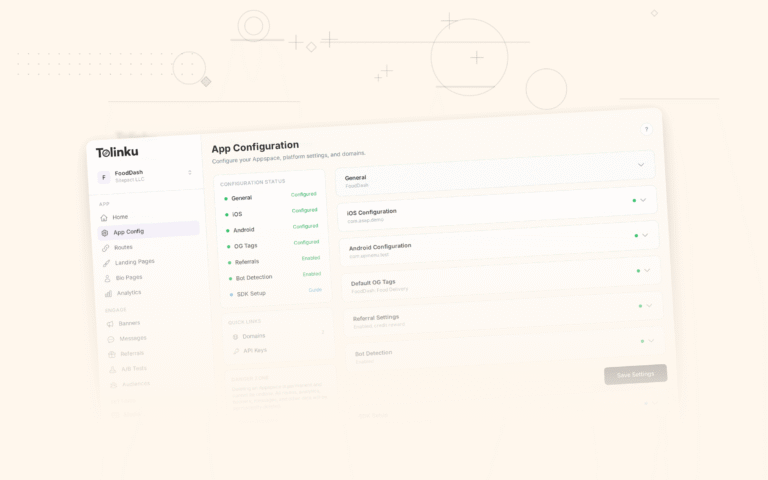
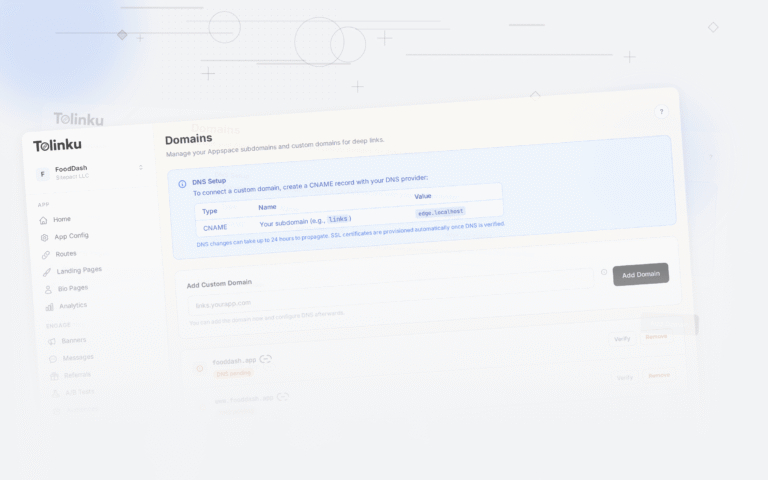
When using Tolinku, the platform serves the assetlinks.json file automatically on your configured domains. Add your domains in the Tolinku dashboard and the verification files are generated and hosted for you.
Routing Logic
With multiple domains, your deep link router needs to know which domain the link came from:
class DeepLinkRouter : AppCompatActivity() {
    override fun onCreate(savedInstanceState: Bundle?) {
        super.onCreate(savedInstanceState)

        val uri = intent.data ?: return finish()
        val host = uri.host
        val path = uri.path

        when (host) {
            "go.yourapp.com" -> {
                // Marketing campaign links
                val campaignId = uri.getQueryParameter("c")
                handleCampaignLink(campaignId, uri)
            }
            "links.yourapp.com" -> {
                // Product deep links
                when {
                    path?.startsWith("/products") == true ->
                        handleProductLink(uri)
                    path?.startsWith("/profile") == true ->
                        handleProfileLink(uri)
                    else -> handleGenericLink(uri)
                }
            }
            "newbrand.com" -> {
                // New brand domain (same app, different branding)
                handleBrandedLink(uri)
            }
            else -> handleGenericLink(uri)
        }

        finish()
    }
}
Verification Debugging
Check All Domains at Once
adb shell pm get-app-links --user cur com.example.yourapp
Output shows the status for each domain:
com.example.yourapp:
    Domains:
      links.yourapp.com:
        Status: verified
      go.yourapp.com:
        Status: verified
      newbrand.com:
        Status: legacy_failure    ← This domain failed!
Test Each Domain's Asset Links File
# Check each domain manually
curl -I "https://links.yourapp.com/.well-known/assetlinks.json"
curl -I "https://go.yourapp.com/.well-known/assetlinks.json"
curl -I "https://newbrand.com/.well-known/assetlinks.json"
All should return 200 OK with Content-Type: application/json.
Force Re-Verification
adb shell pm set-app-links --package com.example.yourapp 0 all
adb shell pm verify-app-links --re-verify com.example.yourapp
Google's Verification Tool
Use the Digital Asset Links API to validate your setup:
https://digitalassetlinks.googleapis.com/v1/statements:list?source.web.site=https://links.yourapp.com&relation=delegate_permission/common.handle_all_urls
Common Pitfalls
Pitfall 1: Forgotten Domain
You add a new domain to your intent filter but forget to host assetlinks.json on it. On Android 12+, this can break verification for ALL your domains.
Prevention: Add asset links hosting to your domain setup checklist. Automate it if possible.
Pitfall 2: Wildcard Subdomains
Android doesn't support wildcards in android:host. You can't do *.yourapp.com. Each subdomain must be listed explicitly.
Pitfall 3: Different Signing Keys
If you use different signing keys for debug and release builds, the SHA-256 fingerprints differ. Your assetlinks.json should include both fingerprints during development:
[{
  "relation": ["delegate_permission/common.handle_all_urls"],
  "target": {
    "namespace": "android_app",
    "package_name": "com.example.yourapp",
    "sha256_cert_fingerprints": [
      "RELEASE_FINGERPRINT_HERE",
      "DEBUG_FINGERPRINT_HERE"
    ]
  }
}]
Pitfall 4: CDN Caching Stale Files
If your assetlinks.json is served through a CDN and you update it (e.g., new signing key), the CDN may serve the stale version. Set a short cache TTL (5-10 minutes) for this file.
Pitfall 5: Domain Migration
When migrating from an old domain to a new one, keep the assetlinks.json on the old domain active until all users have updated to the latest app version. Removing it breaks App Links for users on older versions.
For managing multiple domains with Tolinku, you can add custom domains and subdomains in the dashboard. The platform handles assetlinks.json hosting for each domain automatically. See the App Links documentation for the full setup.
For understanding the intent filter configuration that underpins multi-domain routing, see the Android intent filters guide.
Get deep linking tips in your inbox
One email per week. No spam.