

When Universal Links stop working, the Apple App Site Association (AASA) file is the most common culprit. The AASA file tells iOS which URL paths your app handles, and any error in its format, hosting, or content will silently break deep linking. This guide walks through systematic debugging of AASA issues.
For AASA file setup, see AASA file setup. For comprehensive Universal Links coverage, see universal links: everything you need to know. For iOS troubleshooting, see the iOS troubleshooting guide.
Quick Diagnostic Checklist
Before diving into detailed debugging, check these common issues:
| Check | Command/Action | Expected Result |
|---|---|---|
| AASA file is accessible | curl -I https://yourdomain.com/.well-known/apple-app-site-association |
HTTP 200, Content-Type: application/json |
| Valid JSON | Paste file content into jsonlint.com | "Valid JSON" |
| Correct Team ID | Check in Apple Developer Portal | Matches your appID prefix |
| Correct Bundle ID | Check in Xcode project settings | Matches your appID suffix |
| Associated Domains entitlement | Xcode → Signing & Capabilities | applinks:yourdomain.com present |
| HTTPS with valid certificate | Browser shows lock icon on domain | No certificate errors |
| No redirects to AASA file | curl -v https://yourdomain.com/.well-known/apple-app-site-association |
Direct 200, no 301/302 |
Step 1: Verify the AASA File Is Accessible
Check with curl
curl -v https://yourdomain.com/.well-known/apple-app-site-association
What to look for:
| Response | Meaning | Fix |
|---|---|---|
| HTTP 200 with JSON | File is accessible | Continue to Step 2 |
| HTTP 404 | File not found | Place the file at /.well-known/apple-app-site-association |
| HTTP 301/302 redirect | Redirect present | Remove the redirect; Apple does not follow redirects for AASA |
| HTTP 403 | Access denied | Check server permissions, WAF rules, or authentication |
| Connection error | Server unreachable | Check DNS, firewall, and SSL configuration |
Common Hosting Issues
Nginx: Ensure the /.well-known/ directory is served:
location /.well-known/apple-app-site-association {
    default_type application/json;
}
Apache: Add a MIME type handler:
<Files "apple-app-site-association">
    Header set Content-Type "application/json"
</Files>
Cloudflare/CDN: Ensure your CDN is not blocking the file. Some WAF rules block files without extensions. Add an exception for the AASA path.
S3/Static hosting: Set the Content-Type metadata to application/json on the file.
Step 2: Validate the JSON
Common JSON Errors
| Error | Example | Fix |
|---|---|---|
| Trailing comma | "paths": ["/product/*",] |
Remove the trailing comma |
| Missing quotes | {appID: "ABC123.com.app"} |
Add quotes around keys |
| Wrong encoding | BOM or non-UTF-8 characters | Save as UTF-8 without BOM |
| Comments | // This is a comment |
Remove all comments (JSON does not support them) |
| Single quotes | {'appID': 'ABC123'} |
Use double quotes |
AASA v1 vs v2 Format
iOS 13+ supports the v2 AASA format. iOS 12 and earlier require v1:
v2 (recommended, Apple documentation):
{
  "applinks": {
    "details": [
      {
        "appIDs": ["TEAMID.com.yourcompany.app"],
        "components": [
          { "/": "/product/*", "comment": "Product pages" },
          { "/": "/category/*", "comment": "Category pages" }
        ]
      }
    ]
  }
}
v1 (legacy):
{
  "applinks": {
    "apps": [],
    "details": [
      {
        "appID": "TEAMID.com.yourcompany.app",
        "paths": ["/product/*", "/category/*"]
      }
    ]
  }
}
If you need to support iOS 12 and earlier, include both formats. iOS will use the v2 format if present.
Step 3: Verify App ID Configuration
The appID in the AASA file must exactly match your Apple Developer configuration:
Format: <Team ID>.<Bundle ID>
Example: A1B2C3D4E5.com.yourcompany.yourapp
Finding Your Team ID
- Go to Apple Developer Portal.
- Click "Membership Details."
- Your Team ID is a 10-character alphanumeric string (e.g.,
A1B2C3D4E5).
Finding Your Bundle ID
- Open your Xcode project.
- Select your app target.
- Go to the "General" tab.
- The "Bundle Identifier" field shows your Bundle ID (e.g.,
com.yourcompany.yourapp).
Common Mistakes
| Mistake | Example | Fix |
|---|---|---|
| Wrong Team ID | Using a different team's ID | Verify in Apple Developer Portal |
| Bundle ID mismatch | com.yourcompany.App vs com.yourcompany.app (case sensitive) |
Bundle IDs are case sensitive |
| Missing Team ID prefix | com.yourcompany.app instead of A1B2C3D4E5.com.yourcompany.app |
Always include the Team ID |
| Using wildcard Bundle ID | A1B2C3D4E5.* |
Use the explicit Bundle ID |
Step 4: Check the Associated Domains Entitlement
In Xcode:
- Select your app target.
- Go to "Signing & Capabilities."
- Check for the "Associated Domains" capability.
- Verify the domain entry:
applinks:yourdomain.com
Common Entitlement Issues
| Issue | Symptom | Fix |
|---|---|---|
| Missing entitlement | Universal Links never trigger | Add Associated Domains capability |
| Wrong domain | Links from your domain open in Safari | Verify the domain matches exactly |
https:// prefix in domain |
Entitlement is invalid | Use just the domain: applinks:yourdomain.com (no protocol) |
| Missing subdomain | www.yourdomain.com links do not work |
Add both applinks:yourdomain.com and applinks:www.yourdomain.com |
| Development mode | Works in development but not production | Remove ?mode=developer suffix for production |
Step 5: Test Path Matching
Even if the AASA file is valid, your paths may not match the URLs you are testing:
v2 Component Matching
{
  "components": [
    { "/": "/product/*" },
    { "/": "/category/*/items" },
    { "/": "/sale", "?": { "promo": "?*" } }
  ]
}
| URL | Pattern | Matches? |
|---|---|---|
/product/shoes |
/product/* |
Yes |
/product/shoes/red |
/product/* |
Yes (* matches entire remainder) |
/products/shoes |
/product/* |
No (note the s) |
/category/mens/items |
/category/*/items |
Yes |
/category/mens |
/category/*/items |
No (missing /items) |
/sale?promo=summer |
/sale with promo query |
Yes |
/sale |
/sale with promo query |
No (missing required query param) |
Exclusion Patterns
Exclude paths you do not want the app to handle:
{
  "components": [
    { "/": "/product/*" },
    { "/": "/product/*/reviews", "exclude": true }
  ]
}
The /product/shoes link opens the app, but /product/shoes/reviews opens in Safari.
For advanced path matching, see AASA wildcards and path matching.
Step 6: Apple's CDN Cache
Apple caches AASA files on its own CDN. After updating your AASA file, changes may take 24-48 hours to propagate.
Check Apple's Cached Version
curl -v https://app-site-association.cdn-apple.com/a/v1/yourdomain.com
If this returns an outdated version of your file, Apple's CDN has not refreshed yet.
Forcing a Refresh
You cannot force Apple's CDN to refresh. However:
- On a test device, delete and reinstall the app. iOS re-fetches the AASA on install.
- For development, use the
?mode=developersuffix in your Associated Domains entitlement:applinks:yourdomain.com?mode=developer. This makes iOS fetch directly from your server, bypassing Apple's CDN.
For more on CDN caching, see CDN and AASA caching: avoiding Universal Link failures.
Step 7: Device-Level Debugging
Console Logs
Use the macOS Console app to see Universal Link resolution logs from a connected device:
- Open Console.app on your Mac.
- Connect your iOS device.
- Filter for
swcd(the Universal Links daemon). - Trigger a Universal Link tap and watch for log messages.
Look for messages like:
"No match for URL": Path did not match any AASA patterns."App not installed": The app specified in the AASA is not installed."Failed to fetch": iOS could not download the AASA file.
Test with xcrun
On macOS, validate your AASA file:
xcrun simctl openurl booted "https://yourdomain.com/product/test"
This triggers the Universal Link in the iOS Simulator.
For comprehensive testing, see testing universal links.
Common Debugging Scenarios
| Symptom | Likely Cause | Debugging Step |
|---|---|---|
| Links never open the app | AASA not accessible or invalid | Steps 1-3 |
| Links worked yesterday, not today | CDN caching or server change | Step 6 |
| Links work on some devices, not others | App version mismatch or reinstall needed | Step 7 |
| Links work in some apps but not Safari | Same-domain restriction in Safari | Check if tapping link from same domain |
| Links open the app but wrong screen | Path handling issue in app code | Verify your app's URL routing logic |
| Links work in development but not production | ?mode=developer or provisioning issue |
Step 4 |
Tolinku for AASA Management
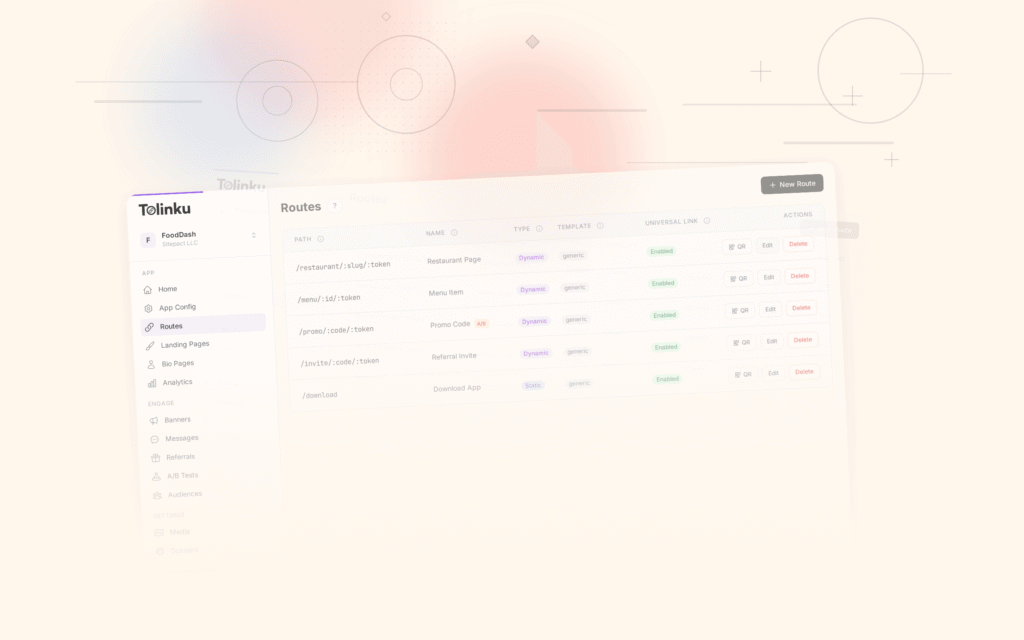
Tolinku hosts and manages your AASA file automatically. When you configure your iOS settings (Team ID, Bundle ID) in the Tolinku dashboard, the platform generates and serves a valid AASA file at the correct path. This eliminates the most common AASA debugging issues: file format errors, hosting misconfigurations, and content-type problems. See the Universal Links developer guide for setup details.
For AASA file setup, see AASA file setup. For the complete Universal Links guide, see universal links: everything you need to know.
Get deep linking tips in your inbox
One email per week. No spam.