

Every Universal Link configuration depends on two identifiers: your Team ID and your Bundle ID. Together they form the App ID that appears in your AASA file, your entitlements, and your Apple Developer account settings. Getting either one wrong causes Universal Links to silently fail, with no error messages, just links that open in Safari instead of your app.
This article explains what each identifier is, where to find them, how they connect, and the common mistakes that break Universal Links.
For Universal Links fundamentals, see universal links: everything you need to know. For the Associated Domains entitlement, see Associated Domains entitlement.
What Is the Team ID?
The Team ID is a 10-character alphanumeric string assigned to your Apple Developer account. It is unique to your organization (or individual account) and does not change.
You can find your Team ID in two places:
Apple Developer Portal. Sign in to developer.apple.com, go to Membership Details. Your Team ID is listed there.
Xcode. Open your project, go to Signing & Capabilities, and look at the Team dropdown. The Team ID appears next to your team name.
Example Team ID:
A1B2C3D4E5If your organization has multiple Apple Developer accounts (common for companies with separate accounts for different products), each account has a different Team ID. Make sure you use the Team ID that matches the account under which your app is published.
Apple's reference: Locate your Team ID.
What Is the Bundle ID?
The Bundle ID (also called Bundle Identifier) is a reverse-DNS string that uniquely identifies your app within Apple's ecosystem. You set it when you create your Xcode project, and it must match the App ID registered in the Apple Developer Portal.
Example Bundle ID:
com.example.myappThe Bundle ID is defined in:
- Xcode project settings. Target > General > Bundle Identifier.
- Info.plist. The
CFBundleIdentifierkey. - Apple Developer Portal. Certificates, Identifiers & Profiles > Identifiers.
Bundle ID Rules
- Must be unique across all apps in the App Store.
- Must use reverse-DNS notation (e.g.,
com.yourcompany.yourapp). - Can contain only alphanumeric characters, hyphens, and periods.
- Case-sensitive in the AASA file (use lowercase consistently).
- Cannot be changed after the app is published to the App Store.
The App ID: Team ID + Bundle ID
The App ID is the combination of your Team ID and Bundle ID, separated by a period:
TEAMID.com.example.myappFor example:
A1B2C3D4E5.com.example.myappThis is the identifier that appears in your AASA file:
{
  "applinks": {
    "details": [
      {
        "appIDs": ["A1B2C3D4E5.com.example.myapp"],
        "components": [
          { "/": "/product/*" }
        ]
      }
    ]
  }
}
The App ID must match exactly. A mismatch between what is in the AASA file and what is in your app's entitlements will cause Universal Links to fail.
Where Each Identifier Appears
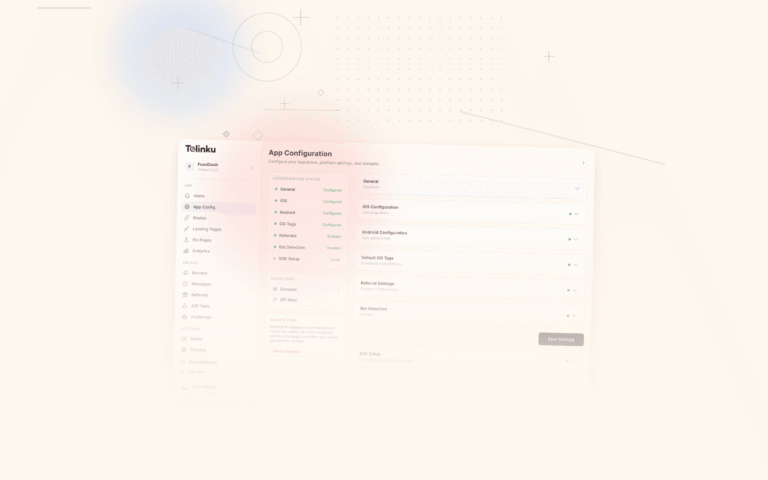
Location What Goes There Example AASA file appIDsTeam ID + Bundle ID A1B2C3D4E5.com.example.myappAssociated Domains entitlement Domain only (no IDs) applinks:yourdomain.comXcode Signing & Capabilities Team (selected from dropdown) Your Team Name (A1B2C3D4E5) Xcode Bundle Identifier Bundle ID only com.example.myappApple Developer Portal App ID Team ID is implicit, Bundle ID entered com.example.myappProvisioning Profile References the App ID Generated automatically  The Tolinku dashboard iOS configuration section where you enter your Team ID, Bundle ID, and App Store URL.
Setting Up the Associated Domains Capability
In Xcode:
- Select your app target.
- Go to Signing & Capabilities.
- Click "+ Capability" and add "Associated Domains."
- Add your domain:
applinks:yourdomain.com
Xcode automatically creates (or updates) your
.entitlementsfile:<key>com.apple.developer.associated-domains</key> <array> <string>applinks:yourdomain.com</string> </array>The entitlement itself does not contain the Team ID or Bundle ID. Those are inferred from your code signing identity and provisioning profile. But they must match what is in the AASA file on the server.
For the full entitlement setup, see Associated Domains entitlement.
Common Mistakes
Wrong Team ID in the AASA File
Symptom: Universal Links do not open the app. The AASA file looks correct otherwise.
Cause: The Team ID in the AASA file does not match the Team ID of the Apple Developer account that signed the app.
Fix: Verify your Team ID in the Apple Developer Portal (Membership Details) and update the AASA file. This is the most common AASA-related error.
Bundle ID Case Mismatch
Symptom: Universal Links work inconsistently or not at all.
Cause: The Bundle ID in the AASA file uses different casing than the Bundle ID in Xcode. For example,
com.Example.MyAppin the AASA file butcom.example.myappin Xcode.Fix: Use the exact same casing everywhere. Lowercase is conventional and recommended.
Using a Wildcard App ID
Symptom: Universal Links do not work despite the AASA file being valid.
Cause: Wildcard App IDs (e.g.,
A1B2C3D4E5.*) cannot be used for Universal Links. The AASA file requires an explicit Bundle ID.Fix: Register an explicit App ID in the Apple Developer Portal with your full Bundle ID.
Multiple Teams, Wrong One Selected
Symptom: Universal Links work in development but fail in production (or the reverse).
Cause: Xcode is signing the app with a different team than the one whose Team ID is in the AASA file. This is common in organizations with multiple Apple Developer accounts.
Fix: Verify that the team selected in Xcode's Signing & Capabilities matches the Team ID in the AASA file.
App Extension Bundle IDs
Symptom: Universal Links open the wrong target or do not work.
Cause: App extensions (widgets, share extensions, etc.) have their own Bundle IDs (e.g.,
com.example.myapp.widget). If you accidentally use an extension's Bundle ID in the AASA file, Universal Links will fail.Fix: Use the main app target's Bundle ID in the AASA file, not an extension's.
Multiple Apps on the Same Domain
If you have multiple apps that should handle Universal Links on the same domain, list them all in the AASA file:
{
  "applinks": {
    "details": [
      {
        "appIDs": ["A1B2C3D4E5.com.example.consumer"],
        "components": [
          { "/": "/shop/*" }
        ]
      },
      {
        "appIDs": ["A1B2C3D4E5.com.example.merchant"],
        "components": [
          { "/": "/merchant/*" }
        ]
      }
    ]
  }
}
Each app must have its own Associated Domains entitlement pointing to the same domain. iOS checks the AASA file and opens the first app whose path pattern matches.
If the apps belong to different teams (different Team IDs), both Team IDs appear in the AASA file. This requires both teams to coordinate on the AASA file content.
For AASA path matching details, see AASA wildcards and path matching.
Verifying Your Configuration
Check the AASA File
Fetch your AASA file and verify the App ID:
curl -s "https://yourdomain.com/.well-known/apple-app-site-association" | jq '.applinks.details[].appIDs'Check Apple's CDN
Verify what Apple's CDN has cached:
curl -s "https://app-site-association.cdn-apple.com/a/v1/yourdomain.com" | jq '.applinks.details[].appIDs'Check Xcode
In Xcode, verify:
- Target > General > Bundle Identifier matches the Bundle ID in the AASA file.
- Signing & Capabilities > Team matches the Team ID in the AASA file.
- Signing & Capabilities > Associated Domains includes
applinks:yourdomain.com.
For complete debugging steps, see debugging AASA files.
Tolinku and App ID Configuration
Tolinku requires your Team ID and Bundle ID during iOS configuration in the Appspace settings. Tolinku uses these to generate the correct AASA file for your domain. If you change your Team ID or Bundle ID, update the values in the Tolinku dashboard, and the AASA file will be regenerated automatically. See the Universal Links developer guide for setup details.
For the complete Universal Links guide, see universal links: everything you need to know.
Get deep linking tips in your inbox
One email per week. No spam.