Every deep link has two possible outcomes: the app is installed and the link opens it directly, or the app is not installed and something else happens. That "something else" is your fallback behavior, and it matters more than most teams realize. A broken fallback turns a potential new user into a dead end. A good one converts them.
This article covers exactly what happens at the OS level when each link type encounters a missing app, the fallback strategies available to you, how to build an effective fallback page, and where platform behavior diverges between iOS and Android.
What Happens at the OS Level
The behavior when an app is not installed depends on the type of link you're using. The three main types each fail differently.
Custom URI Schemes
Custom URI schemes look like yourapp://path/to/content. They are the oldest form of deep linking and the most fragile.
When a user taps a custom URI scheme and the app is not installed, the operating system has no handler registered for that scheme. On iOS, the result is either a blank alert that says "Cannot Open Page" or complete silence, depending on how the link was triggered. There is no automatic fallback to a web URL. On Android, the system shows an error dialog or simply does nothing, again with no fallback.
Custom schemes have no built-in web fallback mechanism. Any fallback must be coded explicitly at the link-serving layer (your server or a linking platform). For a deeper look at how custom URI schemes work and their limitations, see our custom URL schemes guide. If you're still relying on raw custom schemes without a server-side redirect layer in front of them, your users with fresh installs hit a wall.
Universal Links (iOS)
Universal Links are the modern iOS approach. They use standard HTTPS URLs, and the OS checks your apple-app-site-association (AASA) file to decide whether to open the URL in your app or in the browser.
When the app is not installed, iOS has a clear fallback path: it opens the URL in Safari as a normal webpage. This is fundamentally different from custom schemes. A Universal Link is a real HTTPS URL, so it always has a destination. The question is just whether your web server at that URL delivers a useful experience or a 404.
This fallback behavior is the main reason Universal Links are preferred over custom schemes. The link never breaks. You control what the user sees at the web URL, and you can use that page to redirect them to the App Store, present a web version of your content, or anything else.
Android App Links
App Links on Android work similarly to Universal Links. They are HTTPS URLs verified through a assetlinks.json file hosted at your domain. When the app is installed and the link is verified, the system opens it directly in the app. When the app is not installed, Android falls back to opening the URL in the user's default browser.
One difference worth knowing: Android also supports non-verified App Links (intent filters without digital asset verification). For those, Android shows a disambiguation dialog asking the user to choose between the browser and the app. With proper verification in place, that dialog is skipped and the browser fallback is automatic.
Your Fallback Strategy Options
When a user without your app follows a deep link, you have four broad approaches. The right one depends on what you're linking to and who your users are.
App Store Redirect
The simplest fallback: detect that the app is not installed and redirect the user to the App Store (iOS) or Google Play (Android). No intermediate page, no choices. They go straight to the install flow.
This approach makes sense when the content you're linking to does not exist on the web and the only value proposition is getting the app installed. Referral campaigns with a "join my app" mechanic often use this. Promo codes tied to app-only features are another good fit.
The downside is conversion rate. Users who land on the App Store without any context about what they're installing, or why, are less likely to complete the install. If your link carries context (a specific product, a piece of content, a friend's recommendation), a raw App Store redirect throws that context away.
On Android, you can preserve context through the install using the Play Install Referrer API. Append a referrer string to your Play Store URL:
https://play.google.com/store/apps/details?id=com.yourapp&referrer=linkId%3Dabc123
After install, your app reads this referrer via the InstallReferrerClient:
val referrerClient = InstallReferrerClient.newBuilder(this).build()
referrerClient.startConnection(object : InstallReferrerStateListener {
    override fun onInstallReferrerSetupFinished(responseCode: Int) {
        if (responseCode == InstallReferrerClient.InstallReferrerResponse.OK) {
            val referrerDetails = referrerClient.installReferrer
            val referrerUrl = referrerDetails.installReferrer
            // Parse referrerUrl to extract your linkId or payload
        }
    }
    override fun onInstallReferrerServiceDisconnected() {}
})
iOS has no equivalent to the Install Referrer API. Context preservation on iOS requires probabilistic matching (fingerprinting) or deferred deep linking.
Custom Landing Page
Instead of an immediate app store redirect, you show the user a page that explains the context of the link, displays the content they were meant to see, and gives them a clear call to action (usually "Download the app" or "Continue in browser").
This is the most flexible and usually the best-converting fallback. A well-designed landing page does several things:
- Confirms to the user that the link is valid and they're in the right place.
- Shows a preview of the content (a product image, a user's profile, an event summary).
- Gives them a reason to install the app, not just a download button.
- Offers a web alternative if one exists.
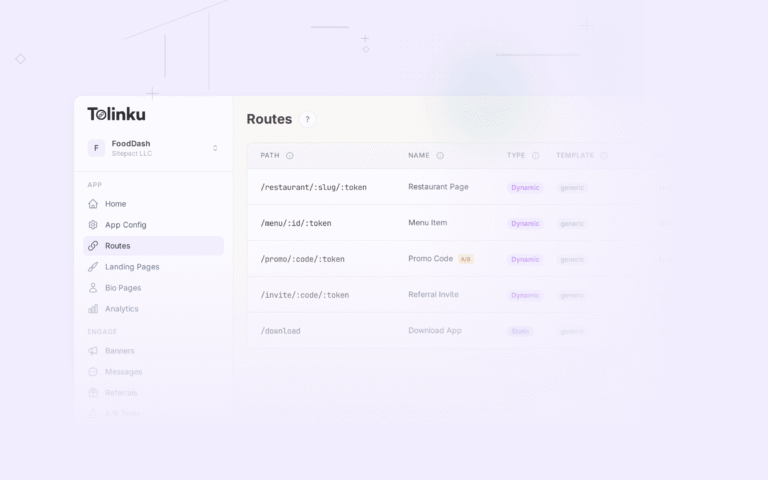
Tolinku's landing page builder lets you configure what users see when they hit a deep link without the app installed, including custom content, branding, and smart redirect logic per platform.
A minimal landing page in terms of HTML structure looks like this:
<!DOCTYPE html>
<html lang="en">
<head>
  <meta charset="UTF-8">
  <meta name="viewport" content="width=device-width, initial-scale=1.0">
  <title>Open in YourApp</title>
</head>
<body>
  <div class="content-preview">
    <img src="{{ content.image }}" alt="{{ content.title }}">
    <h1>{{ content.title }}</h1>
    <p>{{ content.description }}</p>
  </div>

  <div class="actions">
    <a id="store-link" href="#">Download YourApp</a>
    <a href="{{ webUrl }}">Continue in browser</a>
  </div>

  <script>
    const ua = navigator.userAgent;
    const storeLink = document.getElementById('store-link');
    if (/iPhone|iPad|iPod/.test(ua)) {
      storeLink.href = 'https://apps.apple.com/app/id123456789';
    } else if (/Android/.test(ua)) {
      storeLink.href = 'https://play.google.com/store/apps/details?id=com.yourapp';
    } else {
      // Desktop: show web version or hide the download button
      storeLink.style.display = 'none';
    }
  </script>
</body>
</html>
This is the foundation. In practice you'd add proper styling, error handling, and content rendering logic.
Web App Fallback
If your product has a web version, the fallback can send users directly there. Someone clicks a link to a product page, the app isn't installed, and they land on the mobile web version of that product page. No download prompt unless they want it.
This approach minimizes friction for users who don't want to install an app just to see a piece of content. It also makes your links useful to desktop users, who can't install the mobile app anyway.
The pattern is straightforward: Universal Links and App Links already point at real HTTPS URLs. Your web server at those URLs either renders content or performs a redirect. If the content exists on the web, render it. If it doesn't, redirect to the most relevant web page that does.
Where this gets more complex is when you want to offer the app to web visitors who land this way. A smart banner at the top of the page or a custom in-page banner can prompt them to download without blocking the content. See the Apple documentation on Smart App Banners for the native iOS implementation, or build a custom banner for more control over the design and behavior.
Deferred Deep Linking
Deferred deep linking extends the app store redirect with one important addition: the link context (destination path, parameters, payload) is preserved across the install and delivered to the app on first open.
The user taps the link, gets redirected to the app store, installs the app, opens it, and lands on the specific screen the link was pointing to. The link fires late, or "deferred," but it fires.
The mechanics rely on device fingerprinting (IP address, user agent, screen dimensions, timezone) to match the click to the first open. On Android, the Play Install Referrer API provides a more reliable deterministic match. On iOS, fingerprinting is the primary method.
If the content behind your link is app-only and you care about conversion quality (not just install volume), deferred deep linking is the right approach. A user who installs your app and immediately sees the product a friend shared is far more likely to stay than one who installs and lands on the home screen with no context.
Building an Effective Fallback Page
If you choose the landing page approach (which you should for most content-driven links), the page quality directly affects your install and engagement rates. Here is what matters.
Speed
The fallback page is often a user's first contact with your product on the web. If it loads slowly, they leave. Keep it under 2 seconds on a mobile connection. That means a small HTML payload, one or two images (optimized and properly sized), and minimal JavaScript. Avoid loading large frameworks just for a simple redirect page.
Clear context
Show the user what they were trying to see. If the link points to a specific product, show the product image and title. If it points to a user profile, show the profile name and avatar. If you can't show the actual content, at least make it clear what they'll find once they install the app.
Avoid generic "Download our app" pages that give no indication of why the user is there. These convert poorly because the user has no reason to trust that installing the app will give them what they came for.
Single primary action
Your page should have one main call to action. On mobile, that's almost always "Download the app" or "Continue in browser." If both options exist, make the download button more prominent but keep the web link visible. Don't hide the alternative; users who feel trapped abandon.
On desktop, the download button either links to both app stores or is hidden entirely, and the web fallback becomes the primary action.
Platform detection
Different users land on different fallback experiences:
- iPhone and iPad users should see an App Store link.
- Android users should see a Google Play link.
- Desktop users should see the web version or a message that the app is mobile-only.
Detect the platform server-side (using the User-Agent header) for the initial page render, and refine it client-side if needed. Server-side detection ensures the right experience even when JavaScript is disabled or slow to execute.
Here's a basic server-side detection pattern (Node.js/Express):
function getPlatform(userAgent = '') {
  if (/iPhone|iPad|iPod/.test(userAgent)) return 'ios';
  if (/Android/.test(userAgent)) return 'android';
  return 'web';
}

app.get('/link/:slug', async (req, res) => {
  const platform = getPlatform(req.headers['user-agent']);
  const link = await db.getLink(req.params.slug);

  if (!link) return res.status(404).send('Not found');

  const storeUrl = platform === 'ios'
    ? link.appStoreUrl
    : platform === 'android'
      ? link.playStoreUrl
      : null;

  res.render('fallback', {
    link,
    platform,
    storeUrl,
    webUrl: link.webFallbackUrl,
  });
});
Deferred context on the fallback page
If you're using deferred deep linking, you can improve match accuracy by collecting additional device signals on the fallback page before redirecting. Add a short JavaScript snippet that reads screen dimensions, timezone, and device pixel ratio, then appends them as query parameters to your link-click endpoint:
(function() {
  const params = new URLSearchParams({
    sw: window.screen.width,
    sh: window.screen.height,
    tz: Intl.DateTimeFormat().resolvedOptions().timeZone,
    dpr: window.devicePixelRatio,
    lang: navigator.language,
  });

  // Small delay to allow the script to run, then redirect
  setTimeout(() => {
    window.location.href = '/click/' + LINK_ID + '?' + params.toString();
  }, 100);
})();
This gives your matching server better signals when it later tries to pair the click to a first-app-open event.
Platform-Specific Behavior Differences
A few areas where iOS and Android genuinely behave differently, and where those differences affect your fallback implementation.
iOS: No Universal Redirect Method
On iOS, there is no way to detect whether an app is installed from a web page without attempting to open it. The standard pattern for link routing with a custom scheme fallback, which used to involve an iframe trick or window.location plus a setTimeout, no longer works reliably in modern iOS Safari due to how Safari handles navigation events.
For Universal Links, this is not a problem. If the app is installed and the AASA file is valid, iOS opens the app. If not, it opens the web URL. You don't need to detect installation from JavaScript; the OS handles it.
Where this matters is when you want to try opening the app via a custom scheme before falling back to the App Store. That pattern is unreliable on iOS 16 and later. Universal Links are the correct approach. For more on how redirects interact with Universal Links specifically, see our article on Universal Links and redirects.
Android: Intent URLs
Android supports a link format called Android Intent URLs that lets you encode an app intent directly in a URL. The format includes a fallback URL that Chrome uses if the app is not installed:
intent://path/to/content#Intent;
  scheme=yourapp;
  package=com.yourapp;
  S.browser_fallback_url=https%3A%2F%2Fyourapp.com%2Fdownload;
  end;
When a user opens this URL in Chrome on Android and the app is not installed, Chrome follows the browser_fallback_url instead of showing an error. This is a useful alternative to App Links for situations where you need explicit fallback control from the URL itself rather than server-side routing.
Note that Intent URLs only work in Chrome (and Chrome-based browsers). Other Android browsers may handle them differently or not at all. For links shared broadly across email, SMS, and social platforms, App Links are more consistent. Our guide on Android App Links fallback pages covers how to build effective fallback experiences on the Android side.
iOS: Universal Link AASA Caching
Apple's CDN caches AASA files aggressively. When you update your apple-app-site-association file, the CDN may serve the old version for hours or days. This matters during development and if you change your app's Universal Link configuration. Test with a direct request to your .well-known/apple-app-site-association URL to confirm the file reflects your latest changes.
More practically: a user who installs your app and immediately taps a Universal Link might briefly see it open in Safari instead of the app if the OS hasn't fetched and cached the AASA file yet. This is rare in practice but worth knowing if you get reports of Universal Links opening in the browser right after install.
Server-Side Routing for Multi-Platform Links
Most production deep linking setups use a single short URL that the server routes based on the requesting device. For a comprehensive look at how to build the routing layer that sits behind these links, see our deep link routing guide. The server detects the user agent, checks whether the app is likely installed (it can't know for certain, but it can infer from context), and sends the user down the right path.
A complete server-side routing handler looks like this:
app.get('/go/:linkSlug', async (req, res) => {
  const link = await db.getLink(req.params.linkSlug);
  if (!link) return res.status(404).render('not-found');

  const ua = req.headers['user-agent'] || '';
  const platform = getPlatform(ua);

  // Log the click for analytics
  await analytics.track({
    event: 'link_click',
    linkId: link.id,
    platform,
    ip: req.ip,
    userAgent: ua,
    referer: req.headers['referer'],
  });

  if (platform === 'ios') {
    // Universal Link: render a page with the Universal Link
    // so the OS can handle app routing, with App Store fallback
    return res.render('ios-redirect', {
      universalLink: `https://yourdomain.com${link.destination}`,
      appStoreUrl: link.appStoreUrl,
      content: link.preview,
    });
  }

  if (platform === 'android') {
    // App Link: render a page with intent URL + Play Store fallback
    const intentUrl = buildIntentUrl(link, 'com.yourapp');
    return res.render('android-redirect', {
      intentUrl,
      playStoreUrl: `${link.playStoreUrl}&referrer=linkId%3D${link.id}`,
      content: link.preview,
    });
  }

  // Desktop or unknown: render web fallback or content preview
  if (link.webUrl) {
    return res.redirect(link.webUrl);
  }

  res.render('web-fallback', {
    appStoreUrl: link.appStoreUrl,
    playStoreUrl: link.playStoreUrl,
    content: link.preview,
  });
});
For the iOS case, the ios-redirect template renders a page that immediately tries to open the Universal Link via JavaScript (or a meta refresh), with the App Store URL as the fallback if the app is not installed. For Android, the intent URL in the template carries the Play Store fallback URL inside it.
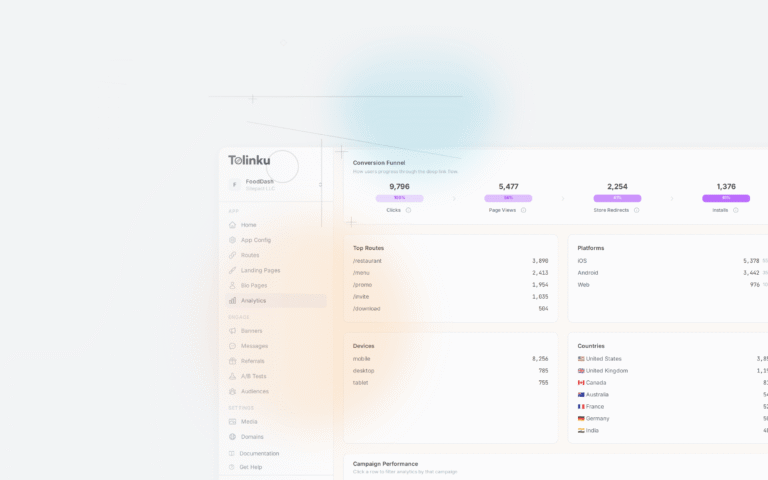
This server-side routing pattern is what Tolinku's deep linking infrastructure handles automatically, along with analytics, A/B testing fallback pages, and deferred deep link matching across the install gap. If you are building this yourself, the code above gives you the skeleton. The complexity compounds as you add edge cases, analytics, retry logic, and platform version-specific behavior.
For a deeper look at how deep linking works conceptually before you get into fallback mechanics, start with the Tolinku deep linking concepts documentation.
What to Avoid
A few common mistakes that degrade the fallback experience:
Silently dropping the user. Custom URI scheme attempts that fail with no fallback leave the user staring at a blank page or an error alert. Always have a fallback URL behind any custom scheme attempt.
Sending everyone to the App Store home. A generic App Store redirect with no referrer context, no content preview, and no explanation why the user should install the app converts poorly. Even a simple landing page with a one-sentence description of what the app does performs better.
Blocking content behind a download wall. If your content exists on the web, don't force users to download the app to see it. Show them the content. Offer the app as an upgrade, not a requirement. Users who choose to download after seeing the content convert at higher rates and retain better than users who were forced.
Ignoring desktop users. Links get shared everywhere, including from mobile to desktop. Your fallback page should handle desktop gracefully: either show the web version of the content or at minimum explain that the experience is mobile-only and offer links to both app stores.
Not testing the fallback. Most teams test the happy path (app installed, link opens correctly) and neglect the fallback. Delete the app from a test device and click your own links. What the user sees without the app is often the first impression your product makes.
Conclusion
Fallback behavior is the part of deep linking that most users actually experience the first time they encounter your app through a link. The link type determines what the OS does by default: custom schemes error silently, Universal Links fall back to the web URL, and App Links fall back to the browser. Your job is to make that web fallback useful.
The four strategies, direct App Store redirect, custom landing page, web app fallback, and deferred deep linking, are not mutually exclusive. Most production implementations combine them: a landing page that shows content context, routes to the appropriate app store, and passes deferred link data through the install so the user lands correctly on first open.
Get the fallback right and a user without your app installed becomes a user who installs it with full context. Get it wrong and the link just breaks.
Get deep linking tips in your inbox
One email per week. No spam.