

A QR code on a business card replaces manual contact entry with a single scan. Instead of typing a name, email, and phone number, the recipient scans the code and the contact is added to their phone. But QR codes on business cards have constraints: limited space, the need for professional aesthetics, and the expectation that the code will work months or years after printing.
For QR code design, see QR code design best practices for higher scan rates. For sizing guidelines, see QR code size and placement: practical guidelines.
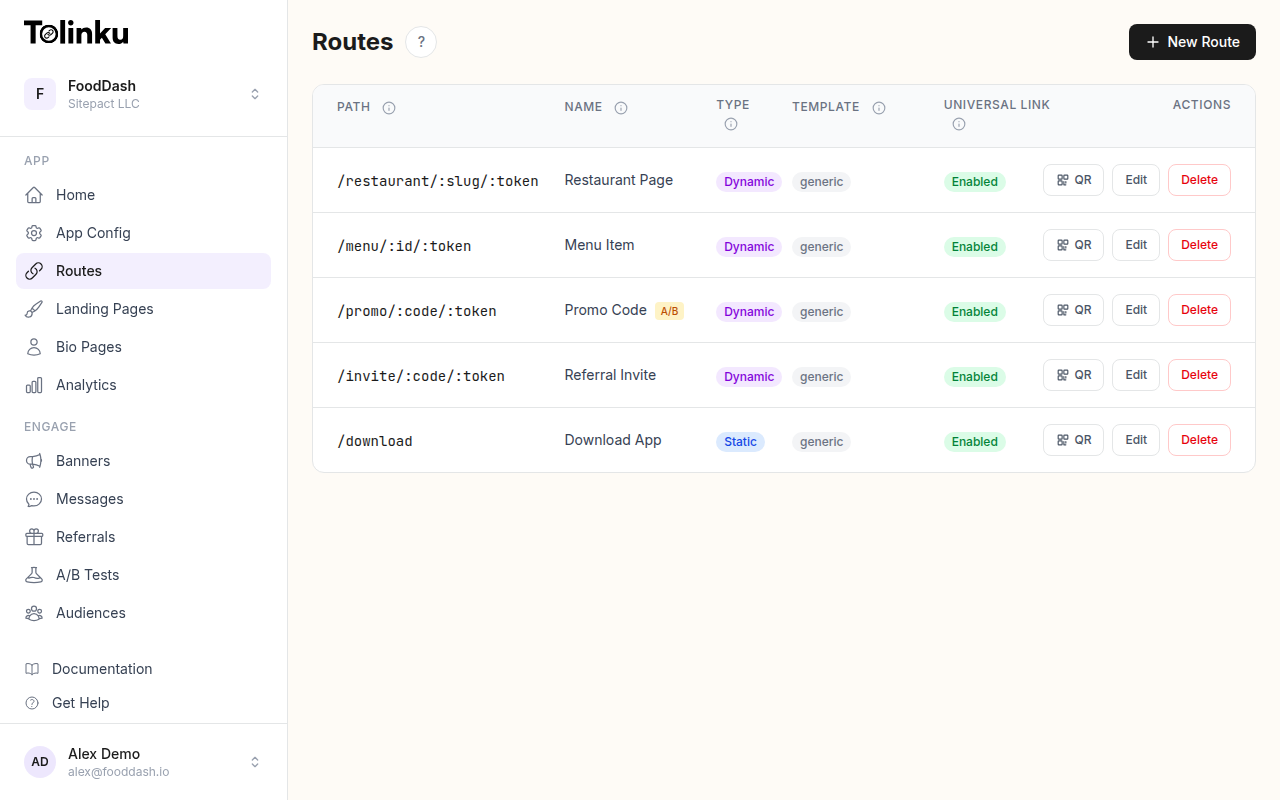 Tolinku route configuration with QR code generation for each deep link.
What to Encode
Option 1: vCard
A vCard encodes contact information directly in the QR code. The recipient's phone creates a contact entry when scanned.
BEGIN:VCARD
VERSION:3.0
N:Doe;Jane
FN:Jane Doe
ORG:Your Company
TITLE:Product Manager
TEL;TYPE=CELL:+1-555-123-4567
EMAIL:[email protected]
URL:https://yourcompany.com
END:VCARD
Pros:
- Works offline (no internet needed).
- Contact is added directly to the phone.
- No intermediate web page.
Cons:
- More data means a denser QR code (harder to scan at small sizes).
- Cannot be updated after printing.
- Adding a photo makes the QR code very complex.
Option 2: URL to Digital Profile
A QR code that links to a web page with your contact information and a "Save contact" button.
https://go.yourcompany.com/card/jane
Pros:
- Short URL means simple QR code.
- Contact information can be updated without reprinting.
- Can include a photo, social links, and portfolio.
- Analytics (track how many people scan).
Cons:
- Requires internet to access.
- Extra step (scan, load page, tap "save contact").
Option 3: LinkedIn Profile
https://linkedin.com/in/janedoe
Pros:
- Simple, one-step connection.
- Profile stays updated.
- Professional context.
Cons:
- Requires LinkedIn account.
- No phone number or email sharing.
- Not suitable for all industries.
Option 4: Custom Landing Page
A branded personal page with multiple actions:
https://go.yourcompany.com/jane

Contains:
- Name, title, company
- Save contact button (downloads vCard)
- Email link
- Phone link
- LinkedIn, Twitter links
- Portfolio/website link
This combines the benefits of a vCard (direct contact save) with the flexibility of a web page (multiple links, analytics, updates).
Recommendation
For most professionals, Option 4 (custom landing page) is the best balance. Use a short URL to keep the QR code simple, and include a "Save contact" button that downloads a vCard.
Design and Placement
Size
Standard business cards are 3.5 x 2 inches (89 x 51 mm). The QR code should be:
- Minimum: 2 x 2 cm (0.8 x 0.8 in)
- Recommended: 2.5 x 2.5 cm (1 x 1 in)
- Maximum: 3 x 3 cm (1.2 x 1.2 in) on a standard card
At these sizes, scan distance is 15-30 cm (6-12 inches), which matches how people hold business cards.
Placement Options
Back of the card (recommended):
- More space for the QR code.
- Does not compete with name and title on the front.
- Can include a call to action: "Scan to save my contact."
Front of the card:
- Higher visibility (the recipient sees it immediately).
- Less space (competes with contact info text).
- Works best on minimalist card designs.
Color and Contrast
- Use dark QR codes on light backgrounds. The standard black-on-white works on any card.
- Brand-colored QR codes work if the contrast ratio is at least 4:1.
- Avoid placing QR codes on textured, metallic, or very dark card stock without a contrasting background.
Branding
- Add your company logo to the center of the QR code (use error correction level H).
- Match the QR code style to the card design (rounded corners, brand colors).
- Keep it professional: subtle branding, not overwhelming.
Technical Considerations
Error Correction Level
For business cards, use:
- Level M for plain QR codes (no logo overlay).
- Level H if embedding a logo in the center.
URL Length
Keep the URL short. Comparison:
| URL | QR Complexity |
|---|---|
go.co/jane |
21×21 modules (simplest) |
go.yourcompany.com/jane |
25×25 modules |
https://yourcompany.com/team/jane-doe?ref=card |
37×37 modules |
| Full vCard (name, email, phone, title) | 41×41+ modules |
Simpler QR codes are easier to scan at small sizes and look cleaner on the card.
Durability
Business cards are handled, stored in wallets, and scanned weeks or months later. The QR code must survive:
- Bending and folding.
- Wallet abrasion.
- Slight moisture.
Matte card stock works better than glossy (less glare when scanning). Coated cards resist wear but can be harder to scan under direct light.
Dynamic vs Static
Static QR Code (vCard)
The data is encoded directly in the QR code. If you change your phone number or title, the old cards still show the old information. You must reprint.
Dynamic QR Code (URL)
The QR code encodes a URL. The URL's destination can be updated without reprinting:
- Changed jobs? Update the landing page.
- New phone number? Update the vCard download on the page.
- Promoted? Update your title on the page.
Dynamic QR codes are the clear winner for business cards. Print once, update anytime.
Analytics
If your QR code links to a URL (not a direct vCard), you can track:
| Metric | Insight |
|---|---|
| Total scans | How often your cards are scanned |
| Unique scans | How many distinct people scanned |
| Scan timing | When people scan (during events, after meetings) |
| Geography | Where your cards end up |
| Device type | iOS vs Android split |
Low scan rates might indicate:
- The QR code is too small or poorly placed.
- No call to action (people do not know what the code does).
- The card does not look professional enough to keep.
Common Mistakes
| Mistake | Impact | Fix |
|---|---|---|
| QR code too small | Does not scan reliably | Minimum 2 x 2 cm |
| No call to action | People do not scan | Add "Scan to save contact" text |
| Encoding too much data | Dense, hard-to-scan code | Use a short URL instead |
| Static vCard on card | Cannot update after printing | Use a dynamic URL |
| Low contrast | Fails on phone cameras | Test dark code on light background |
| Glossy finish on QR area | Glare prevents scanning | Use matte finish or spot UV |
Tolinku for Business Card QR Codes
Tolinku lets you create routes with custom slugs on your branded domain. Create a route like go.yourcompany.com/jane that links to a contact page or vCard download. The QR code generator produces codes ready for print, and you can update the destination anytime.
For the complete QR code guide, see QR codes and short links for mobile apps. For sizing guidelines, see QR code size and placement: practical guidelines.
Get deep linking tips in your inbox
One email per week. No spam.