A branded link domain turns generic URLs into recognizable, trustworthy links. Instead of platform.io/xK7rQ, your links become go.yourapp.com/summer-sale. The setup involves DNS records, SSL certificates, and platform configuration. This tutorial walks through every step.
For the strategic case behind branded links (trust, CTR, and analytics ownership), see Branded Short Links: Setup and Best Practices. This guide focuses on the technical implementation.
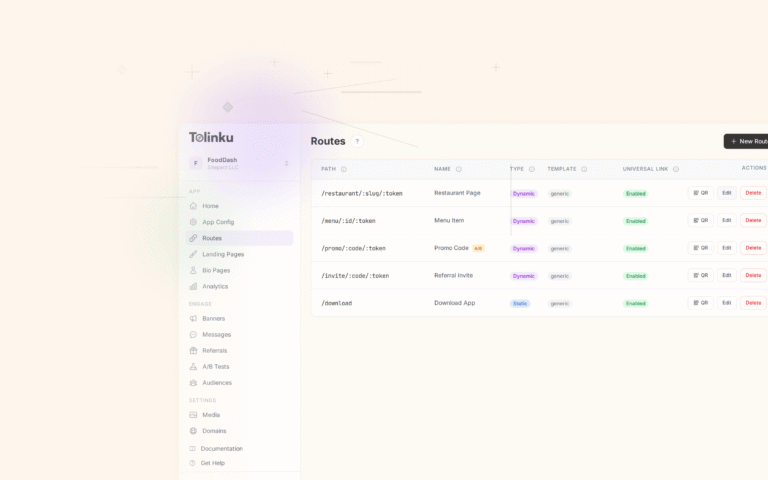
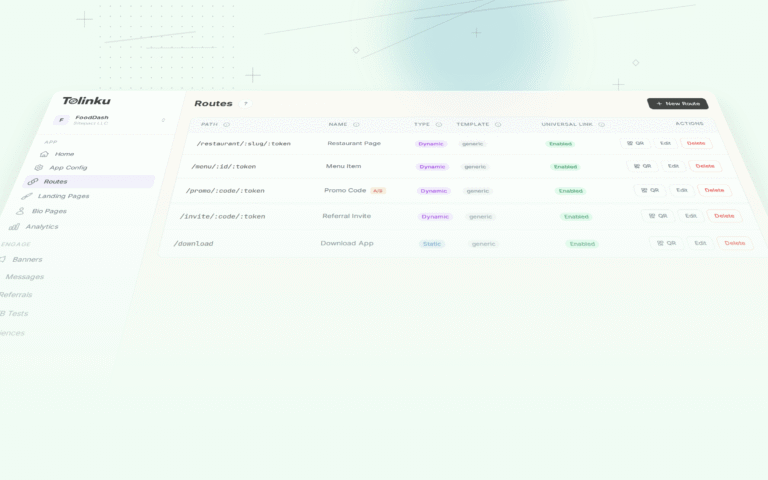
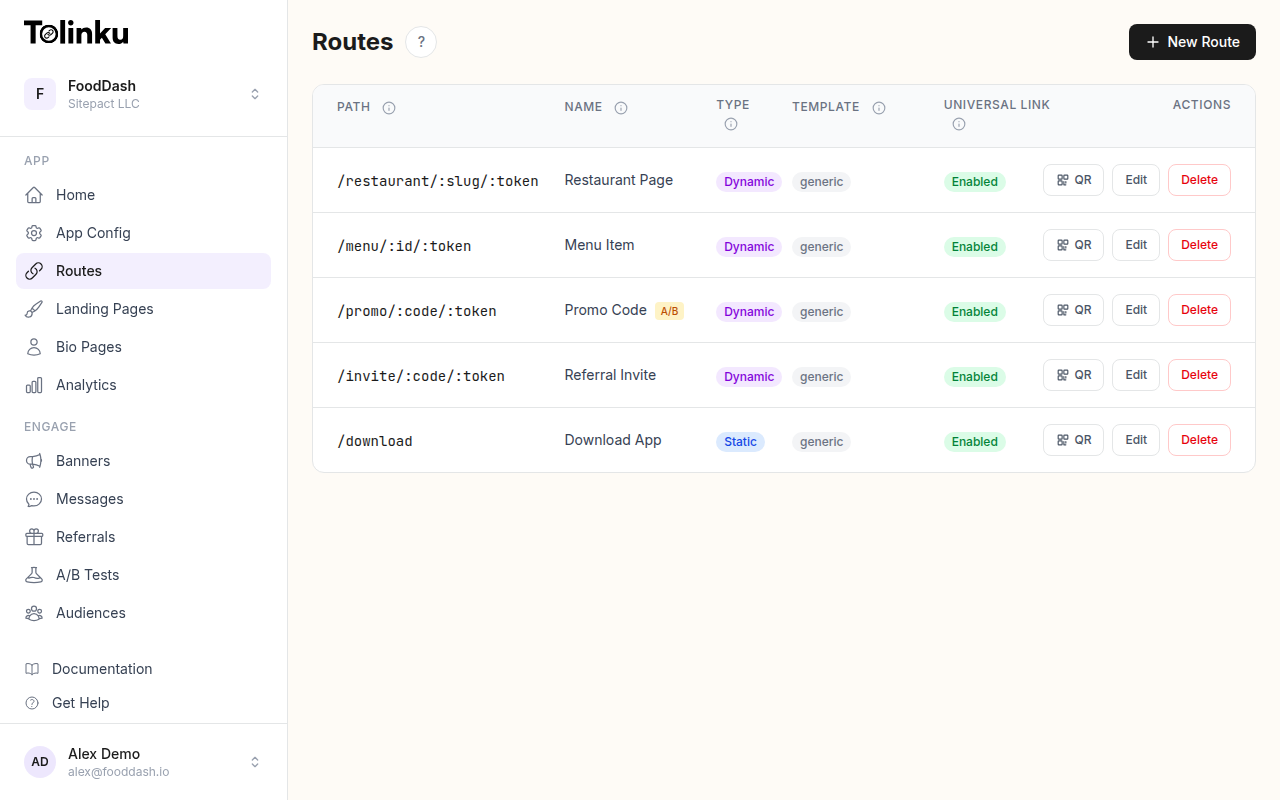 Tolinku route configuration with QR code generation for each deep link.
Choosing Your Domain Strategy
Before touching DNS records, decide what domain structure fits your needs.
Option 1: Subdomain of Your Main Domain
The most common and recommended approach:
go.yourapp.com
links.yourapp.com
l.yourapp.com
Advantages:
- Inherits domain authority and trust from your main domain
- No additional domain purchase needed
- SSL certificates can be provisioned automatically via CNAME validation
- Users immediately recognize the connection to your brand
Common subdomain choices:
go– Short, implies action ("go to this link")links– Descriptive, clear purposel– Minimal, saves charactersget– Good for app download linksshare– Good for user-generated sharing links
Option 2: Separate Short Domain
A dedicated domain purchased specifically for short links:
yrapp.co
getyr.app
Advantages:
- Maximally short (fewer characters in the full URL)
- Can be creative or brandable
- Separates link infrastructure from your main domain
Disadvantages:
- Requires purchasing and maintaining a separate domain
- Doesn't benefit from your main domain's established reputation
- Users may not immediately associate it with your brand
- Additional SSL certificate management
Option 3: Multiple Domains
Some organizations use different domains for different purposes:
go.yourapp.com       → Marketing campaigns
ref.yourapp.com      → Referral program links
help.yourapp.com     → Support and documentation links
This adds management overhead but provides clean separation for analytics and routing. Each domain can have different routing rules and analytics views.
DNS Configuration
CNAME Records (Subdomains)
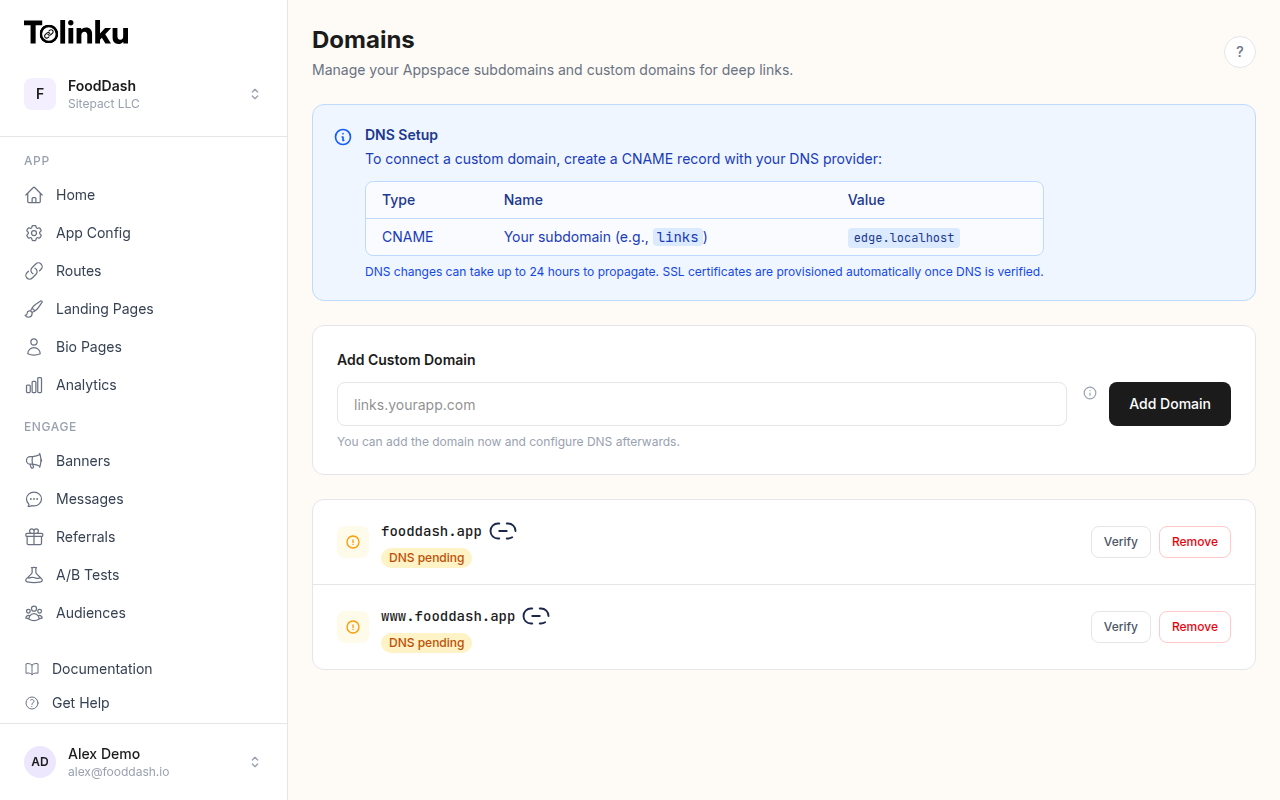
For subdomain setups, create a CNAME record pointing your subdomain to your deep linking platform:
Name:   go
Type:   CNAME
Value:  link.tolinku.com
TTL:    3600 (or Auto)
In your DNS provider's interface, this typically means:
- Navigate to DNS management for your domain
- Add a new record
- Select type "CNAME"
- Enter the subdomain name (just
go, notgo.yourapp.com) - Enter the target value
- Save
DNS propagation takes anywhere from a few minutes to 48 hours, though most changes take effect within 15-30 minutes. You can check propagation status using tools like whatsmydns.net or running dig go.yourapp.com CNAME from your terminal.
A Records (Root Domains)
If you're using a root domain (no subdomain) like yrapp.co, you can't use a CNAME record. RFC 1034 prohibits CNAME records at the zone apex because they conflict with other required records (SOA, NS).
Your options:
- ALIAS/ANAME record: Some DNS providers (Cloudflare, DNSimple, Route 53) support ALIAS or ANAME records that function like CNAME at the zone apex. Check if your provider offers this.
- A record: Point directly to your platform's IP address. The downside is that IP addresses can change, requiring you to update the record.
Cloudflare-Specific Notes
If you use Cloudflare for DNS:
- Set the CNAME record to DNS only (grey cloud icon), not Proxied (orange cloud). Proxying interferes with SSL certificate provisioning and can cause redirect loops.
- If you need Cloudflare's CDN for your main domain, that's fine. Just ensure the link subdomain specifically is set to DNS only.
SSL Certificate Provisioning
HTTPS is non-negotiable. Browsers flag HTTP links as insecure, social platforms may block them, and email providers are more likely to spam-filter them.
Automatic SSL
Most deep linking platforms, including Tolinku, provision SSL certificates automatically once DNS is verified. The typical flow:
- You add the domain in the dashboard
- The platform verifies DNS points to the correct server
- An SSL certificate is requested (usually via Let's Encrypt or similar)
- The certificate is installed and auto-renewed
This entire process usually completes within minutes of DNS propagation.
Troubleshooting SSL Issues
If SSL provisioning fails:
- DNS not propagated yet: Wait 15-30 minutes and retry
- CNAME pointing to wrong target: Double-check the exact value your platform requires
- Cloudflare proxy enabled: Switch to DNS only (grey cloud)
- CAA record blocking: If your domain has a CAA record, ensure it allows your platform's certificate authority (typically Let's Encrypt)
Platform Configuration
Adding the Domain in Tolinku
- Navigate to your Appspace's Domains page
- Click "Add Domain" and enter your branded domain
- The platform checks DNS and provisions SSL
- Once verified, the domain appears with a green status indicator
Configuring Routes
Once your domain is active, all routes in your Appspace are accessible via the branded domain. A route with path /summer-sale becomes available at:
https://go.yourapp.com/summer-sale
Routes are domain-agnostic within an Appspace, meaning the same route works on any verified domain associated with that Appspace. This is useful if you have multiple branded domains for different purposes.
Apple App Site Association (AASA)
For Universal Links to work on your branded domain, the platform serves the AASA file at:
https://go.yourapp.com/.well-known/apple-app-site-association
This file tells iOS which URL paths should open in your app instead of the browser. It's served automatically by the deep linking platform; you don't need to configure it manually.
Android Asset Links
Similarly, the Digital Asset Links file for App Links is served at:
https://go.yourapp.com/.well-known/assetlinks.json
Both files are generated based on your Appspace configuration (bundle ID, Team ID, package name, SHA-256 fingerprint).
Testing Your Setup
Before using your branded domain in production, verify everything works:
DNS Verification
# Check CNAME record
dig go.yourapp.com CNAME +short
# Should return: link.tolinku.com (or your platform's value)

# Check that the domain resolves
curl -I https://go.yourapp.com
# Should return HTTP 200 or a redirect
SSL Verification
# Check SSL certificate
openssl s_client -connect go.yourapp.com:443 -servername go.yourapp.com < /dev/null 2>/dev/null | openssl x509 -noout -subject -issuer
Or simply visit https://go.yourapp.com in a browser and click the lock icon to inspect the certificate.
Link Verification
Create a test route and verify the full redirect chain:
# Follow redirects and show each step
curl -L -v https://go.yourapp.com/test-route 2>&1 | grep "< HTTP\|< location"
Universal Links / App Links
On an iOS device, verify that tapping a link from Messages or Notes opens your app (not the browser). On Android, verify that App Links open your app directly without the disambiguation dialog.
Managing Multiple Domains
If your organization uses multiple branded domains, keep things organized:
Document the purpose of each domain: "go.yourapp.com is for marketing, ref.yourapp.com is for referrals." This prevents confusion when team members create new links.
Consistent naming across domains: If go.yourapp.com/summer-sale is your marketing link, don't also create ref.yourapp.com/summer-sale for something else.
Audit regularly: Domains that are no longer in use should be removed to reduce your attack surface and management overhead.
Monitor SSL renewal: Most platforms auto-renew certificates, but verify that renewals succeed. An expired SSL certificate on your link domain means every link stops working.
Migration from Another Platform
If you're moving your branded domain from another link platform to Tolinku (or any new platform):
- Lower your DNS TTL to 60 seconds a few hours before the switch. This ensures the change propagates quickly.
- Update the CNAME to point to the new platform's target.
- Wait for DNS propagation (with low TTL, this should be fast).
- Recreate your routes on the new platform with the same paths.
- Verify everything works, then raise the TTL back to 3600 or higher.
The critical consideration is that during migration, any links pointing to routes that haven't been recreated on the new platform will break. Plan for this by migrating routes before switching DNS, or accept a brief window of downtime.
Ongoing Maintenance
Branded link domains are set-and-forget once configured, but a few things warrant periodic attention:
- SSL certificate expiration: Verify auto-renewal is working
- DNS record accuracy: If you change DNS providers, remember to recreate the CNAME
- Route cleanup: Archive or delete routes for expired campaigns
- Domain renewal: Don't let your branded domain registration expire
For more on branded link strategy, see Branded Short Links: Setup and Best Practices. For the broader context of short links in mobile marketing, see QR Codes and Short Links for Mobile Apps.
Get deep linking tips in your inbox
One email per week. No spam.