

Appspace Settings
The App Config page is the central hub for your Appspace settings. Open it from the sidebar under App Config. The page is organized into collapsible sections, each with a status indicator showing whether it has been configured.
Configuration status
Section titled “Configuration status”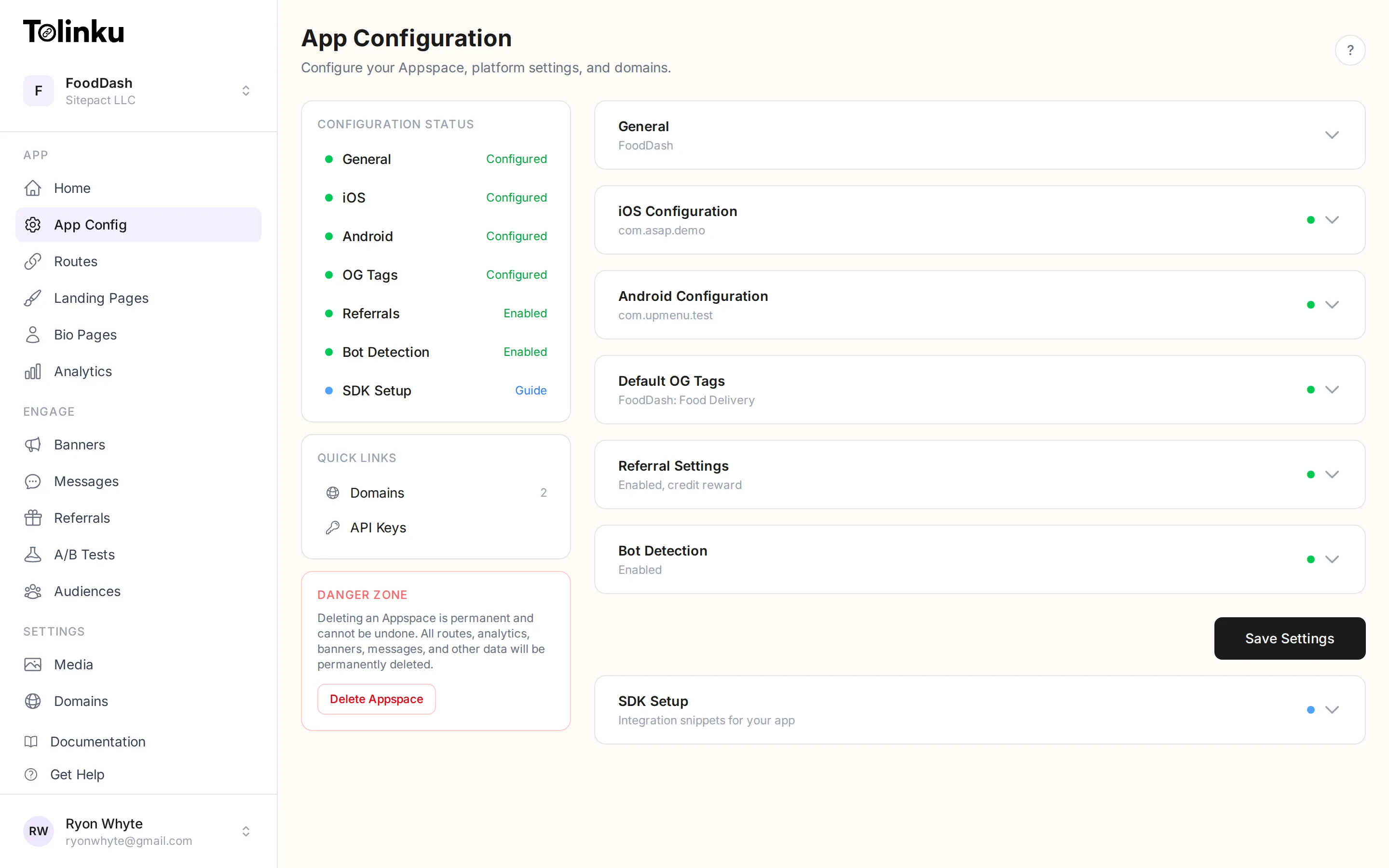
At the top of the page, you will see a status panel that gives you a quick overview of your Appspace configuration:
| Section | Status |
|---|---|
| General | Configured / Not configured |
| iOS | Configured / Not configured |
| Android | Configured / Not configured |
| OG Tags | Configured / Not configured |
| Referrals | Enabled / Disabled |
| Bot Detection | Enabled / Disabled |
| Ecommerce | Configured / Not available (free tier) |
| SDK Setup | Guide (always available) |
A green dot means the section is configured or enabled. This helps you quickly see what still needs attention.
General settings
Section titled “General settings”The General section contains your Appspace’s basic identity:
- Appspace Name: The display name shown in the dashboard and sidebar. You can rename your Appspace at any time.
- Logo: Upload a custom logo for your app. This appears in landing pages and smart banners.
- Primary Color: An accent color (hex value) used in landing pages and banners. Defaults to
#667eea. - Web Fallback URL: The default URL for users who cannot open your app. This is where desktop visitors, or mobile users without your app installed, will be redirected. Individual routes can override this.
- App URL Scheme: Your app’s own URL scheme, written without the
://. Optional, and empty by default. See App URL Scheme below. - App Store Hand-off: A link to the page shown while a visitor is handed to the app store. See The app store hand-off page below.
The app store hand-off page
Section titled “The app store hand-off page”When a visitor on iOS needs to install your app, Tolinku shows a brief page before handing off to the App Store. Every Appspace has one, created for you, and you edit it in the visual builder like any other page. Open it from App Config → General → Edit hand-off page.
It starts with your app icon, your app name, a line of text, a store button in your accent colour, and a link to your Fallback URL. Change any of it.
It appears in your Landing Pages list alongside the rest, marked as used by the app store hand-off rather than by a route, and it cannot be deleted: every route set to None depends on it.
The hand-off itself is not yours to configure, and that is deliberate. Whatever you design, the page always collects the device signals that deferred deep linking matches on, tries your App URL Scheme if you have set one, continues to the store, and falls through to your Fallback URL if the store prompt is dismissed. None of that can be removed in the builder, because losing the signal collection would break deep linking after install for every link in the Appspace, silently.
Two buttons bind to destinations rather than fixed addresses. A button with its URL source set to App store or Fallback URL always points where this particular link is actually sending the visitor, so you can change a label without the link drifting. Both sources are available on ordinary landing pages too.
This page is used on routes whose landing page is set to None. A route with a Generic or Custom landing page shows that instead.
App URL Scheme
Section titled “App URL Scheme”An optional field holding your app’s own URL scheme, without the ://. For example, enter fooddash if your app registers fooddash://.
When it is set, a visitor being sent to the app store is offered the app first. This matters when the operating system did not open the link itself even though the app is installed, which happens most often inside in-app browsers such as those in social and messaging apps. Tolinku tries the scheme, waits briefly, and continues to the store if nothing answers.
It also governs every other place Tolinku addresses your app, including the Open in App buttons on landing pages and on the hand-off page itself. Where it is unset those fall back to your Appspace slug, which is what they used before this field existed.
This is separate from Universal Links and App Links. Those are the primary mechanism and should be configured first, as covered in Configuring iOS and Configuring Android. The URL scheme is a fallback for the cases they cannot reach.
iOS configuration
Section titled “iOS configuration”The iOS section is where you set up Universal Links. See the dedicated Configuring iOS guide for a full walkthrough.
Key fields:
- Apple Team ID
- Apple Bundle ID
- iOS App Store URL
Android configuration
Section titled “Android configuration”The Android section is where you set up App Links. See the dedicated Configuring Android guide for a full walkthrough.
Key fields:
- Android Package Name
- SHA-256 Certificate Fingerprints
- Google Play Store URL
Default OG tags
Section titled “Default OG tags”Open Graph (OG) tags control how your links appear when shared on social media, messaging apps, and other platforms that generate link previews.
The defaults you set here apply to all routes in this Appspace. Individual routes can override these values with their own OG tags.
- OG Title: The title shown in link previews (e.g. “FoodDash: Food Delivery”).
- OG Description: A short description shown below the title. Keep it under 200 characters.
- OG Image: The preview image. Recommended size is 1200x630 pixels. Upload an image or provide a URL.
Referral settings
Section titled “Referral settings”The Referrals section lets you enable and configure Tolinku’s built-in referral system. When enabled, you can track referral chains, set milestones, and reward users.
- Enable Referrals: Toggle the referral system on or off.
- Expiration (days): How long a referral link stays valid (1 to 365 days, defaults to 30).
- Max Referrals Per User: Optional cap on active referrals per user. Leave empty for unlimited.
- Milestone Pipeline: Optional. An ordered list of steps a referral must progress through before reaching the reward milestone (e.g. “signed_up, verified, first_order”). Leave empty if you only need a single reward trigger.
- Reward Milestone: The milestone name that triggers referral completion and grants the reward. Pick from suggestions (completed, signed_up, first_purchase, etc.) or type any custom value that matches your app’s logic.
- Reward Type: None, Points, Credit, Discount, or Custom.
- Reward Value: The reward amount or code (e.g. “500”, “$5”, “20%”).
For a complete guide, see Referrals.
Bot detection
Section titled “Bot detection”Bot detection filters automated traffic from your analytics so your click and install numbers reflect real users.
- Enable Bot Filtering: On by default. When enabled, Tolinku uses User-Agent analysis to identify and filter bot traffic.
- UA Whitelist: User-Agent substrings that should never be flagged as bots. One per line. Case-insensitive.
- UA Blacklist: User-Agent substrings that should always be flagged as bots. One per line. Case-insensitive.
Ecommerce settings
Section titled “Ecommerce settings”The Ecommerce section configures revenue tracking, currency, and fraud detection. These settings are available on paid plans (Standard and above).
- Base Currency: The currency used for revenue reporting (e.g. USD, EUR, GBP). All purchases in other currencies are automatically converted to this currency using live exchange rates. Defaults to USD.
- Reporting Timezone: The timezone used for grouping daily revenue in charts (e.g. America/New_York). Defaults to UTC.
- Cart Abandonment Hours: How many hours after a
begin_checkoutevent to wait before flagging the cart as abandoned. Used by the cart abandonment detection job. Defaults to 24. - Fraud Detection: Toggle fraud rules on or off. When enabled, the following rules apply:
- Bot Detection: Purchases from bot-flagged user agents are blocked.
- Impossible Revenue: Purchases exceeding the configured maximum (in cents) are flagged.
- Velocity Limit: Users exceeding the configured purchases-per-hour limit are flagged.
- Allowed Currencies: A comma-separated list of accepted currency codes. Purchases in unlisted currencies are flagged.
- Referral Ecommerce Milestones: A comma-separated list of ecommerce event types that auto-complete referral milestones (e.g.
purchase,add_to_cart). When a user with an active referral triggers one of these events, the referral milestone is automatically progressed.
SDK setup
Section titled “SDK setup”The SDK Setup section provides copy-paste integration snippets for each platform:
- iOS (Swift Package Manager)
- Android (Gradle)
- Web (npm or CDN script tag)
- React Native (npm)
- Flutter (pubspec.yaml)
Each snippet includes your Appspace’s configured scheme and domain, so you can drop it directly into your project. For full SDK documentation, see the Developer Guide.
Quick links
Section titled “Quick links”The App Config page also includes shortcuts to:
- Domains: Manage subdomains and custom domains
- API Keys: Create and revoke API keys
Danger zone
Section titled “Danger zone”At the bottom of the page, the Danger Zone allows account owners to permanently delete an Appspace. This removes all routes, analytics, banners, messages, and associated data. This action cannot be undone.