

Visual Builder
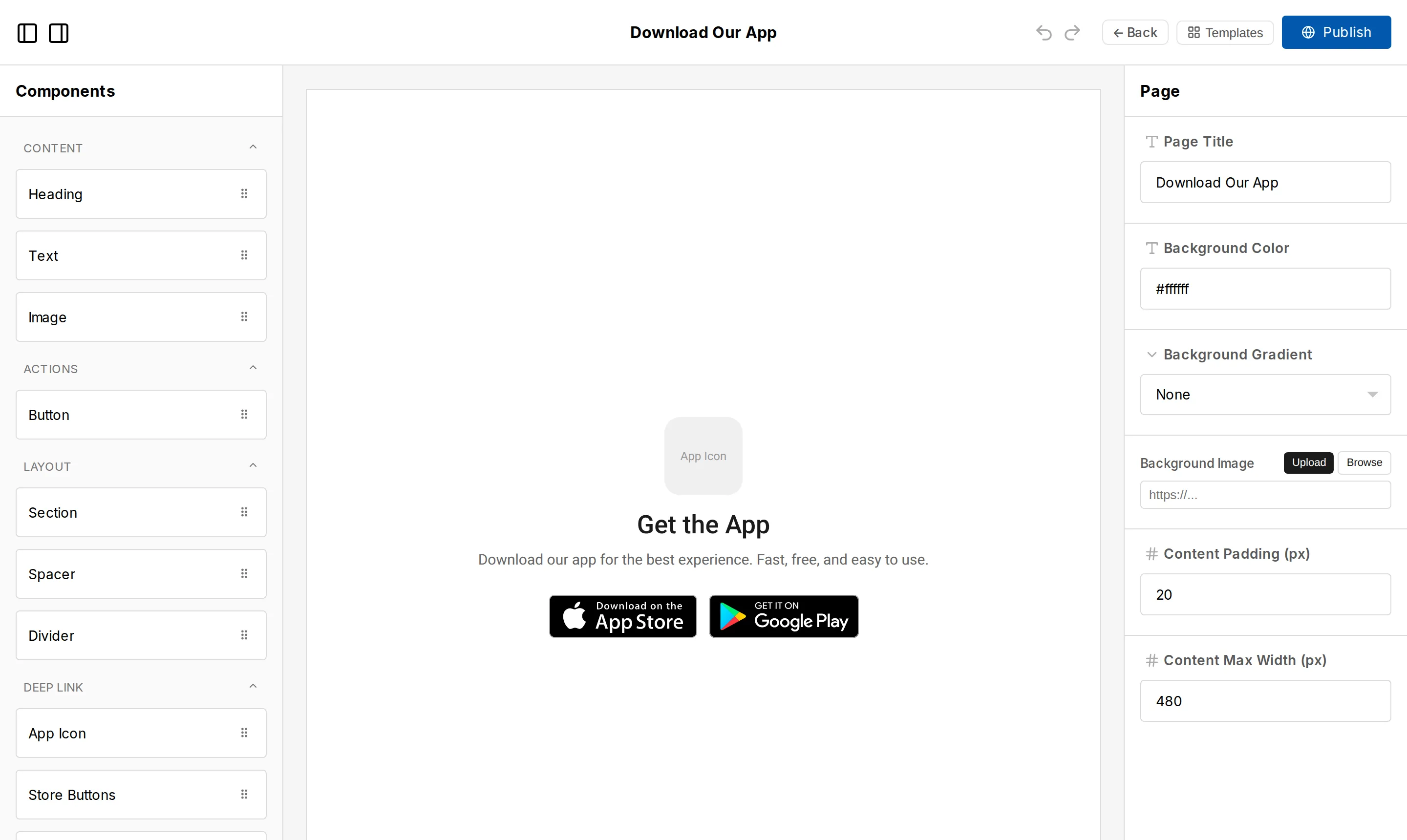
The visual builder is a drag-and-drop editor for designing landing pages and bio pages. It uses Puck, an open-source visual editor, to give you full control over layout and content without writing code.
Opening the builder
Section titled “Opening the builder”You access the visual builder from two places:
- Landing Pages: Click Design on any landing page to open its design in the builder.
- Bio Pages: Click Design on any bio page to open its design in the builder.
The builder opens in a full-screen view with a sidebar of components on the left, a canvas in the center, and a properties panel on the right.
How it works
Section titled “How it works”The builder uses a component-based approach. You drag components from the sidebar onto the canvas, arrange them in the order you want, and configure each one using the properties panel.
Adding components: Drag a component from the left sidebar and drop it onto the canvas. It snaps into position in the page flow.
Selecting components: Click any component on the canvas to select it. The properties panel on the right updates to show that component’s settings.
Reordering: Drag components up or down on the canvas to change their order.
Removing: Select a component and click the delete button, or use the context menu.
Saving and publishing
Section titled “Saving and publishing”Click Publish to save and publish your changes. The published version goes live immediately for any routes or bio page slugs that reference it.
Templates
Section titled “Templates”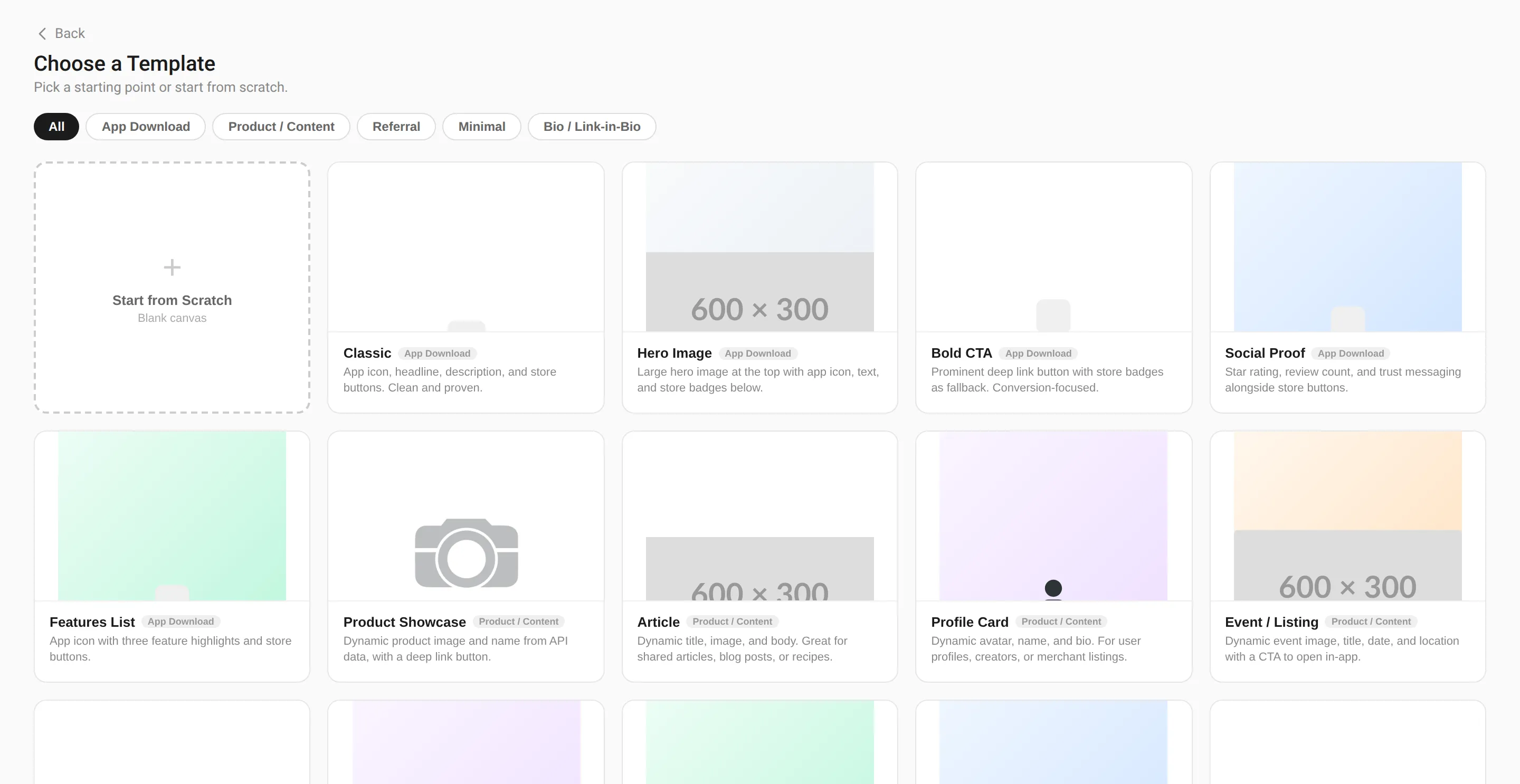
When creating a new landing page or bio page, you can start from a template instead of a blank canvas. Templates provide a pre-built layout with placeholder content that you can customize.
Templates are organized into categories:
- App Download: Classic, Hero Image, Bold CTA, Social Proof, Features List. Designed to drive app installs with store badges and prominent CTAs.
- Product / Content: Product Showcase, Article, Profile Card, Event / Listing. Designed for dynamic routes where the landing page shows content from your API.
- Referral: Templates for referral invite pages.
- Minimal: Clean, stripped-down layouts.
- Bio / Link-in-Bio: Templates for bio pages with link lists and social icons.
You can also start from scratch with a blank canvas.
Preview
Section titled “Preview”The builder includes a preview mode that shows your page as users will see it. Toggle between desktop and mobile preview sizes to check responsiveness.
- Keep it focused: Landing pages work best with a single clear call to action. Do not overload the page with content.
- Test on mobile: Most deep link traffic comes from mobile devices. Always preview your page at mobile width.
- Use your brand colors: Upload your logo and set brand colors in the component properties to match your app’s look and feel.
- Image sizing: Use images from your media library for fast loading. Avoid uploading images larger than necessary.