

Creating Banners
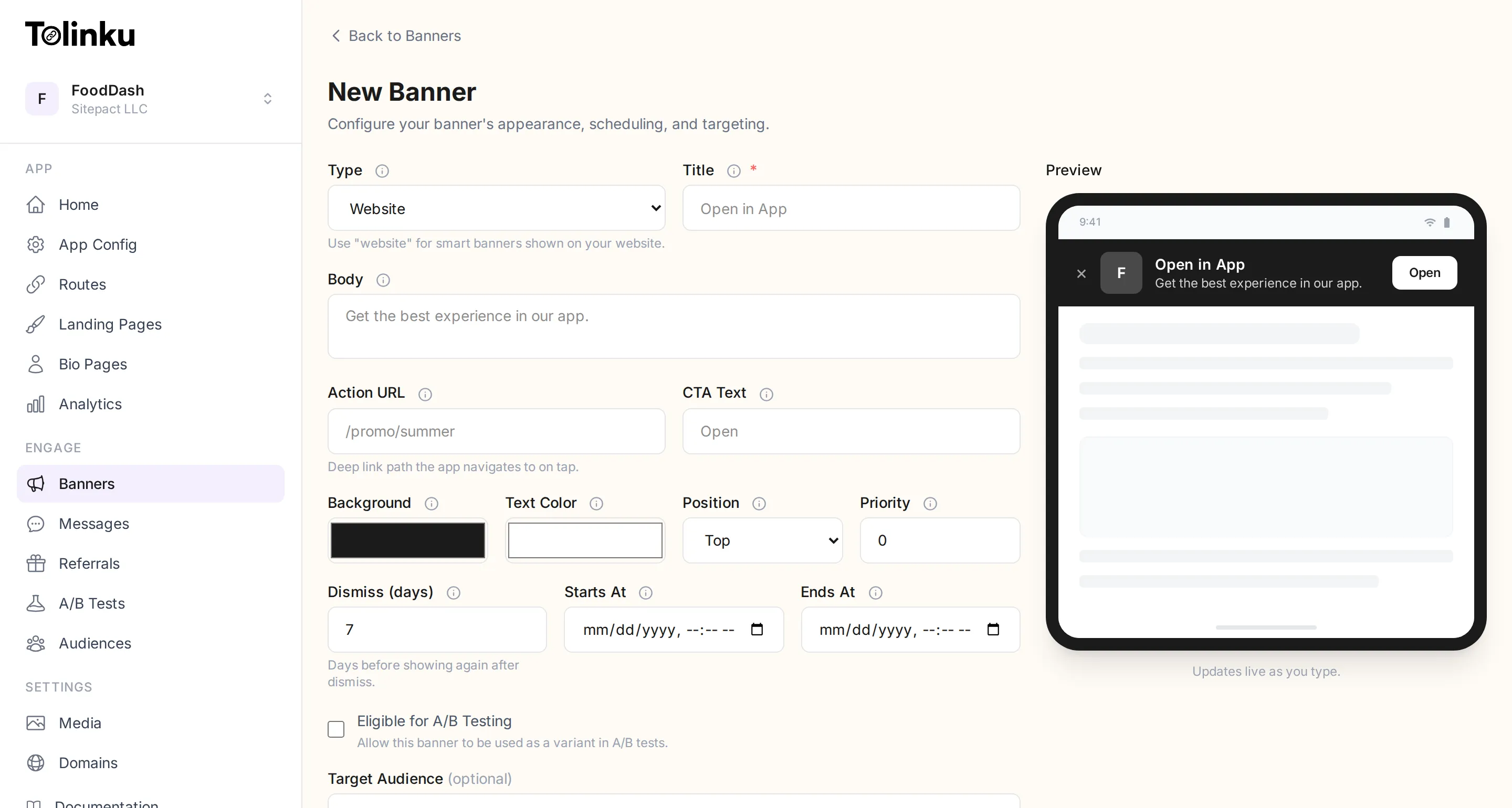
Creating a banner
Section titled “Creating a banner”-
Go to Banners in the sidebar.
-
Click New Banner.
-
Fill in the banner fields:
- Title (required): The main text shown in the banner. Keep it short (e.g. “Get the FoodDash App”).
- Body (optional): A secondary line of text below the title (e.g. “Order food faster with our app”).
- Label (required): Choose
website,info,promo, orannouncement. - CTA text (optional): The button text (e.g. “Open”, “Install”, “Get”). Defaults to “Open” if left blank.
- Action URL (optional): A deep link path that the banner opens (e.g.
/promo/summer). If not set, the banner links to your app’s install page.
-
Click Create.
Your banner is active immediately. If you have the banner script on your website, mobile visitors will start seeing it.
Editing a banner
Section titled “Editing a banner”Click Edit next to any banner in the list. Make your changes and click Save. Changes take effect immediately for new page loads.
Toggling active/inactive
Section titled “Toggling active/inactive”Click the toggle switch next to a banner to enable or disable it without deleting it. Inactive banners are not served to visitors.
Deleting a banner
Section titled “Deleting a banner”Click Delete next to the banner. This is permanent. If you want to temporarily hide a banner, toggle it inactive instead.