

Reports
Reports turns your analytics into files you can share. Pick a ready-made report, set the period and filters, and download it as a spreadsheet (CSV) or a PDF. You can also have a report emailed to your team every week or month, and export every raw event for your own analysis.
Reports use the same numbers as the Analytics page. To open them, click Reports under Analytics in the sidebar.
The page has three tabs:
- Reports: the library of ready-made reports.
- Scheduled: reports emailed on a schedule.
- Exports: every file made in the last 7 days, ready to download again.
The reports
Section titled “The reports”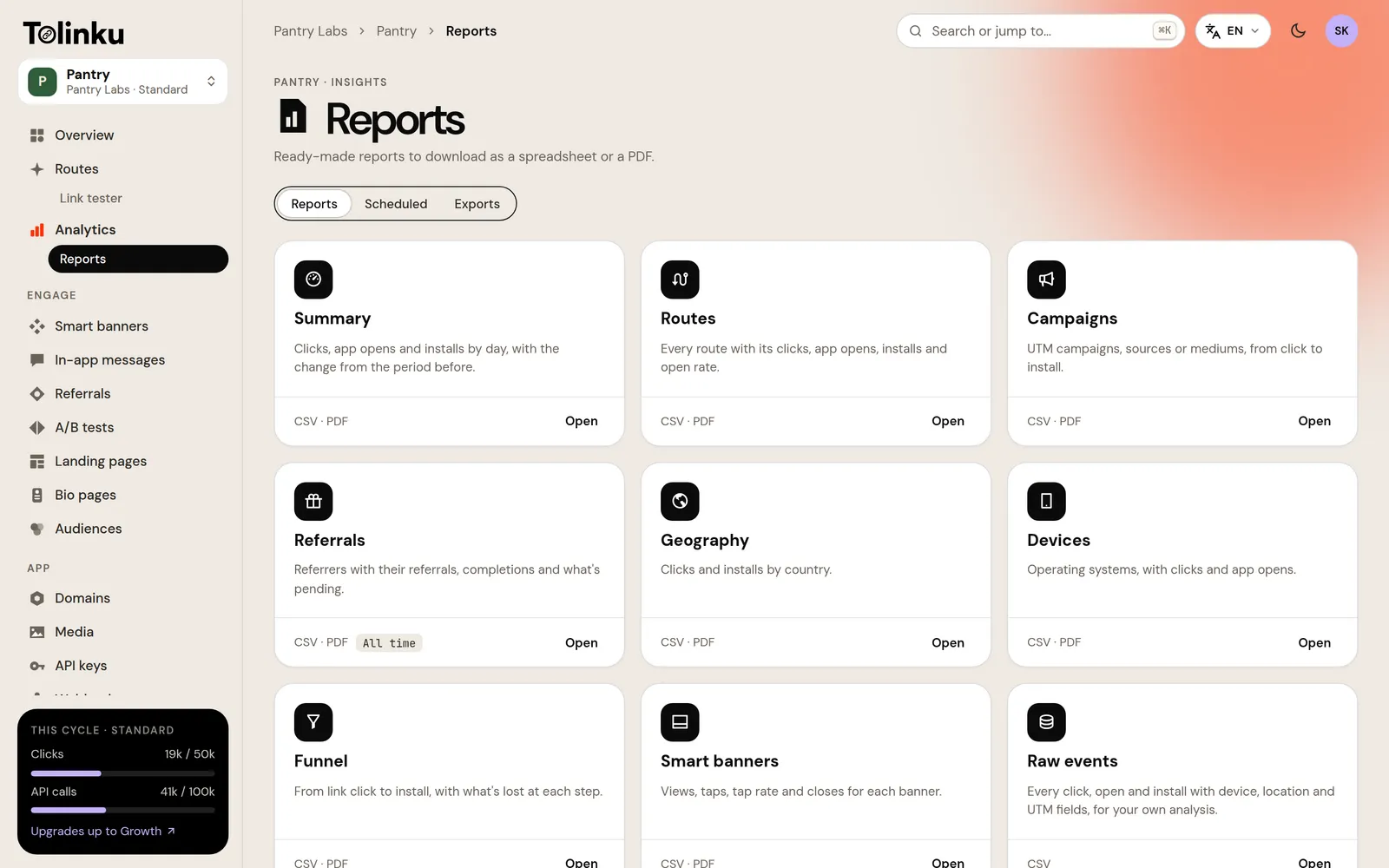
| Report | What it shows | Formats |
|---|---|---|
| Summary | Clicks, app opens and installs by day, with the change from the period before. | CSV, PDF |
| Routes | Every route with its clicks, app opens, installs and open rate. | CSV, PDF |
| Campaigns | UTM campaigns, sources or mediums, from click to install. | CSV, PDF |
| Referrals | Referrers with their referrals, completions and what’s pending. | CSV, PDF |
| Geography | Clicks and installs by country. | CSV, PDF |
| Devices | Operating systems, with clicks and app opens. | CSV, PDF |
| Funnel | From link click to install, with what’s lost at each step. | CSV, PDF |
| Smart banners | Views, taps, tap rate and closes for each banner. | CSV, PDF |
| Raw events | Every click, open and install with device, location and UTM fields. | CSV |
A few reports work a little differently:
- Referrals needs a paid plan. It always covers All time, because referral totals aren’t kept per day, so the period and filters don’t apply.
- Campaigns can be grouped by Campaign, Source or Medium.
- Smart banners numbers aren’t split by platform, country or campaign, so the filters don’t apply to it.
- Raw events is made in the background. See Exporting raw events.
Downloading a report
Section titled “Downloading a report”-
On the Reports tab, click Open on a report. It opens in a drawer.
-
Pick a Period: 24h, 7d, 30d or 90d.
-
Under Filters, narrow it down by platform, country or campaign if you like.
-
Under Format, pick PDF (to share or print) or CSV (for spreadsheets).
-
Click Download PDF or Download CSV.
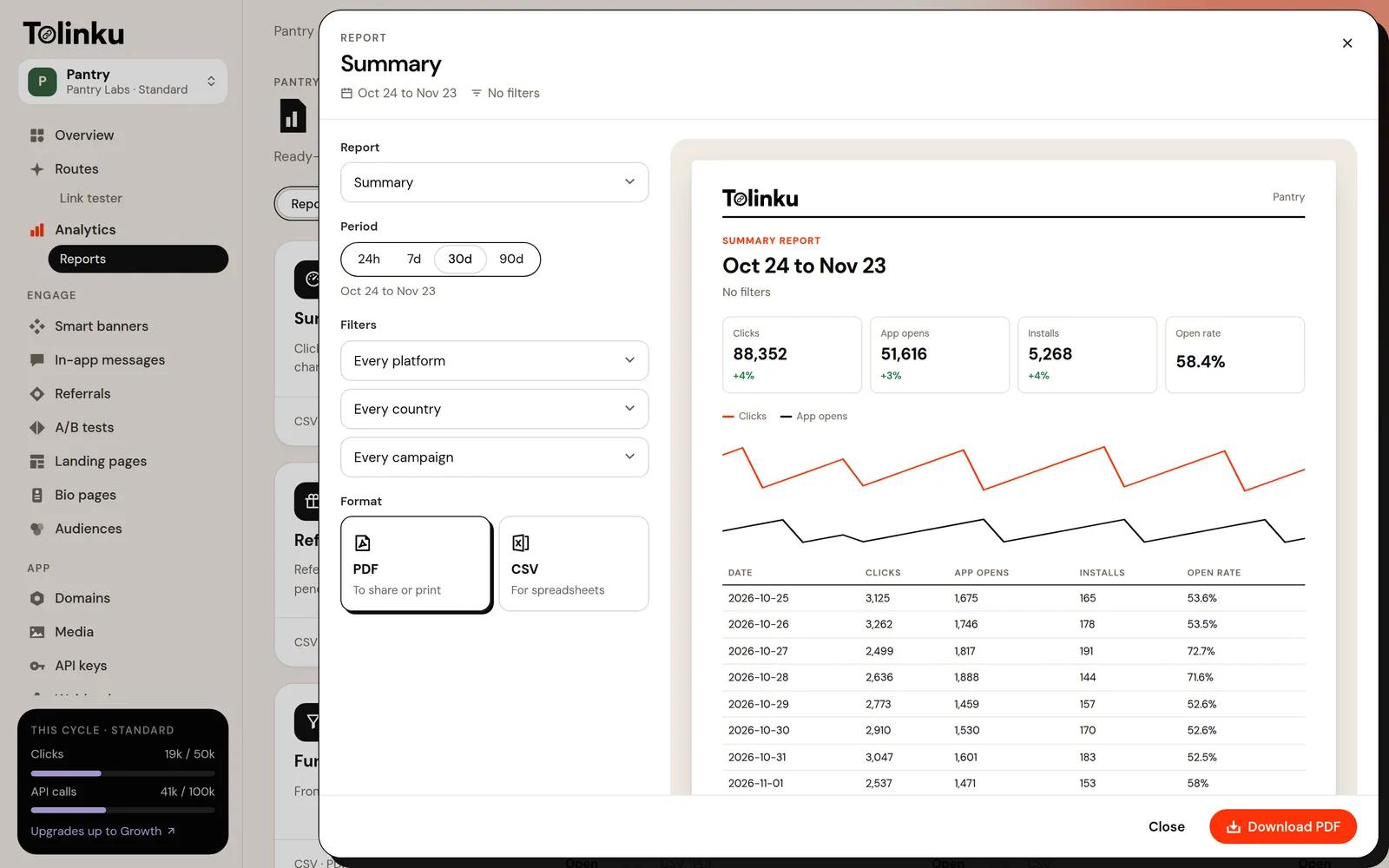
The right side of the drawer shows a preview of the file. It updates each time you change a setting, and shows the first 10 rows. You can switch to another report with the Report menu at the top without closing the drawer.
Files are named after the Appspace, the report, the period and the date, for example pantry-routes-30d-2026-11-19.csv. A copy of every report you download is also kept on the Exports tab for 7 days.
Scheduled reports
Section titled “Scheduled reports”A scheduled report emails a report to your team every week or month, with the PDF or CSV attached. Scheduled reports come with Standard and up, and only owners and admins can create or change them.
-
Go to the Scheduled tab and click New schedule. You can also click Schedule at the bottom of a report’s drawer to start from that report’s settings.
-
Give it a Name and pick the Report.
-
Under Covering the last, pick 7, 30 or 90 days.
-
Under How often, pick Weekly and a day of the week, or Monthly and a day of the month (1 to 28). Then pick the time and the time zone. The time zone starts as your Appspace’s reporting timezone.
-
Under Send to, pick the people on your team who should get it. Under Also send to, add up to 5 addresses outside the team, separated by commas.
-
Open Format and filters to choose Attach as PDF or CSV, and to add platform, country or campaign filters.
-
Click Create schedule.
The Scheduled tab lists each schedule with its report, when it’s sent, how many people get it, and when it goes out next. An Appspace can have up to 20 schedules.
Click a schedule to change it. From its drawer you can also:
- Send me a copy: sends the report now, to you only, so you can see what the others will get.
- Pause and Turn back on: stop sending for a while without losing the schedule.
- Delete schedule: stop for good. Reports already sent stay in people’s inboxes.
When a schedule stops sending
Section titled “When a schedule stops sending”If a send fails, the schedule shows Last send failed with the reason. A schedule stops sending when:
- The Appspace moves to the Free plan.
- Everyone it was for has left the team.
- The person who set it up leaves the team. Team members still get it, but it no longer goes to the outside addresses.
Each emailed report is also kept on the Exports tab for 7 days.
Exporting raw events
Section titled “Exporting raw events”Raw events gives you every click, app open and install in the period, one row per event, with device, location, UTM fields and revenue. Use it to load your data into your own tools.
-
On the Reports tab, click Open on Raw events.
-
Pick the Period and any Filters. The drawer shows how many events the file will have.
-
Click Start export.
The export runs in the background and shows up on the Exports tab, with its progress. When it’s Ready, click the download icon. If it takes more than a minute, Tolinku also emails the person who started it.
A few limits apply:
- One file holds up to 500,000 events. If the period has more, you get the newest ones. Pick a shorter period for the rest.
- An Appspace can run up to 3 exports at once.
- Owners, admins and editors can start an export. Viewers can’t.
The Exports tab
Section titled “The Exports tab”The Exports tab lists every report file made in the last 7 days: reports you downloaded, reports that were emailed on a schedule, and raw event exports. Each row shows the report, its period, who made it (or Emailed, for a scheduled report), its status and its size.
Files are kept for 7 days. After that, the row shows Expired, and you can make the report again from the Reports tab.
Who can use Reports?
Section titled “Who can use Reports?”Everyone on the team can open reports and download them. Starting a raw events export needs an owner, admin or editor. Creating and changing scheduled reports needs an owner or admin.
Why doesn’t the PDF download work?
Section titled “Why doesn’t the PDF download work?”If PDFs aren’t available for a moment, the download says so. Download the CSV instead, or try again in a few minutes.
Do reports count against my API calls or clicks?
Section titled “Do reports count against my API calls or clicks?”No. Reports read your existing analytics. They don’t create clicks or API calls.