

Link Tester
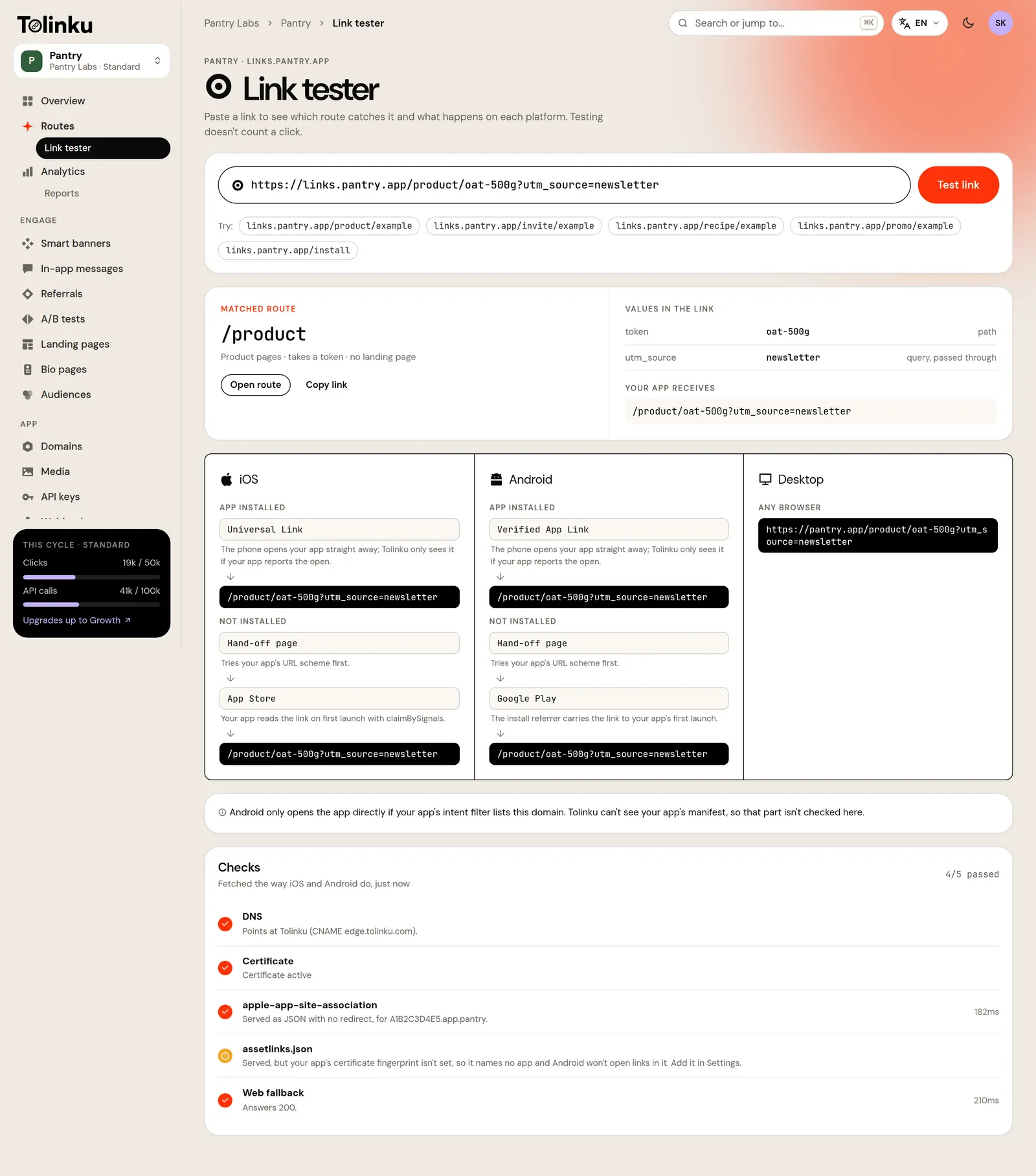
The Link tester shows what a link does before you share it. Paste a link on one of your domains and Tolinku tells you which route catches it, what values it carries, and where people end up on iPhone, Android and desktop. It also checks your domain and association files.
Testing a link never opens it, so it doesn’t count a click and doesn’t touch your analytics. Everyone on the team can use it, viewers included.
Testing a link
Section titled “Testing a link”-
In the sidebar, open Routes, then Link tester.
-
Paste a full link into the box, for example
https://links.yourapp.com/product/123?utm_source=newsletter. Under the box, Try: lists example links built from your first few routes. Click one to test it. -
Click Test link.
You can also start from a route. Open the route from the Routes list and click Test at the top of the drawer. The tester opens with an example link for that route already filled in. Until your links get their first clicks, the Overview page links here too, from its Test a link step.
Reading the result
Section titled “Reading the result”Matched route
Section titled “Matched route”The Matched route card shows the route that catches the link, its name, whether it’s static or takes a token, and which landing page it uses. If the link uses the route’s short code instead of its path, you’ll see by its short code.
- Open route opens the route’s drawer so you can change it.
- Copy link copies the full link.
Values in the link
Section titled “Values in the link”Values in the link lists the token from the path and every query parameter, and says what happens to each one:
| Source | Meaning |
|---|---|
| path | The token from the link’s path. |
| query, passed through | A query parameter your app receives, because the route forwards query parameters. |
| query, not passed on | A query parameter your app doesn’t receive, because the route doesn’t forward them. |
| query, read by Tolinku | A parameter Tolinku uses itself: deep_link_value, prefer_fallback or user_id. |
Your app receives shows the path your app gets when it opens. See Forwarding Query Params to change which parameters reach your app.
iOS, Android and Desktop
Section titled “iOS, Android and Desktop”The three columns show each step a tap goes through, from top to bottom:
- iOS and Android each show two paths: App installed and Not installed. For example, with the app installed, a tap on iPhone goes through a Universal Link straight into your app. Without it, the tap goes to the Hand-off page, then the App Store, then your app on first launch.
- Desktop shows where any browser goes: your web fallback, or the landing page when there’s no fallback.
Each step has a short line underneath that explains it. When your app can’t open directly from the link, a note under the column says why, for example “the Apple Team ID or bundle ID isn’t set” or “Universal Links are off for this route”.
Notes under the columns cover anything else that changes the outcome: a click limit or expiry date on the route, a running A/B test, or a deep_link_value that sets the web fallback.
Checks
Section titled “Checks”Checks run live, the way iOS and Android fetch your domain, so they take a moment to load:
| Check | What it looks at |
|---|---|
| DNS | Whether your custom domain points at Tolinku. |
| Certificate | Whether the domain has a working SSL certificate. |
| apple-app-site-association | Whether iOS can fetch your association file and finds your app in it. |
| assetlinks.json | Whether Android can fetch your association file and finds your app in it. |
| Web fallback | Whether your web fallback URL answers. |
The score in the corner, like 4/5 passed, counts the checks that passed. Each failing check says what’s wrong. Fix the domain under Domains and the app details under Settings, then test again.
When a link doesn’t match
Section titled “When a link doesn’t match”If Tolinku can’t follow the link, the tester says why instead of showing the platforms:
| Message | What it means | What to do |
|---|---|---|
| Can’t read that | The text isn’t a link. | Paste the full link, starting with https://. |
| Domain not connected | The link’s domain isn’t one of this Appspace’s domains. | Use one of your domains, or add the domain under Domains. |
| No route matches | No route handles that path, so visitors see “Invalid link”. | Click Create a route, or fix the path. |
| No token on this route | The route is static, but the link has something after its path. | Remove the token, or use a route that takes one. |
| Expired | The route’s expiry date has passed. | Change the expiry date on the route. See Expiration. |
| Unavailable | The Appspace is frozen or its billing isn’t active, so the link shows “temporarily unavailable”. | Check your plan under Billing & Plans. |
Does testing a link count as a click?
Section titled “Does testing a link count as a click?”No. The tester works the result out from your routes and settings without opening the link. The live checks fetch your domain’s association files and your web fallback, never the link itself.
The tester says the app opens, but it doesn’t on my phone
Section titled “The tester says the app opens, but it doesn’t on my phone”The tester shows what should happen based on your settings. Your phone also needs a build of your app with the domain set up in Associated Domains (iOS) or an intent filter (Android). Pasting a link into the browser’s address bar never opens an app, so tap the link from another app, such as Notes or Messages. See Configuring iOS and Configuring Android.
Can I test a link on another Appspace’s domain?
Section titled “Can I test a link on another Appspace’s domain?”No. The tester only follows links on the current Appspace’s domains. Switch to the other Appspace first.